

Prerequisites
Before you connect, you must first do the following:- Connect a data source to your Connect AI account. See Sources for more information.
- Generate a Personal Access Token (PAT) on the Settings page. Copy this down, as it acts as your password during authentication.
Connect to Connect AI
To establish a connection from Workato to the Connect AI Virtual SQL Server API, follow these steps.1
Log in to Workato.
2
On the navigation bar, click Projects.
3
Enter a name for the new project and click Create project.
4
In your new project, click Create > Connection.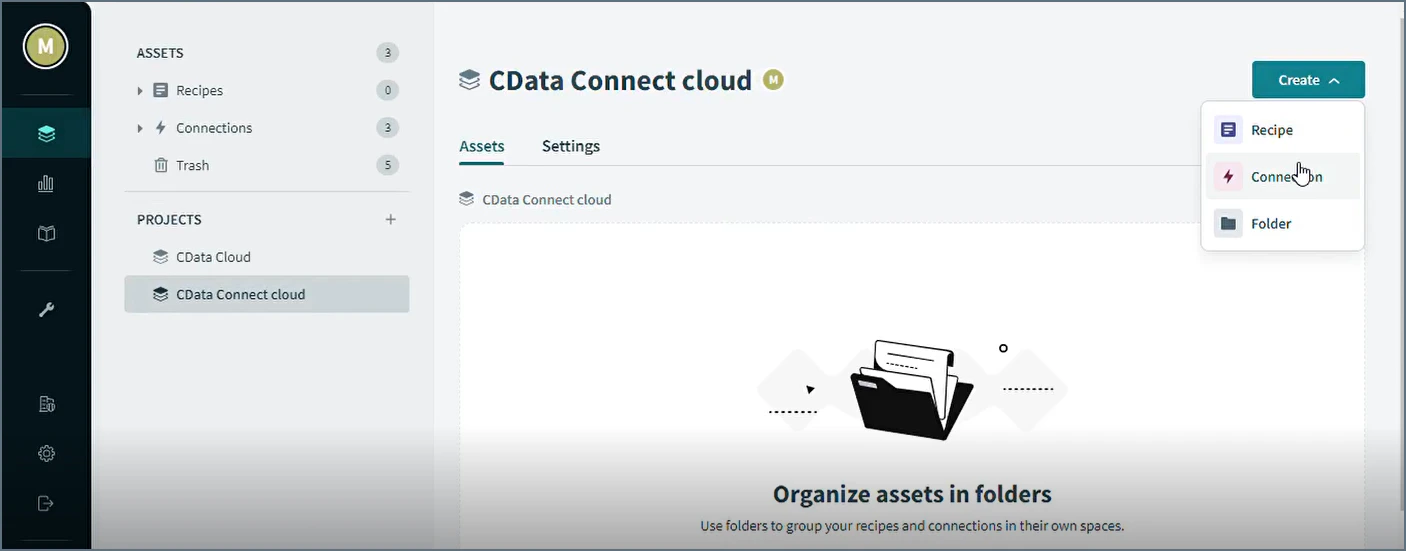
5
In the search bar, enter “SQL Server”. The Connect to SQL Server screen appears.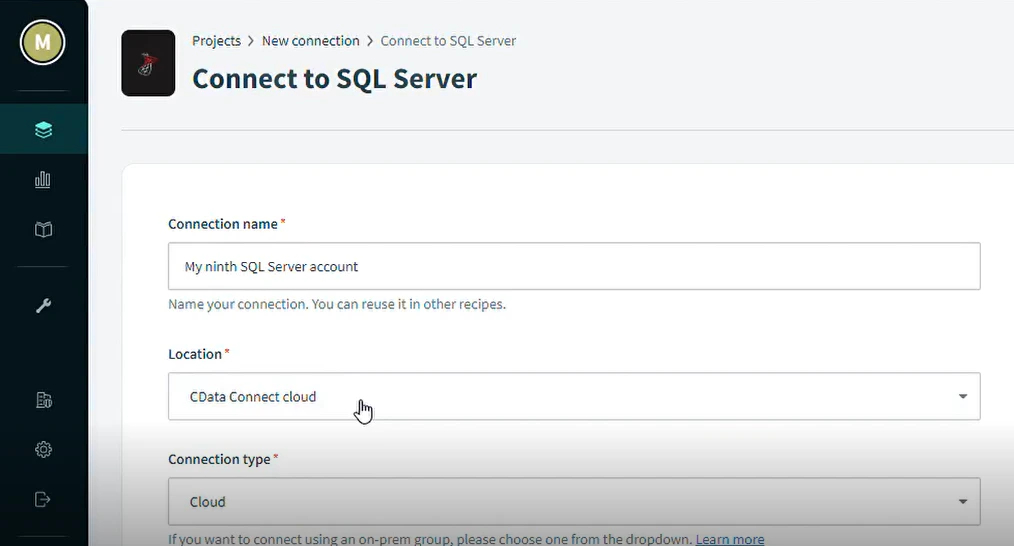
6
In Connect to SQL Server, enter the connection name and the following connection settings.
- Location—The name of the project in which to create the connection.
- Connection type—select Cloud.
- Host—tds.cdata.com
- Port—14333
- Username—enter your Connect AI username. This is displayed in the top-right corner of the Connect AI interface. For example, test@cdata.com.
- Password—enter the PAT you generated on the Settings page.
- Database—enter the Connection Name of the Connect AI data source you want to connect to (for example, Salesforce1).
7
Click Connect. A Connection established message appears.
8
The next step is to set up your recipe. In your project, click Create > Recipe.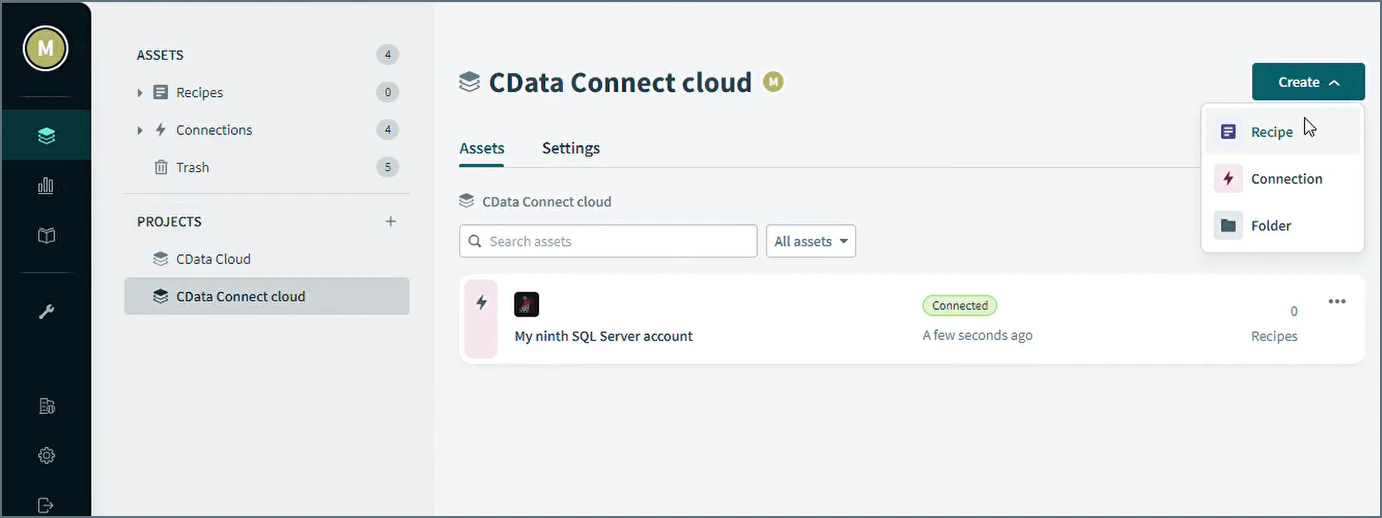
9
In Set up your recipe, enter the name and location of your recipe.
10
Select Run on a schedule.
11
Select the actions that occur on the schedule.
12
Select a table from your SQL Server connection, and any filters, if applicable.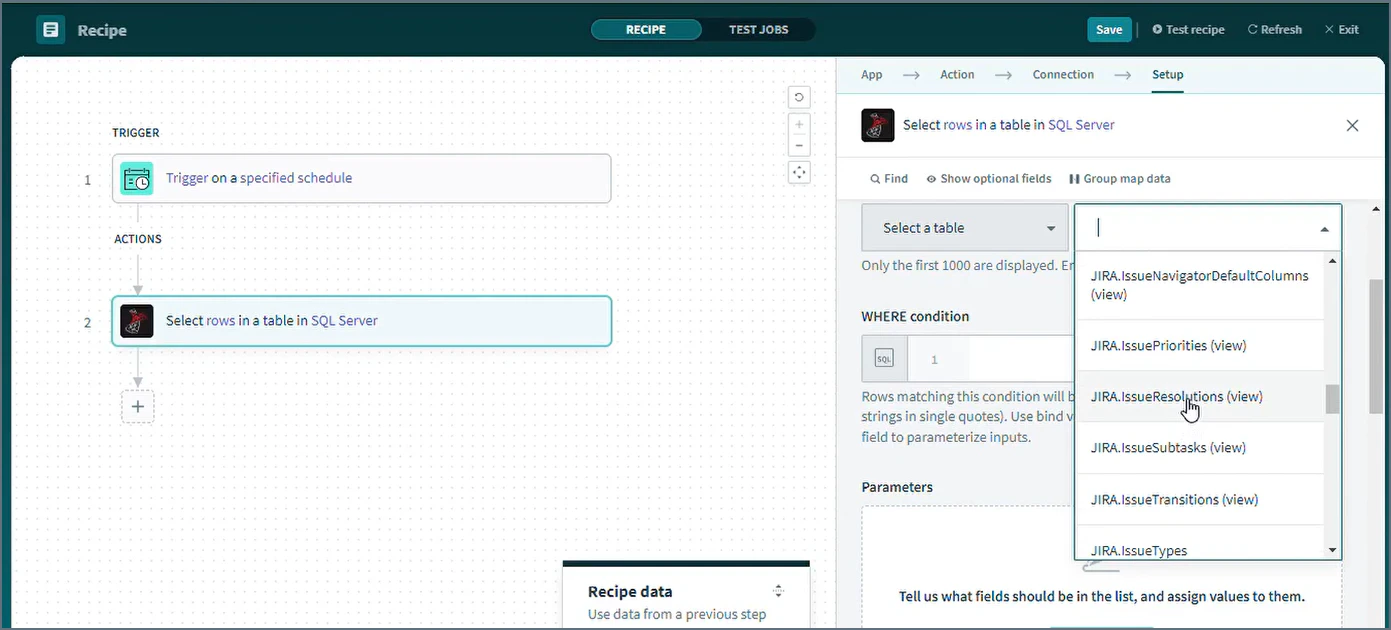
13
Click Save to save the recipe.
14
Click Test Jobs to test your recipe.