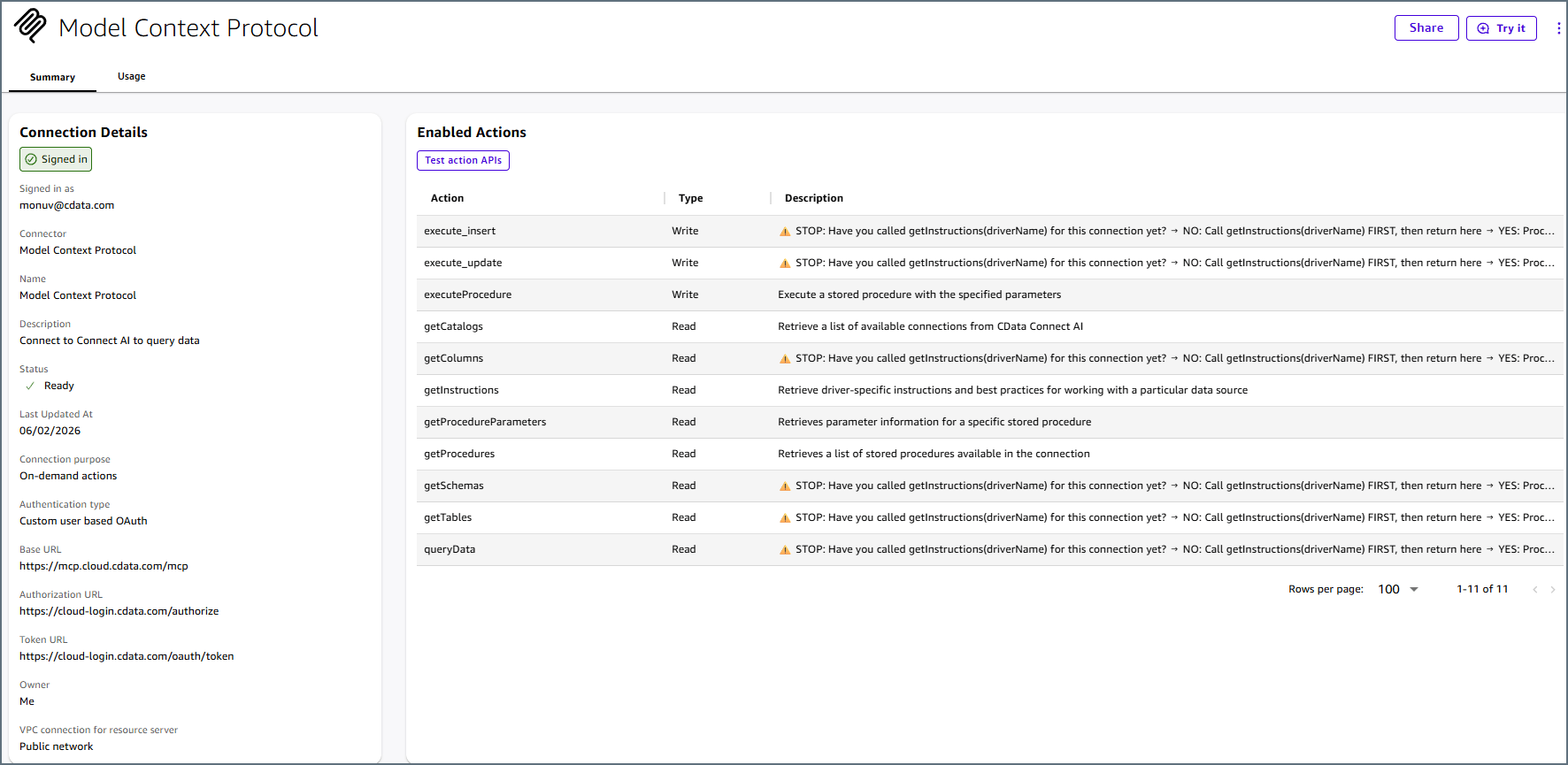
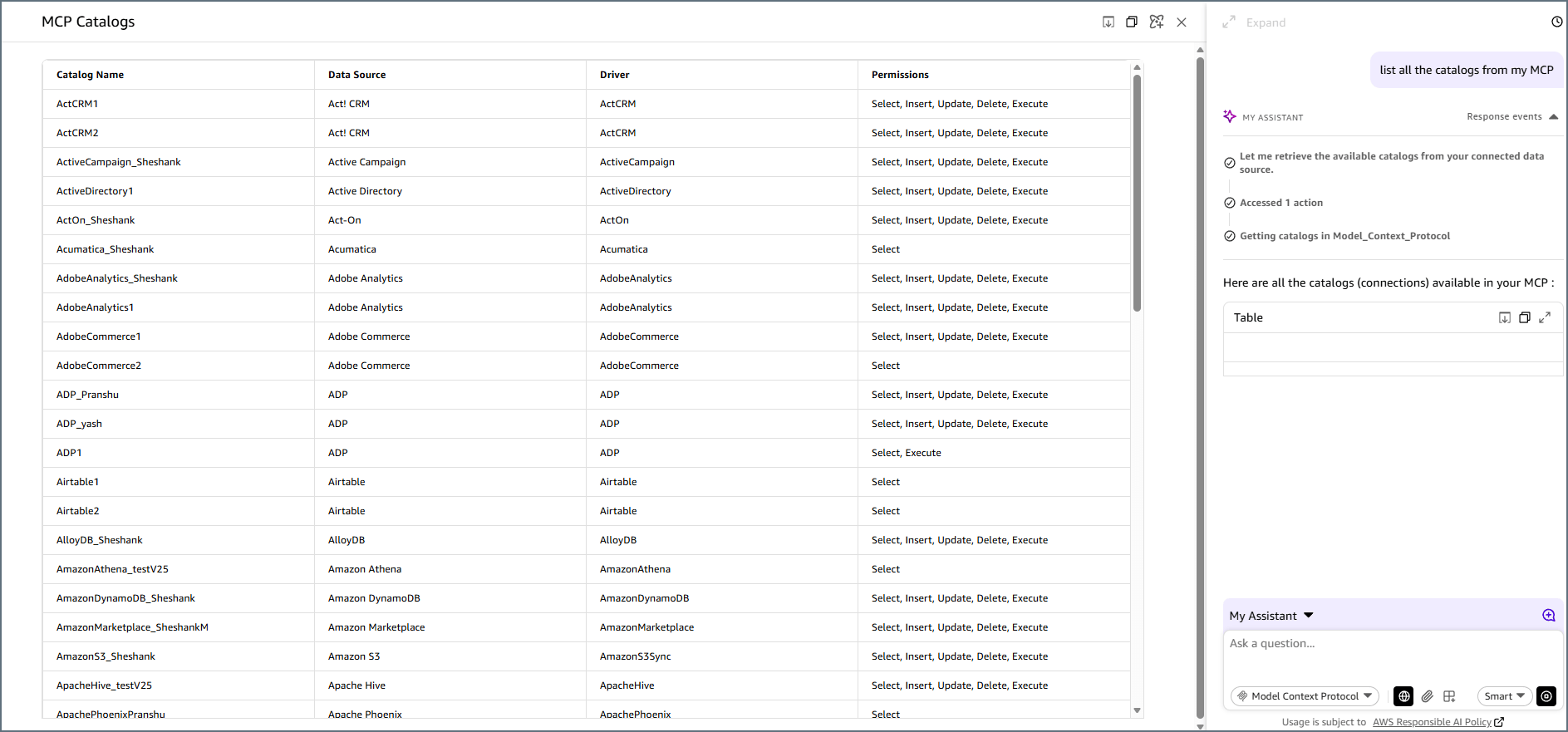
Prerequisites
Before you can configure and use Amazon Quick with Connect AI, you must first do the following:- Connect a data source to your Connect AI account. See Sources for more information.
- Have access to Amazon Quick and an IAM user with permission to create and publish connectors for your team.
Create an MCP Connector in Amazon Quick
Begin creating the connector in Amazon Quick. During setup, Amazon Quick displays the redirect URL that you need to create the OAuth App in Connect AI.1
Log in to Amazon Quick with your IAM user.
2
Click Connectors, and then click Create for your team.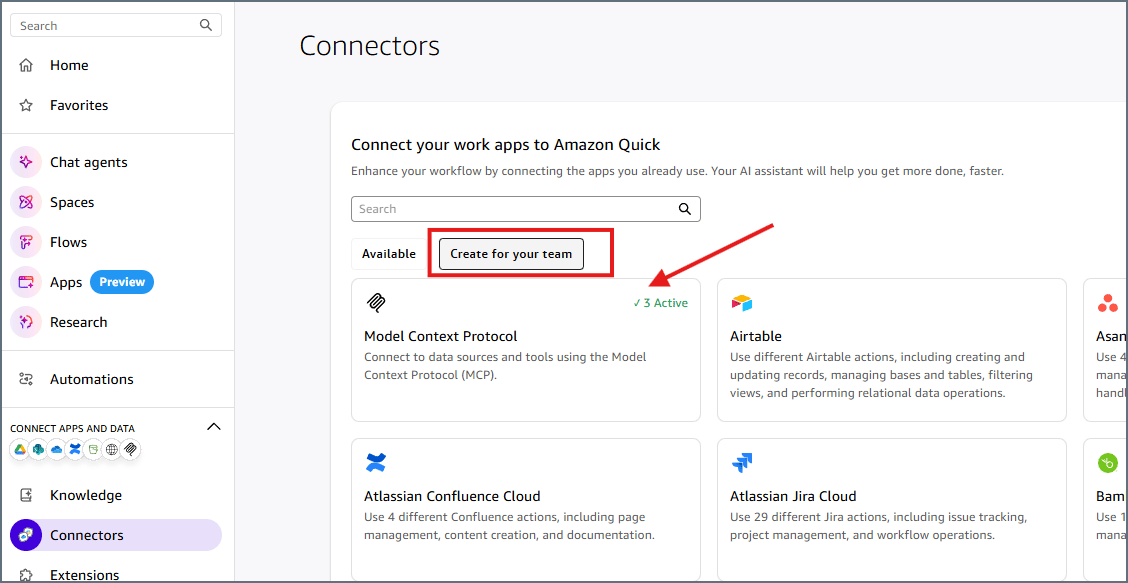
3
Choose Model Context Protocol.
4
Create a new MCP connector by providing the MCP URL https://mcp.cloud.cdata.com/mcp. You can also use a toolkit URL to scope the connector to a specific toolkit.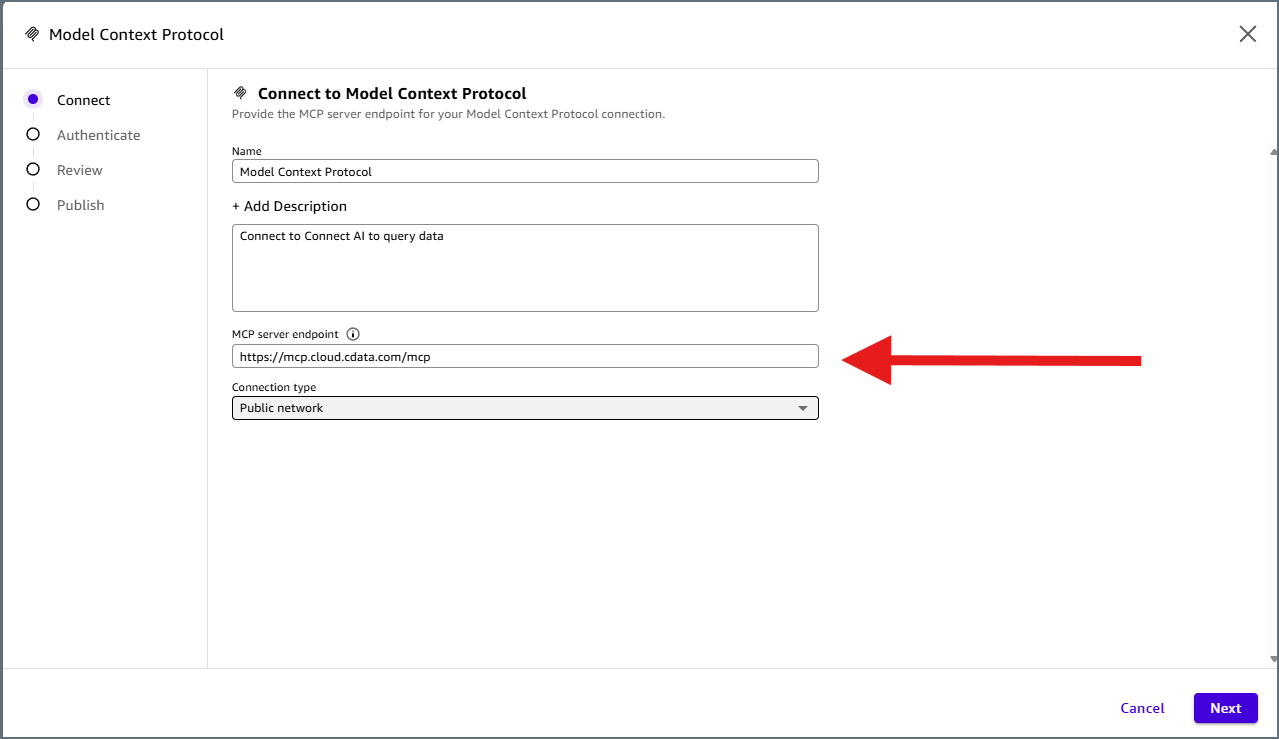
5
Click Next.
6
Select Custom user-based OAuth App.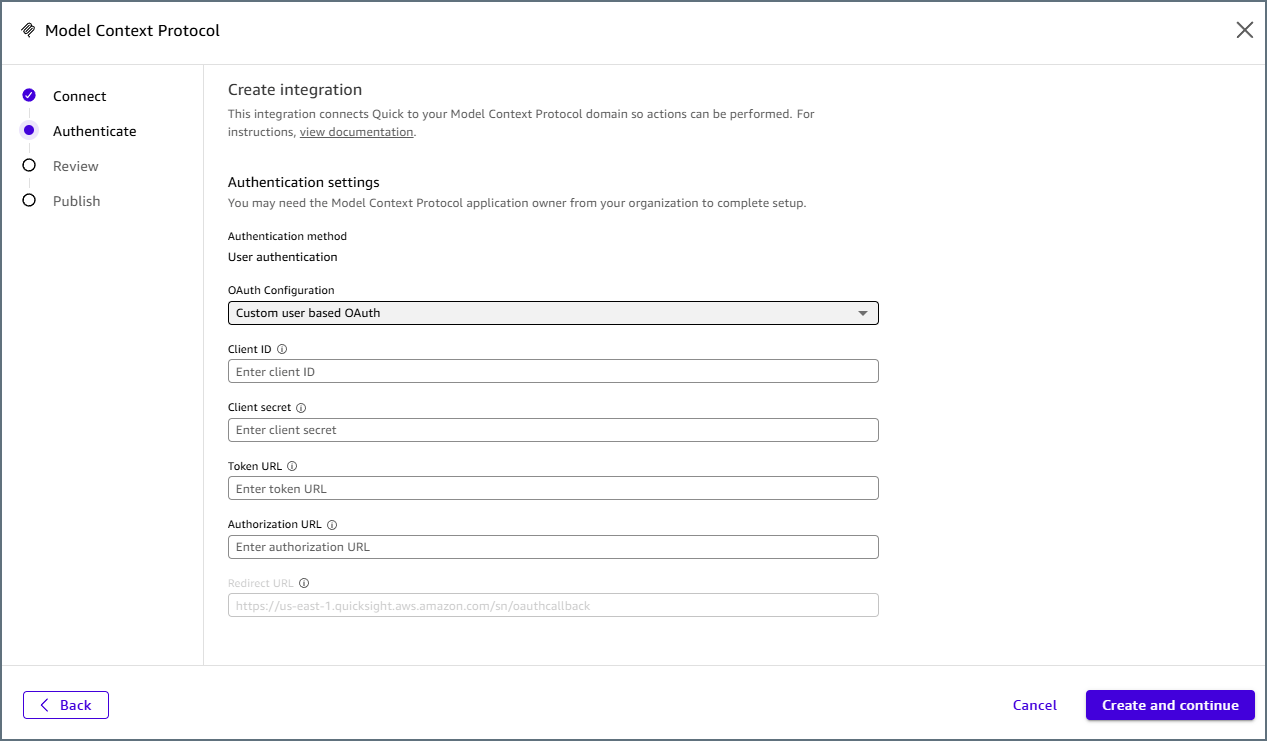
7
Copy the redirect URL that Amazon Quick displays. It follows this format:You will enter this URL when you create the OAuth App in the next section. Leave this screen open, because you will return to it to enter your Client ID and Client Secret.
Create an OAuth App in Connect AI
Amazon Quick uses OAuth 2.0 to authenticate users against the Connect AI MCP Server. This requires a user-based OAuth application in your Connect AI account.1
Click the gear icon in the top-right corner of Connect AI to open Settings.
2
Navigate to the OAuth Apps tab and click + Create App. The Create OAuth App dialog appears.
3
Enter the following settings: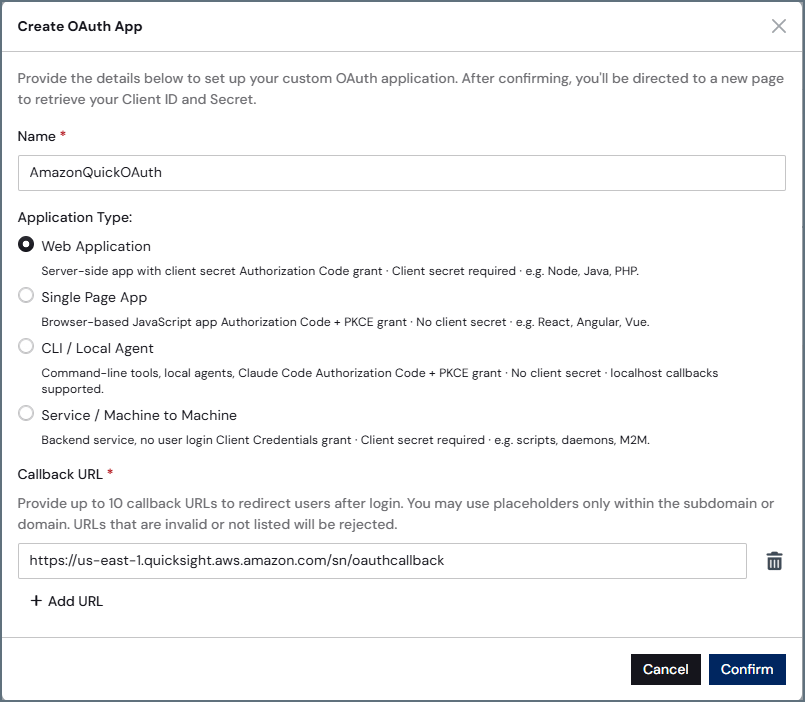
- Name–enter a descriptive name (for example, AmazonQuickOAuth).
- Application Type–select Web Application.
- Callback URL–enter the redirect URL you copied from Amazon Quick (for example, https://us-east-1.quicksight.aws.amazon.com/sn/oauthcallback).
4
Click Confirm. Connect AI generates a Client ID and Client Secret.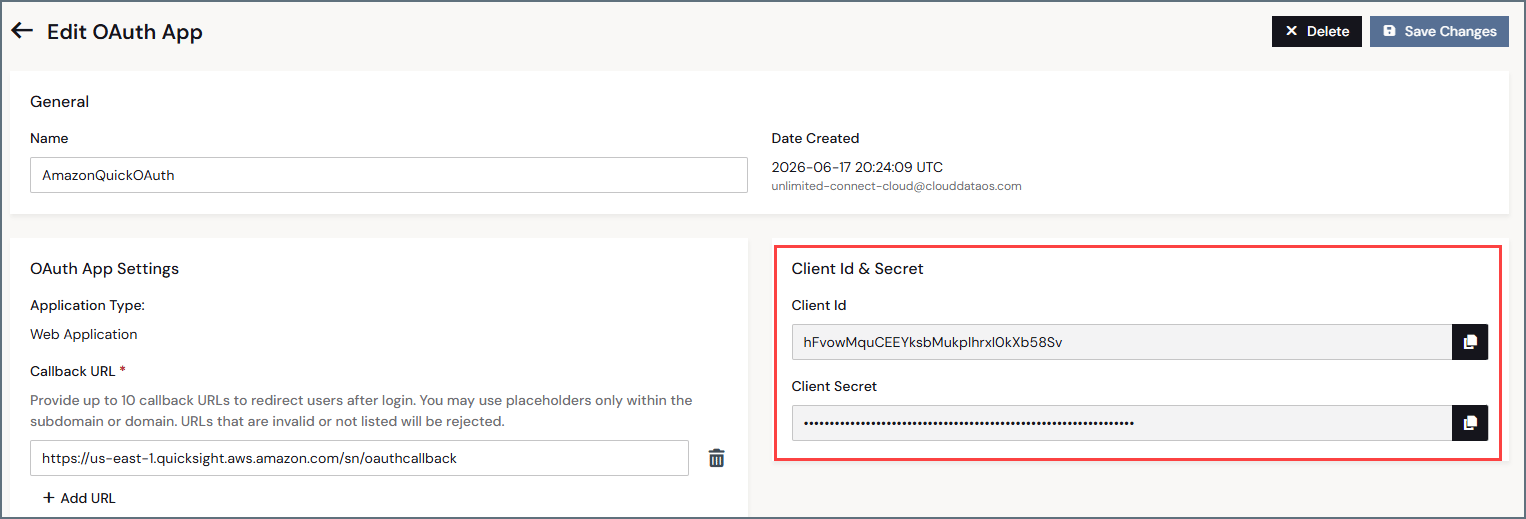
5
Copy both the Client ID and Client Secret. You will need them in the next section.
Complete the Connector in Amazon Quick
1
Return to the Amazon Quick connector setup and enter the following settings: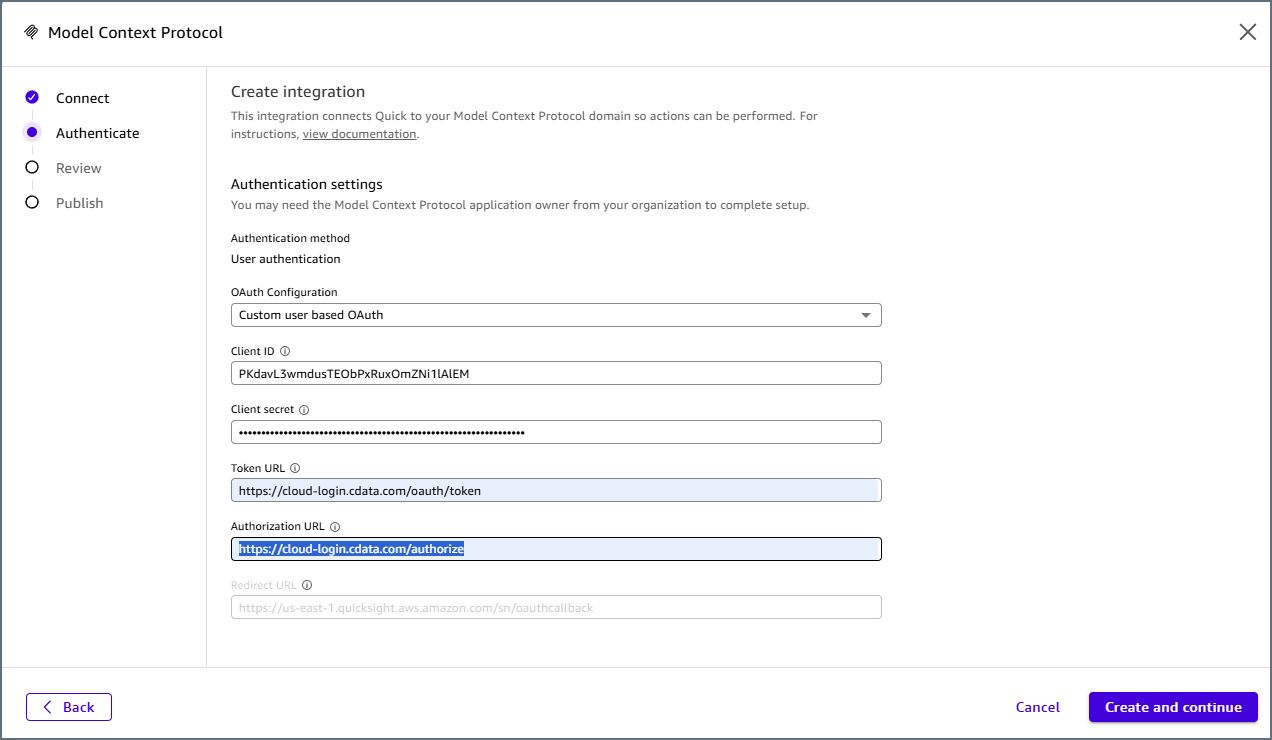
- Client ID and Client Secret–from the OAuth application created above.
- Token URL–enter https://cloud-login.cdata.com/oauth/token.
- Authorization URL–enter https://cloud-login.cdata.com/authorize.
2
Click Create and Continue. You are prompted with a login screen. Complete the sign-in.
3
Publish the connector.
Use the Connector in an Agent
After you publish the connector, you can add it to any Amazon Quick agent and call its tools to query.