Prerequisites
Before you can configure and use Windsurf with Connect AI, you must first do the following:- Install the Windsurf IDE (MCP integrations do not support extensions or plugins).
- Connect a data source to your Connect AI account. See Sources for more information.
- (Basic authentication only) Generate a Personal Access Token (PAT) on the Settings page. Copy this down, as it acts as your password during authentication.
-
(Basic authentication only) Base64-encode your Connect AI credentials in the following format:
Base64("email:PAT").
Connect Windsurf to the Connect AI MCP
Open the MCP configuration file, then choose an authentication method.1
Open Cascade Code Chat Assistant, either by pressing CTRL+L or by clicking the button highlighted below.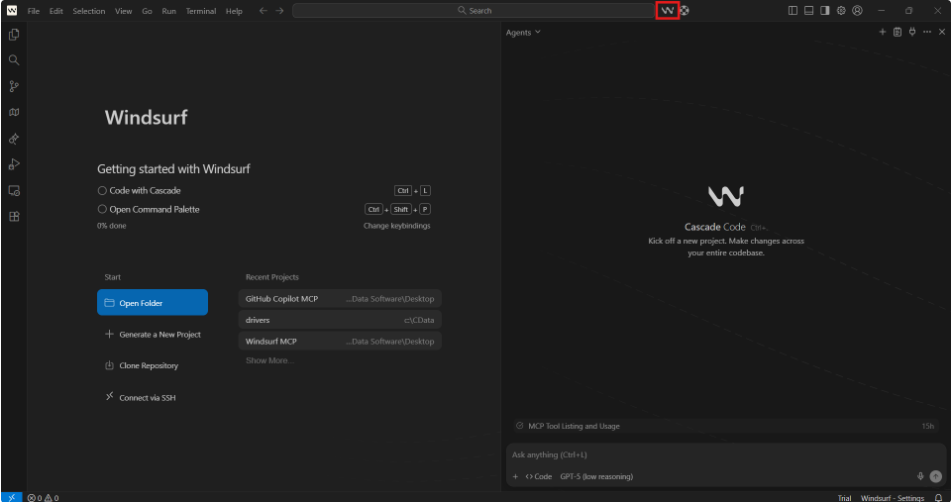
2
In Windsurf, open the MCP configuration file, 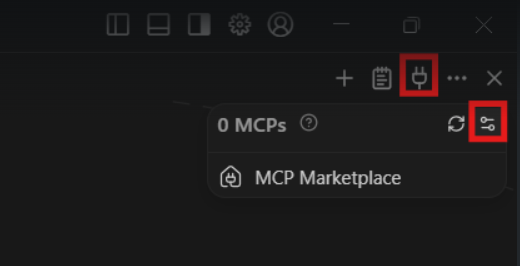
mcp_config.json, which is created during installation. The default path is C:\Users\<YourUsername>\.codeium\windsurf\mcpconfig.json. You can also open it directly from the IDE by clicking the MCPs button in the chat dialog, and then selecting the Config icon, as shown below:OAuth Authentication
1
Copy and paste the following into the
mcp_config.json file.2
Start the MCP server by clicking the MCPs button in the chat dialog and clicking the Refresh button. Windsurf detects that the server requires OAuth and prompts you to log in. Windsurf opens your browser to the Connect AI sign-in page. Complete the sign-in to authorize the connection.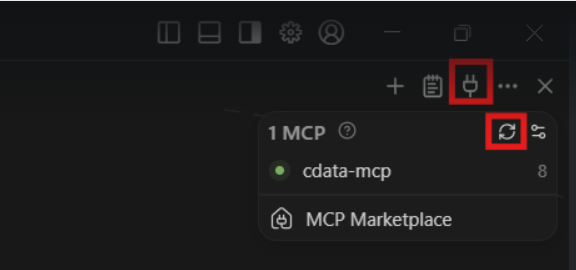
Basic Authentication
1
Copy and paste the following into the
mcp_config.json file. Replace the authorization header with the Base64-encoded credentials obtained in the prerequisites.2
Start the MCP server by clicking the MCPs button in the chat dialog and clicking the Refresh button.
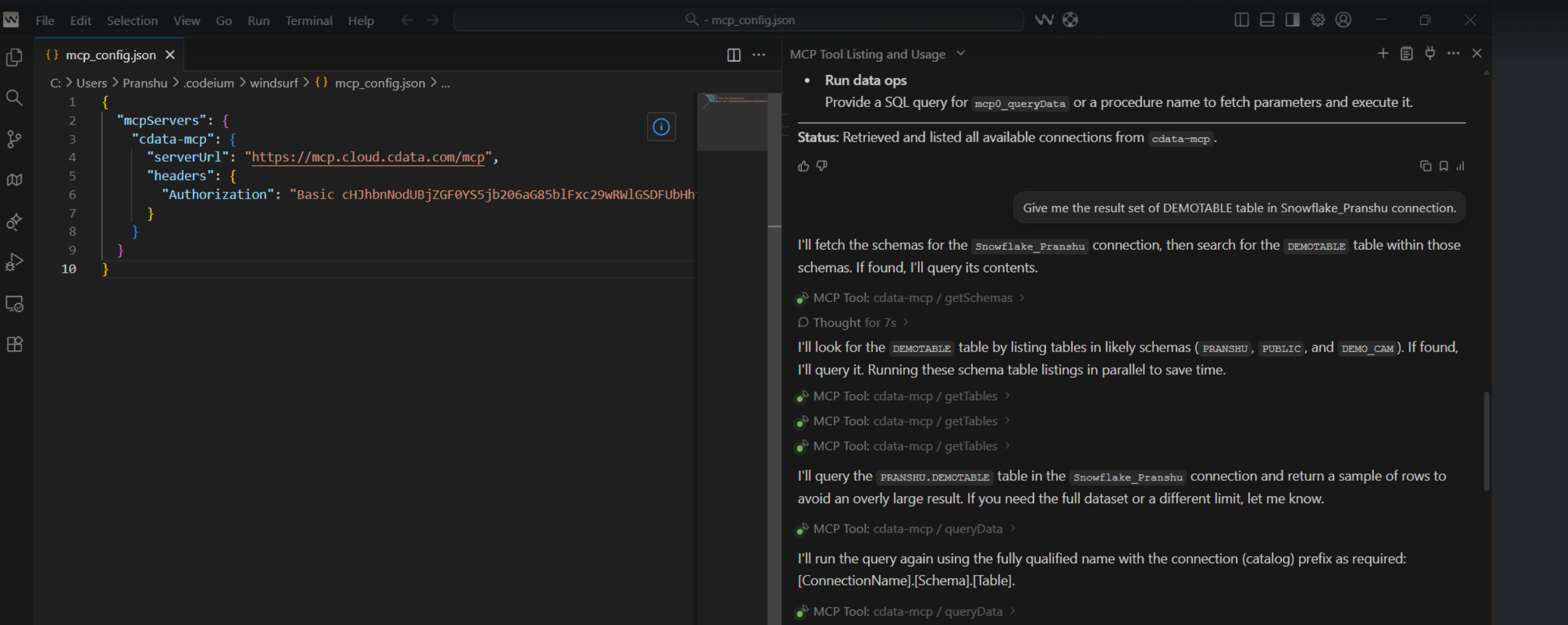
Chat with Windsurf
You can now chat with the assistant. Windsurf lists the available tools, the connections, and a result set of a given table of a given connection.