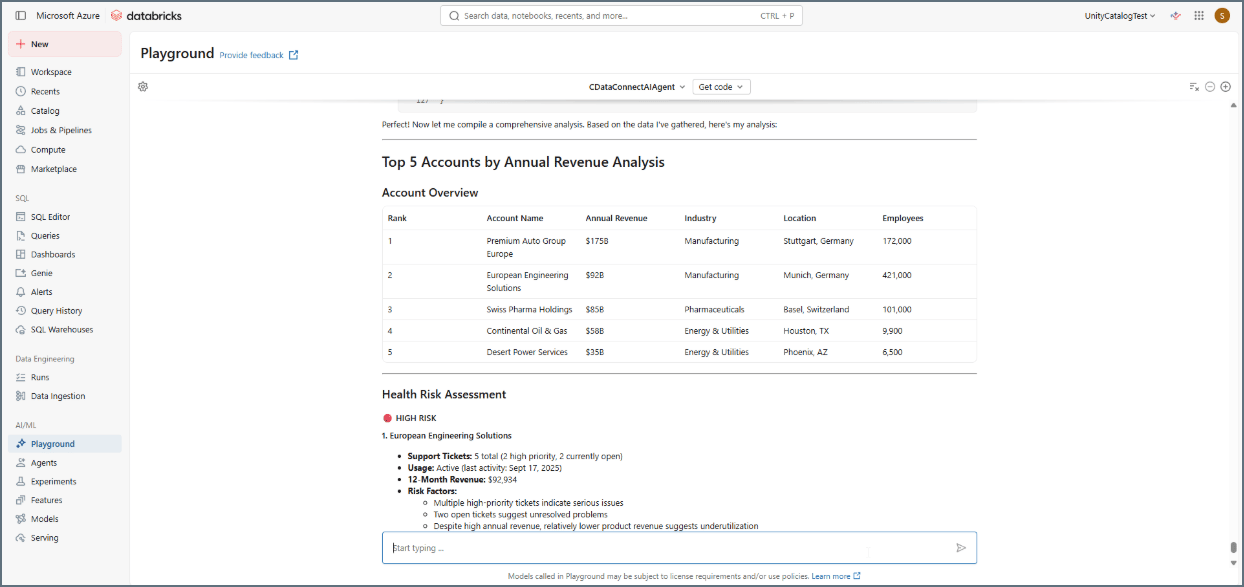
Prerequisites
Before you can configure and use Agent Bricks with Connect AI, you must first connect a data source to your Connect AI account. See Sources for more information.Create an OAuth App in CData Connect AI
Agent Bricks uses OAuth 2.0 to authenticate users against the CData Connect AI MCP Server. This requires an OAuth App in your CData Connect AI account. The OAuth App requires a callback URL, which you build from your Databricks workspace host. The steps below walk you through constructing this URL and entering it as you create the app.1
Click the gear icon in the top-right corner of Connect AI to open Settings.
2
Navigate to OAuth Apps and click + Create App. The Create OAuth App dialog appears.
3
Enter the following settings:
- Name–enter a descriptive name (for example, AgentBricksOAuth).
- Application Type–select Web Application.
- Callback URL–follow the instructions below to create a callback URL.
1
Open your Databricks workspace in a browser and copy the host from the address bar, everything between
https:// and the next /. For example: adb-5555555555555555.5.azuredatabricks.net. (AWS workspaces look like dbc-xxxxxxxx-xxxx.cloud.databricks.com; GCP like xxxx.gcp.databricks.com.)2
Append
/login/oauth/http.html to that host. Using the example above, you would enter the following as the Callback URL: https://adb-5555555555555555.5.azuredatabricks.net/login/oauth/http.html.3
Paste this value into the Callback URL field of your Connect AI OAuth app.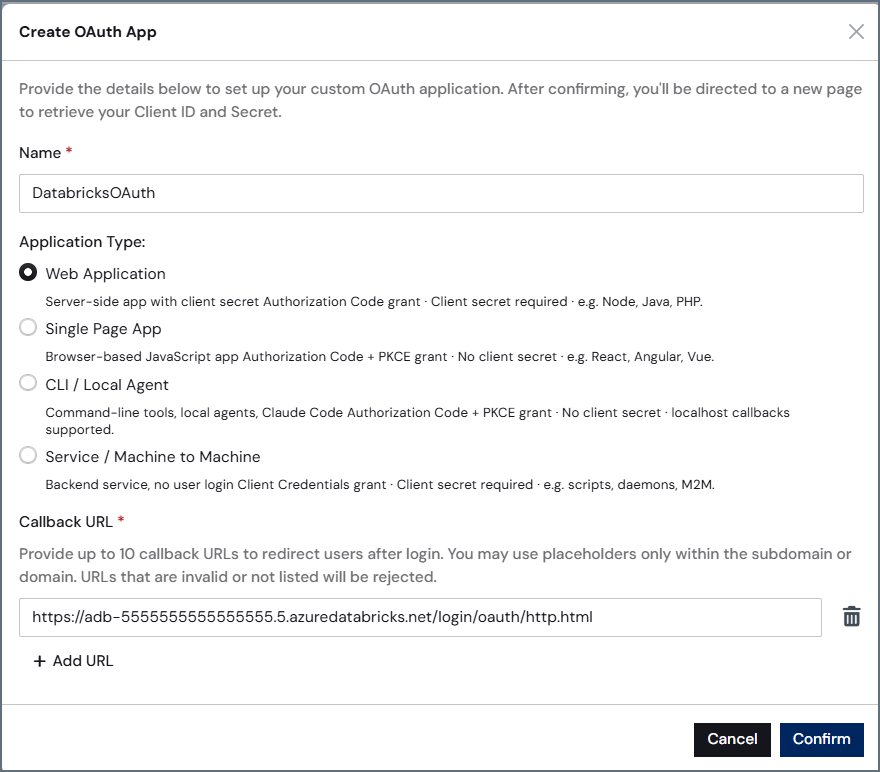
4
Click Confirm. CData Connect AI creates the OAuth app and generates a Client ID and Client Secret for the client application.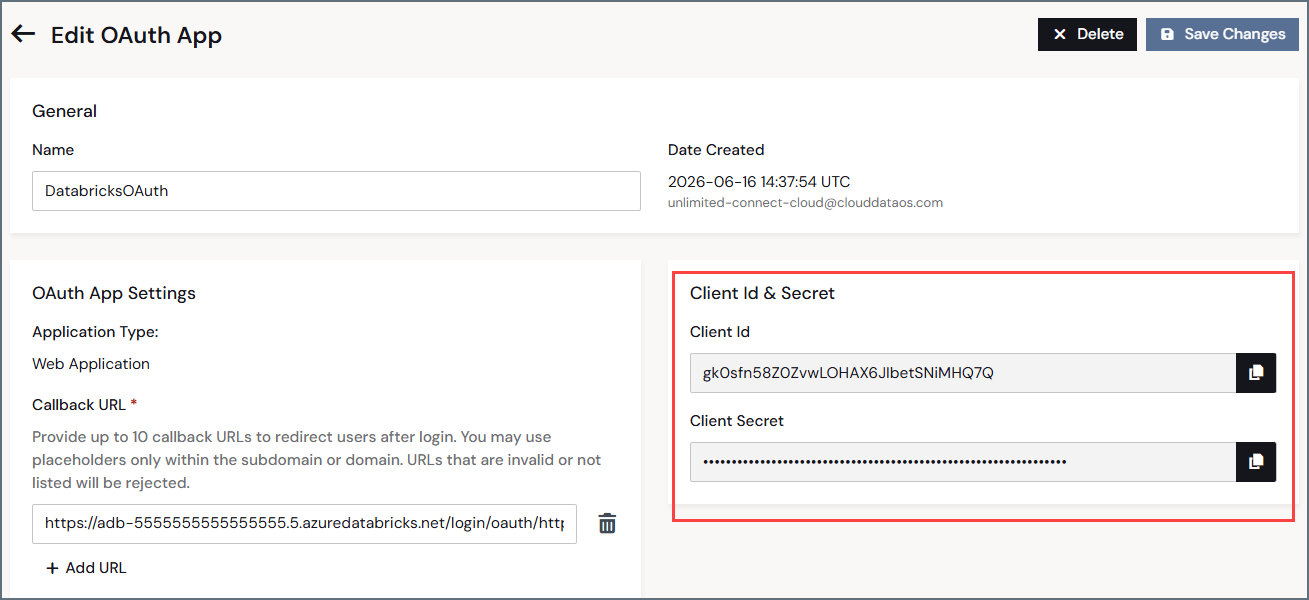
5
Copy both the Client ID and Client Secret. You will need them in the next section.
Create an MCP Server Connection in Databricks
1
Log in to Databricks and go to Databricks Marketplace.
2
In the search bar, enter Connect AI. Click CData Connect AI: Managed MCP Platform for Enterprise Databricks Agents.
3
Click Install. A dialog appears:
4
Enter the Connection name for the app, such as QueryMCP.
5
Host and Base path are pre-filled.
6
Enter the Client ID and Client Secret you copied from the OAuth App you created in the previous section.
7
Select the checkbox to accept the terms and conditions, then click Install.
Create an Agent in Databricks
1
In the Agents tab, click Create Agent.
2
Select Supervisor Agent.
3
In the Create Supervisor Agent dialog, enter the following: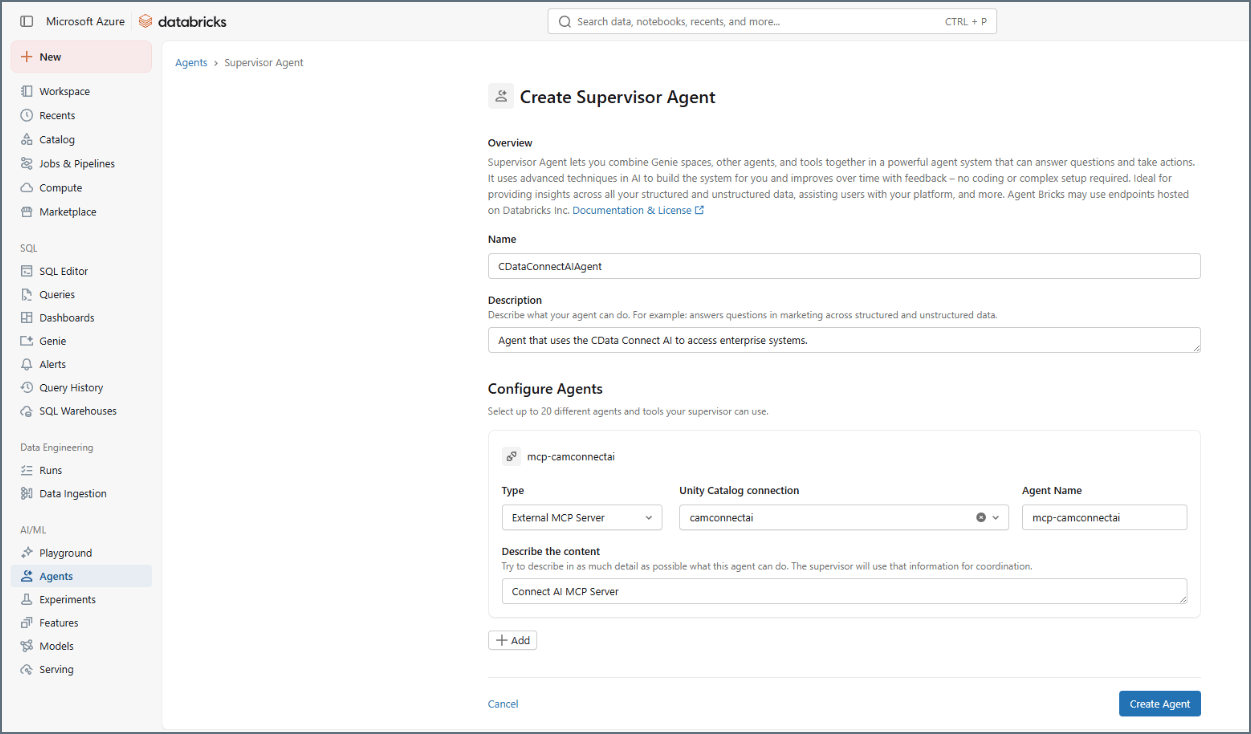
- Name–enter a name for your agent.
- Description–enter a description of the agent.
- Configure Agents:
- Type–select External MCP Server.
- Unity Catalog connection–select the MCP connection you made in the previous step.
- Describe the content–enter a description of what the MCP connection is.
4
Click Create Agent.
Test your Agent
1
On your agent’s page, click Open in Playground.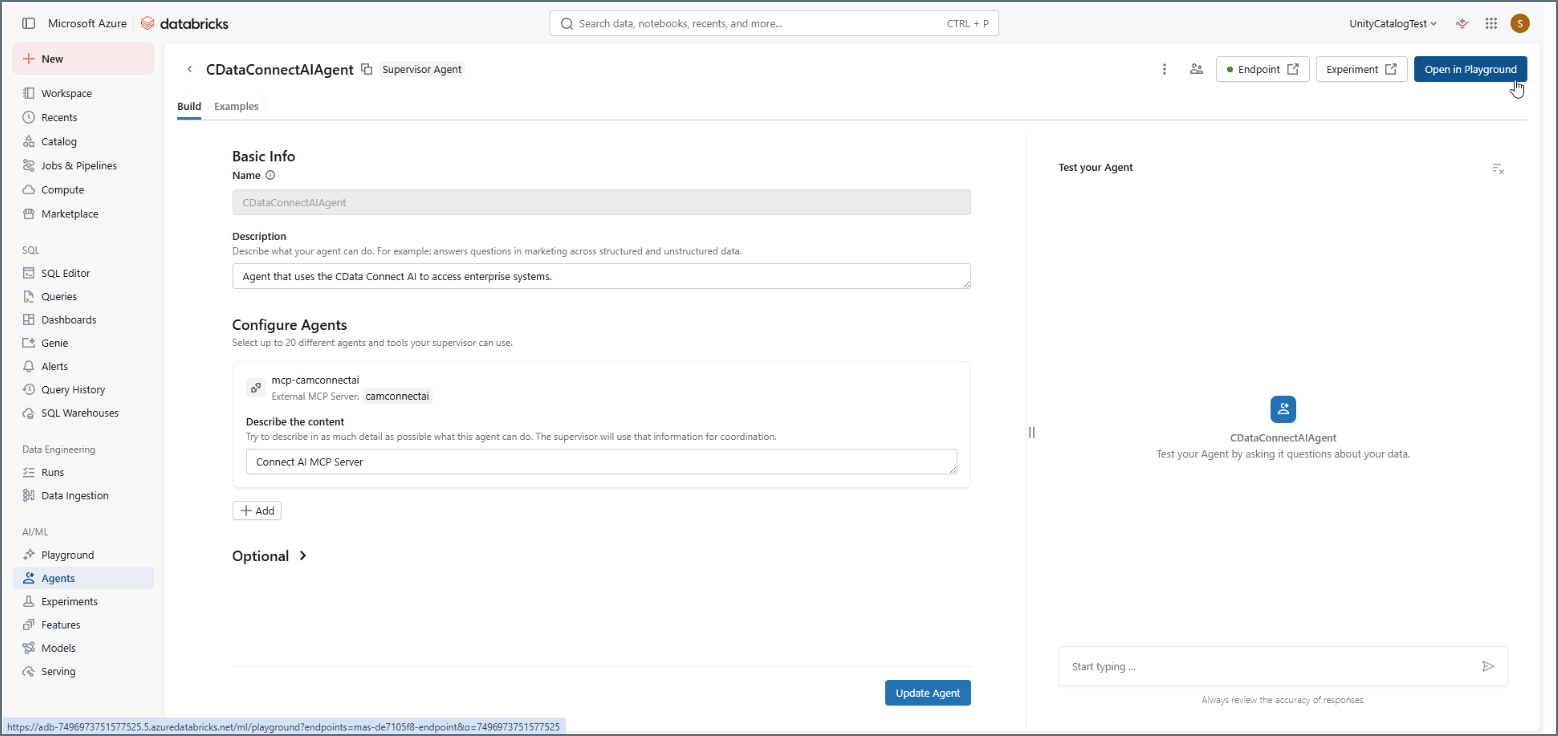
2
You can now query your connected data with the Connect AI MCP Server through the Supervisor Agent.