

Prerequisites
Before you can configure and use Grok with Connect AI, you must first connect a data source to your Connect AI account. See Sources for more information.Configure the Connect AI MCP Server
1
Log in to Grok.
2
In the navigation pane, click Skills and Connectors.
3
Click the Connectors tab, and then click New Connector.
4
In the New Connector dialog, select Custom—Add your own custom Connector and enter the following details: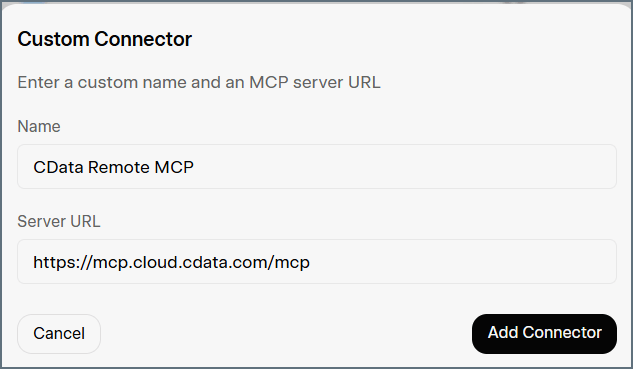
- Name–enter a name for the connector, such as CData Remote MCP.
- Server URL–enter the URL for the MCP server: https://mcp.cloud.cdata.com/mcp.
5
When prompted, log in to Connect AI. If your login is successful, the connector appears in the list of installed connectors.
6
Click the new connector you created. This step ensures that Grok can securely route queries through the CData Remote MCP Server to your data.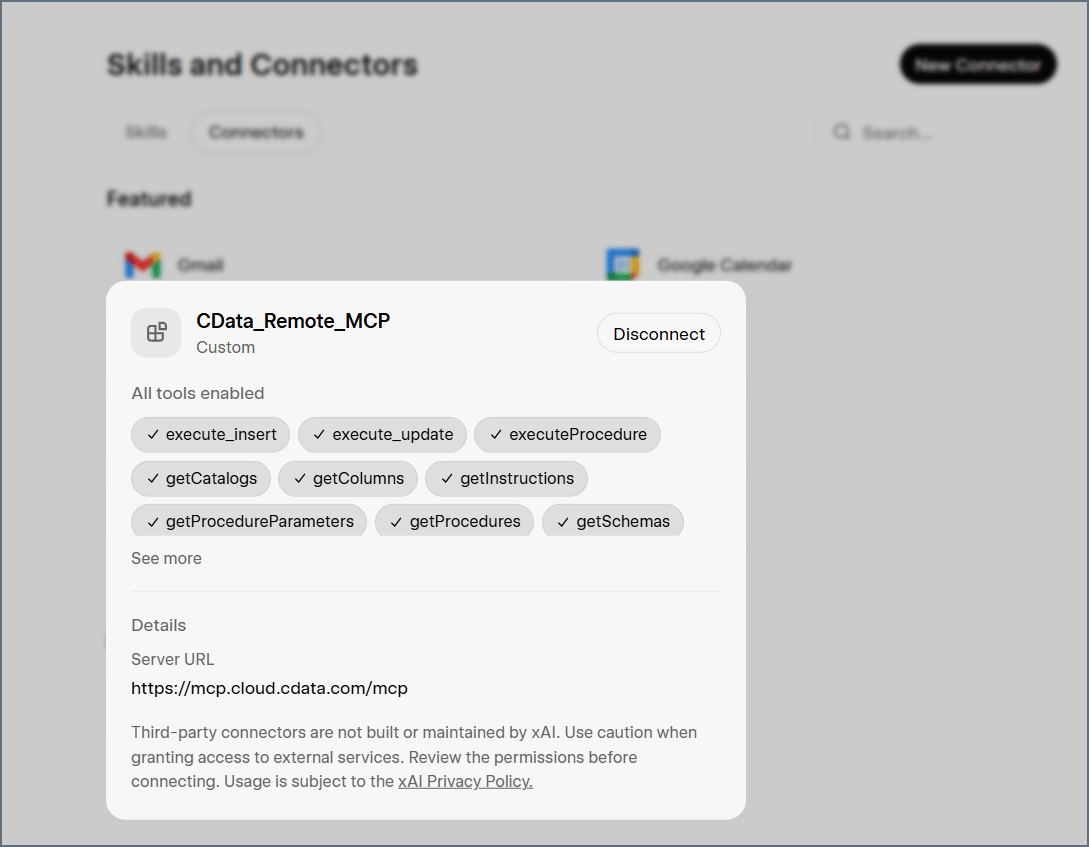
7
Click New Chat, and then click the + icon and ensure that your new connector is enabled.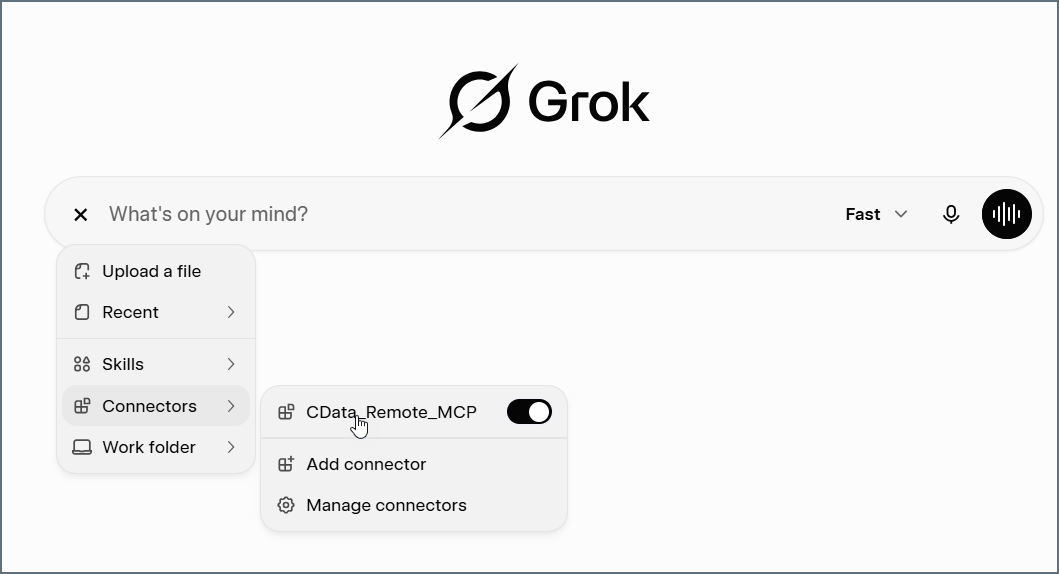
8
You can run a discovery query such as Get catalogs or Get tables to see the available data sources and schemas connected through Connect AI.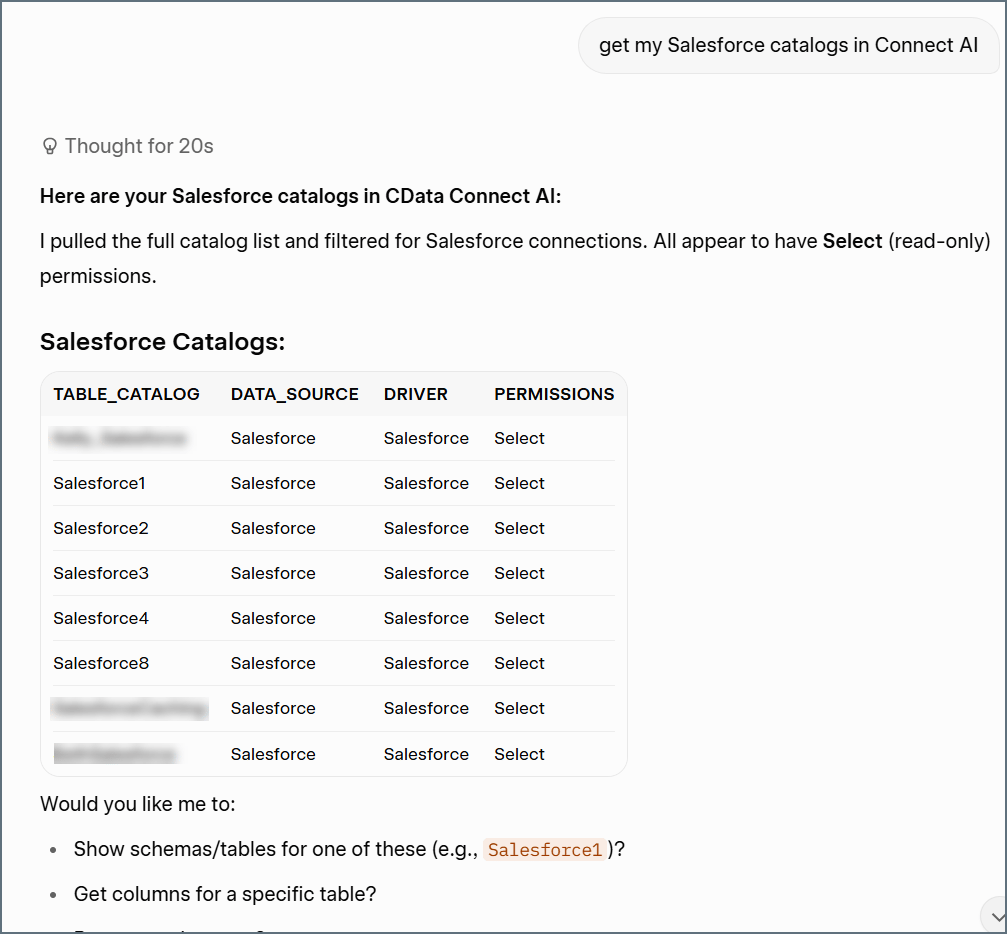
9
You can now begin using natural language to query your data. For a more complete list of prompt ideas, see the CData prompt library. You can filter prompts by data source.