

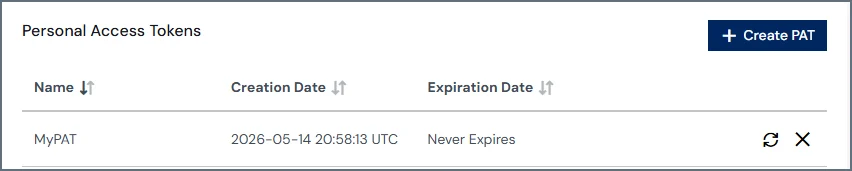
Create a PAT
Follow these steps to create a new PAT:1
Click Create PAT.
2
Enter a name for the PAT in the dialog that appears. It might be useful to enter a name that indicates its purpose.
3
Click Create and a new dialog appears.
4
Click the copy icon in that dialog to copy the PAT to your clipboard. The icon is to the right of the token field.
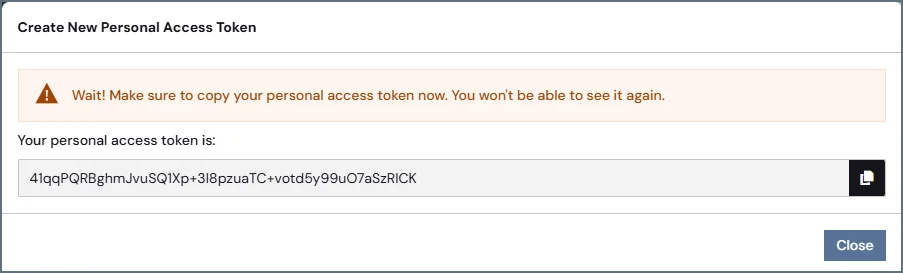
You cannot view the PAT again after you close this dialog.
5
Click Close to close the dialog. The new PAT appears in the list and includes its Creation Date and Expiration Date.
The PAT expiration date is set globally in the Security tab.
Regenerate a PAT
To regenerate a PAT, click the regeneration icon in the PAT list and follow the prompts.
Regenerating a PAT revokes access for any applications that use the PAT. Therefore, you must enter the newly generated PAT in any such applications.
Delete a PAT
To delete a PAT that you no longer use, click the delete icon in the PAT list.
Deleting a PAT revokes access for any applications that use the PAT. Therefore, you must create a new PAT and enter it into those applications to restore this access.