

Prerequisites
Before you can configure and use Gemini with Connect AI, you must first connect a data source to your Connect AI account. See Sources for more information. (Basic authentication and Google ADK only) Generate a Personal Access Token (PAT) on the Settings page. Copy this down, as it acts as your password during authentication. You need Python >= 3.10 to use the Gemini tools.Connect through the Gemini Command Line Interface
After you install Gemini, create the settings file and then choose an authentication method.1
Go to your user directory
%USERPROFILE% and create a .gemini folder.2
Within the folder, create a file named
settings.json.OAuth Authentication
1
Copy and paste the following into the
settings.json file:2
In the terminal, type
gemini. You may need to give Google authorization to access your account.3
Run
/mcp auth connect-ai to authenticate to the Connect AI MCP server. Gemini opens your browser to the Connect AI sign-in page. Complete the sign-in to authorize the connection.Basic Authentication
1
Copy and paste the following into the
settings.json file. Replace EMAIL with your Connect AI email and PAT with the PAT you obtained in the prerequisites:2
In the terminal, type
gemini. You may need to give Google authorization to access your account.Use Gemini
1
The Gemini screen appears as follows: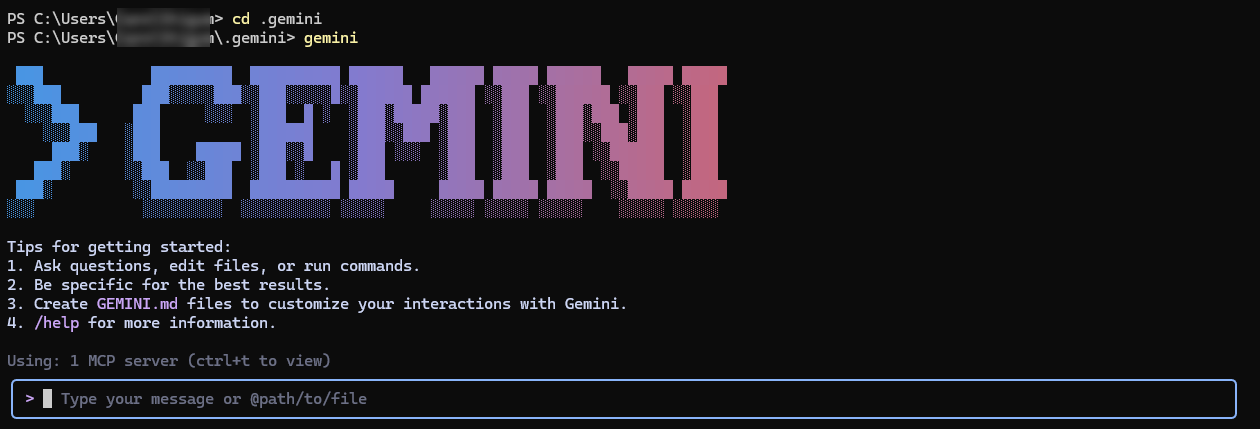
2
Enter a prompt in the prompt box to ask Gemini a question. Gemini uses the Connect AI tools such as
getCatalogs, getSchemas, and getTables to retrieve data from connected data sources.3
Gemini returns a response to your prompt.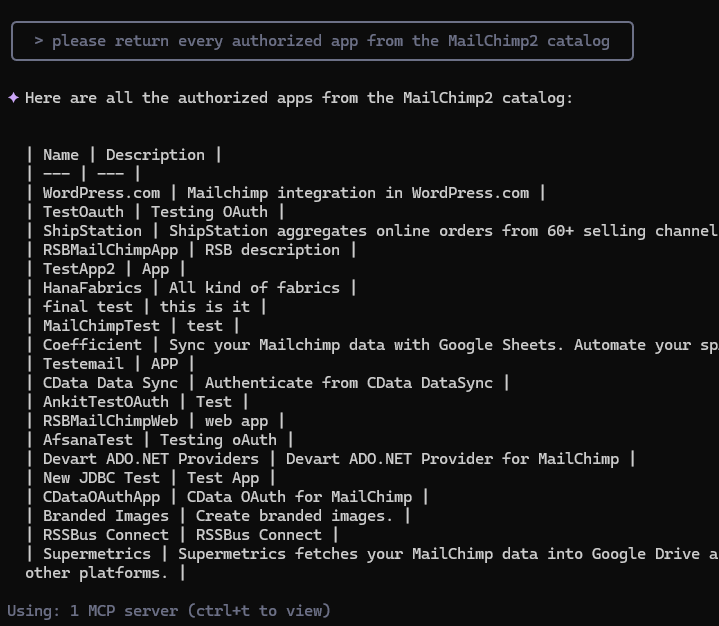
Connect through the Google ADK
1
Download the folder adk-mcp-client and unzip the folder.
2
Rename
.env example to .env.3
In the
.env file, replace your_email@example.com with your Connect AI email, and replace your_mcp_password_here with the PAT created in the prerequisites.4
Run
pip install -r requirements.txt in your terminal.5
Run
python -m google.adk.cli web --port 5000. This starts the ADK at port 5000 on your local machine.6
In your web browser, open 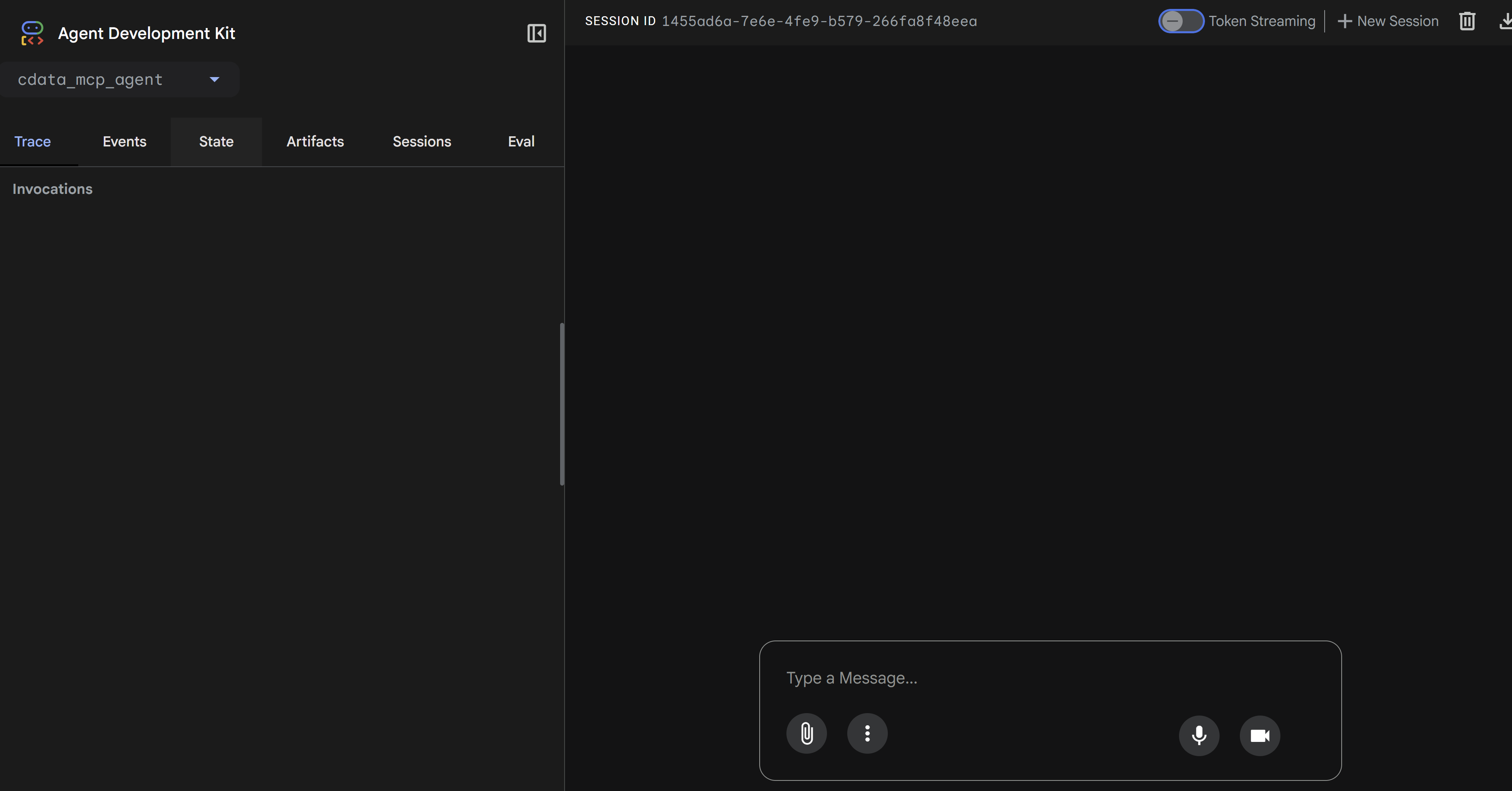
127.0.0.1:5000. The application looks like the following:7
Enter a prompt in the Type a Message box. Gemini uses the Connect AI tools such as 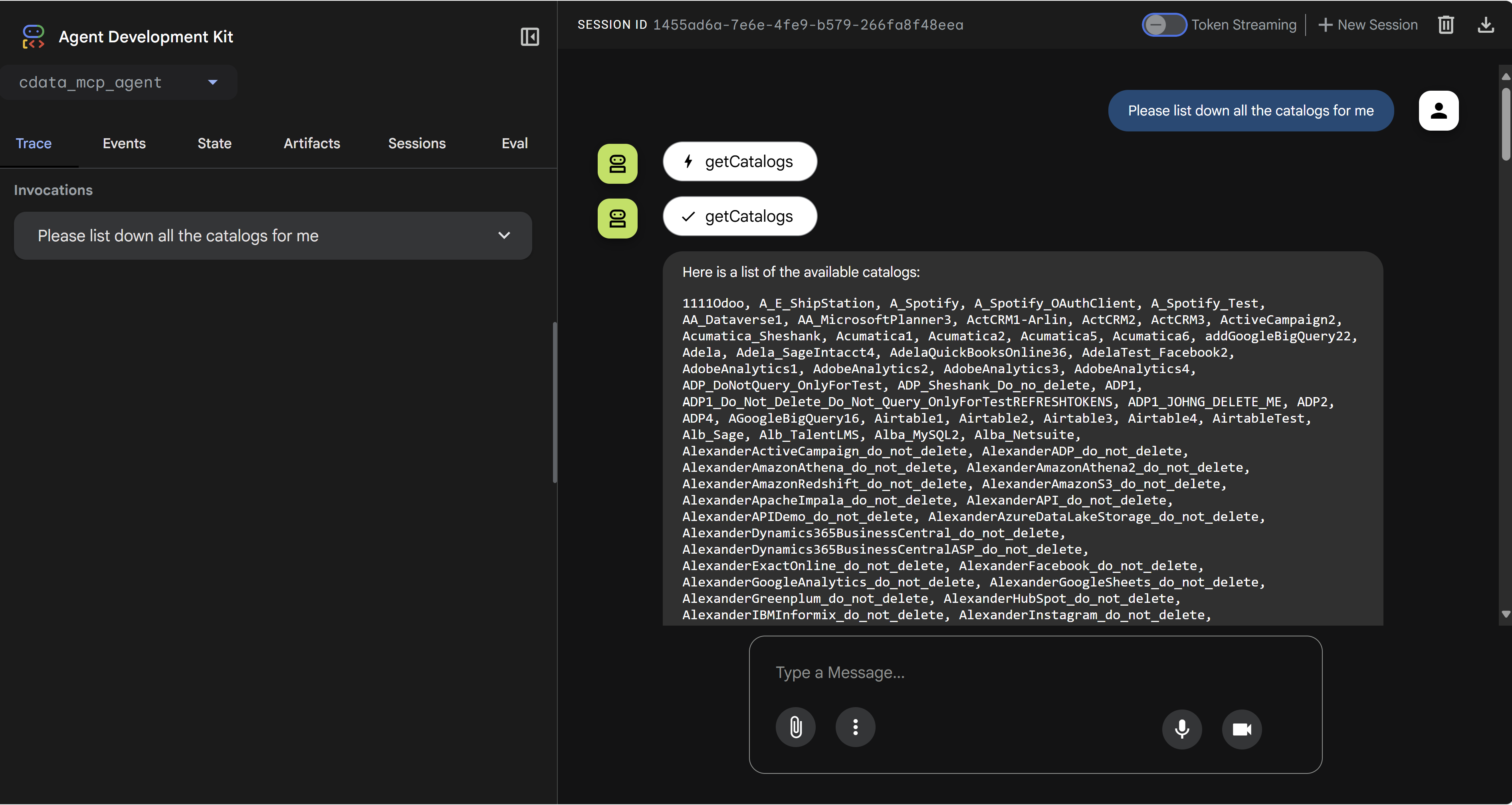
getCatalogs, getSchemas, and getTables to retrieve data from connected data sources.