

User Context
User context is the information about yourself that is sent to the LLM once at the beginning of each conversation. You can add information such as your role, what kind of answers you prefer, and your time zone. You can add or edit information on this page or in the User Context tab of Settings.Global Context
Global context manages what AI agents know about your data.List View
Click Global Context and the list view icon to view a list of all the entities in your account and the number of named contexts assigned to them. The named contexts directly under Global Context apply to all connections and datasets, and you can have many of them. Use the search bar to find an entity. Expand an entity in the left pane to view the named contexts assigned to it. Click + Add Context to add a new context or a new external context.Graph View
Click Global Context and the graph view icon to view a context graph of all the context entities and how they relate to each other across the semantic layer. Use the search bar to find an entity in the graph.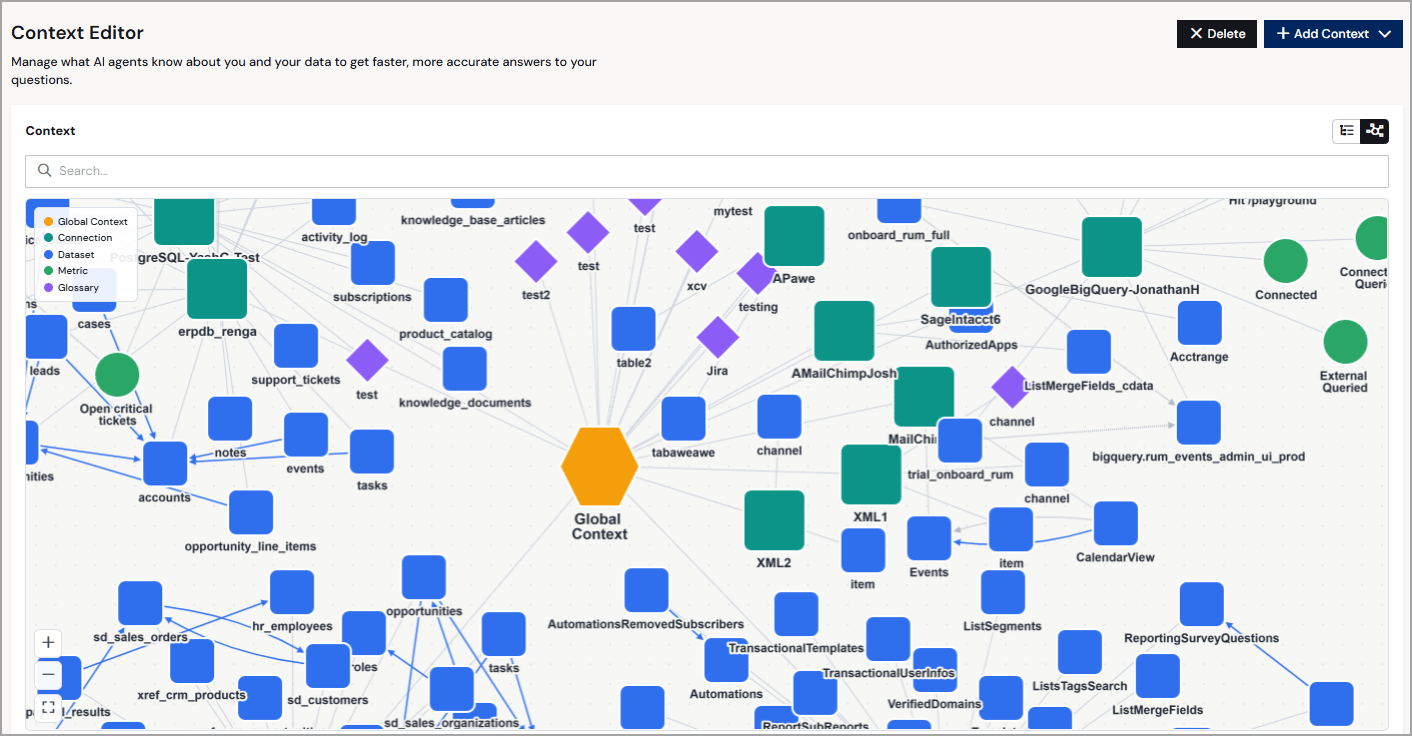
- Global Context: The account-level context that applies to all connections and datasets. Use Global Context to define terms and rules that span your entire data environment.
- Connection: A named data source (for example, MailChimp or PostgreSQL). Context defined at the connection level applies to all datasets within that connection.
- Dataset: A table or query within a connection. Dataset-level context provides field-specific details to help the MCP server interpret queries against that dataset.
- Metric: A reusable measure defined on one or more fields.
- Glossary: A business term linked to one or more columns. Glossary entries let the MCP server recognize business language. For example, map Revenue to the
total_salescolumn so that prompts return accurate results.
View Context Details
In list view or graph view, click an entity to view details about the entity.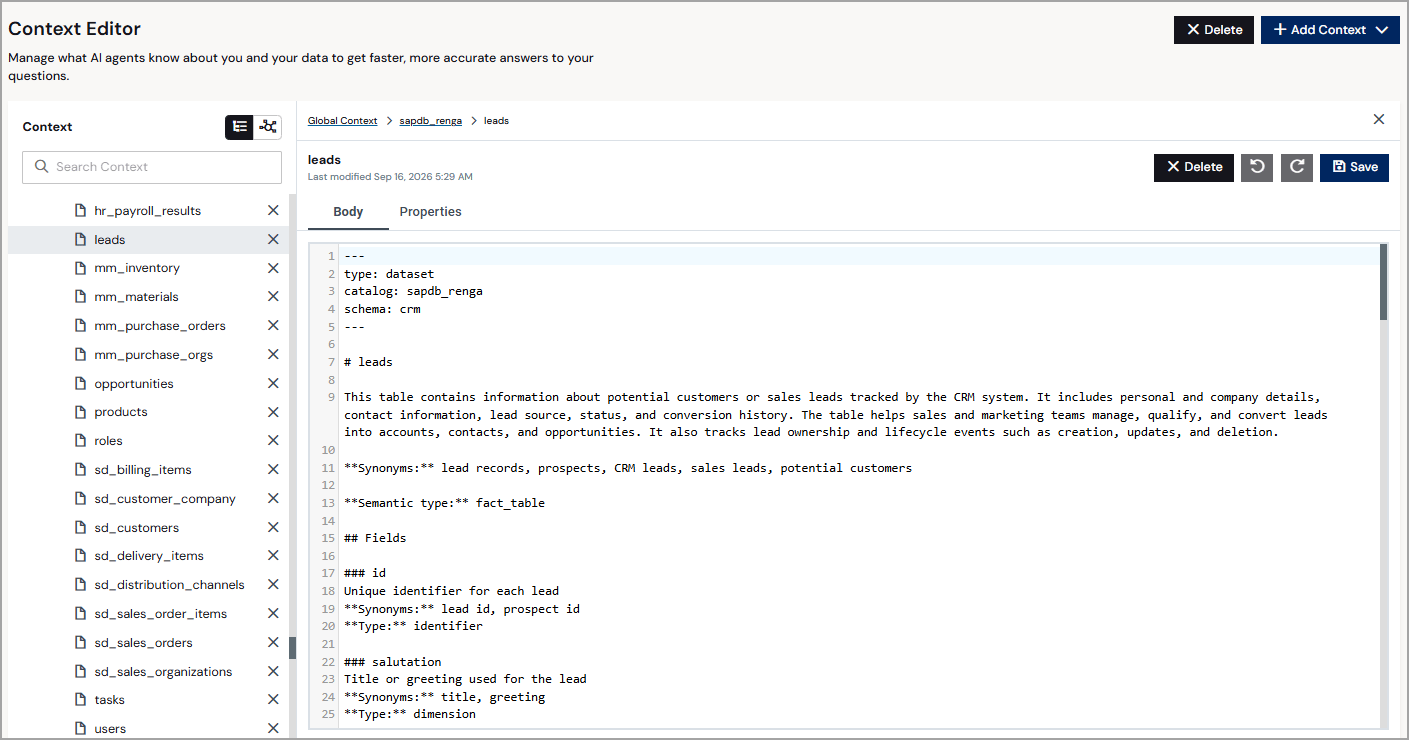
Add Context
There are two ways to add context:- Options menu: Click the options menu (⋮) to the right of an entity to add context directly to that entity.
- Add Context button: Click Add Context to add context. You must select the entity type to apply it to: a specific connection or global context that applies to all connections and datasets.
Add External Context
Use Add External Context to add semantic context globally or to a connection. The connection appears as the parent, with an expandable list of its datasets below it.1
Click + Add Context > Add External Context. A dialog appears.
2
In Step 1 of the dialog, select a resource from the list of connections, or select Global Context to apply the context to all connections and datasets. Use the search bar to narrow down your search.
3
Click Next.
4
In Step 2 of the dialog, select the Source of the semantic context: dbt or Power BI. Alternatively, you can have Connect AI generate context using AI.
-
For dbt, paste the contents of
manifest.jsonin the space below. -
For Power BI, choose the Power BI (.pbix) file containing the semantic context.
Snowflake connection context has an additional option: a Snowflake Semantic View YAML file.
-
For Generate Context, toggle Include Sample Values on to improve accuracy, then click Generate. You can close this dialog and Connect AI will continue to generate context in the background.
Generated context cannot be used on global context, only connection context.
5
Click Add to add the context. The context appears in the Global Context list.
Add New Context
To add a new context document manually to Global Context or to a connection, do the following:1
Click + Add Context > Add New Context. A dialog appears.
2
In Step 1 of the dialog, select a resource from the list of connections, or select Global Context to apply the context to all connections and datasets. Use the search bar to narrow down your search.
3
Click Next.
4
In Step 2 of the dialog, enter a name for the new context.
5
Click Add.
6
Edit the context template to define terms, relationships, or business rules that help the MCP server interpret your prompts accurately. See Example: Jira Issues Dataset for a completed template.
7
Click Save.
Example: Jira Issues Dataset
The context template uses the following fields:- type: The kind of concept, which can be
dataset(a table or view),metric(a measure), orglossary(a business term or rule). - title: The name of the concept as it appears in the context graph.
- semanticType: Your own sub-classification, in free text (for example,
fact_table,dimension, orkpi). Connect AI uses this to group related concepts. - synonyms: Other names users might type when asking about this concept. Include the words your users actually use.
- Heading and Description: Tell the MCP server what the concept covers and when it is relevant.
- Related: Other concepts this one depends on or explains.
- Columns (datasets only): The fields that carry meaning, with descriptions. Remove this section for a glossary term or metric.
Delete Context
To delete a context document:1
Click the delete icon next to the individual concept. To delete all concepts for a connection, click the options menu (⋮) to the right of the connection and click Delete.
2
In the dialog, click Delete.