メインコンテンツへスキップ

Documentation Index

Fetch the complete documentation index at: https://docs.cloud.cdata.com/llms.txt

Use this file to discover all available pages before exploring further.

Prerequisites

Before you can configure and use ChatGPT with Connect AI, you must first do the following:
  • Connect a data source to your Connect AI account. See Sources for more information.
  • Have a ChatGPT Plus or Pro subscription.

Connect to Connect AI

Follow these steps to add a Connect AI connector in ChatGPT:
1
Sign in to ChatGPT with a Plus or Pro subscription.
2
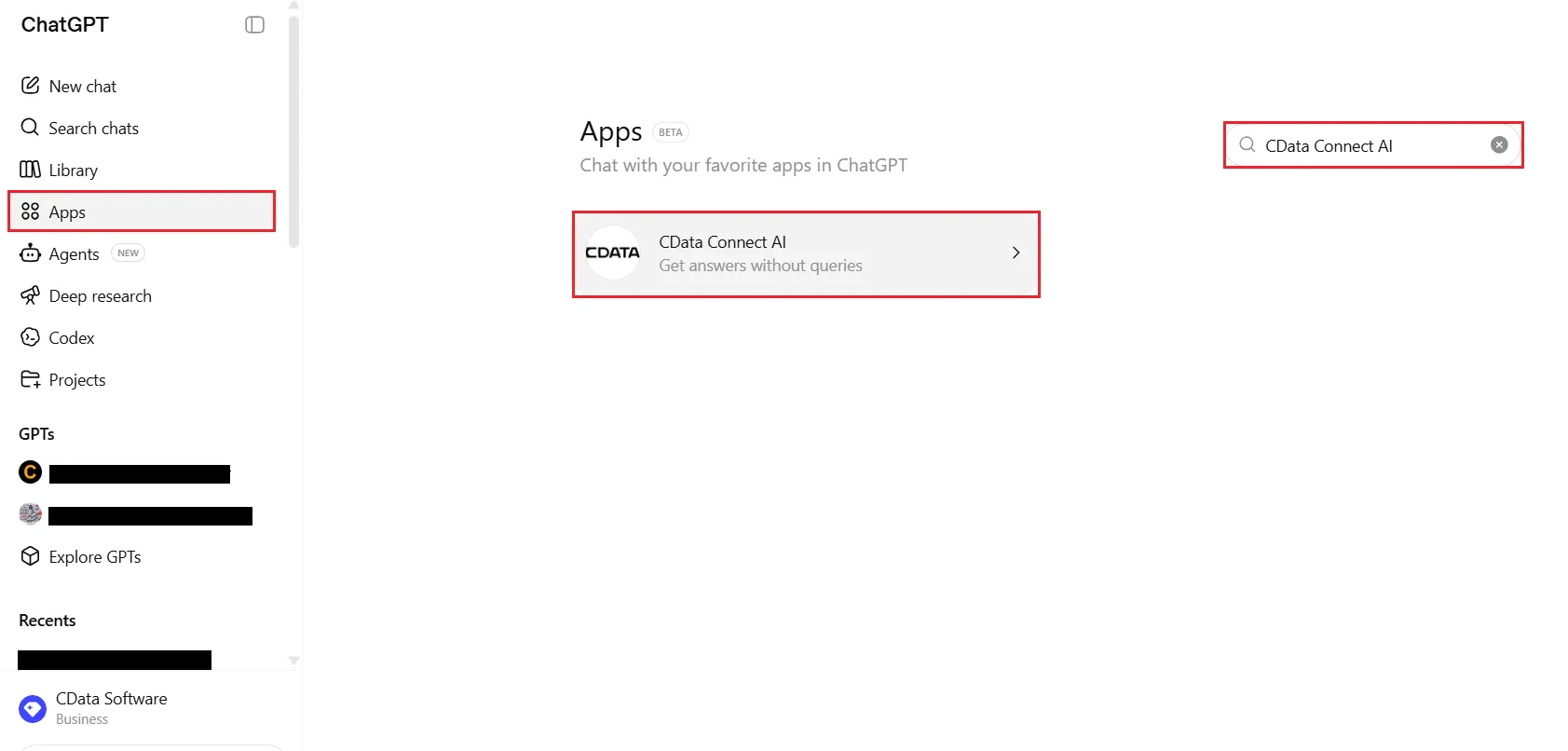
Navigate to Apps from the left panel.
3
Search for CData Connect AI and select it from the results.
CData Connect AI in ChatGPT Apps
4
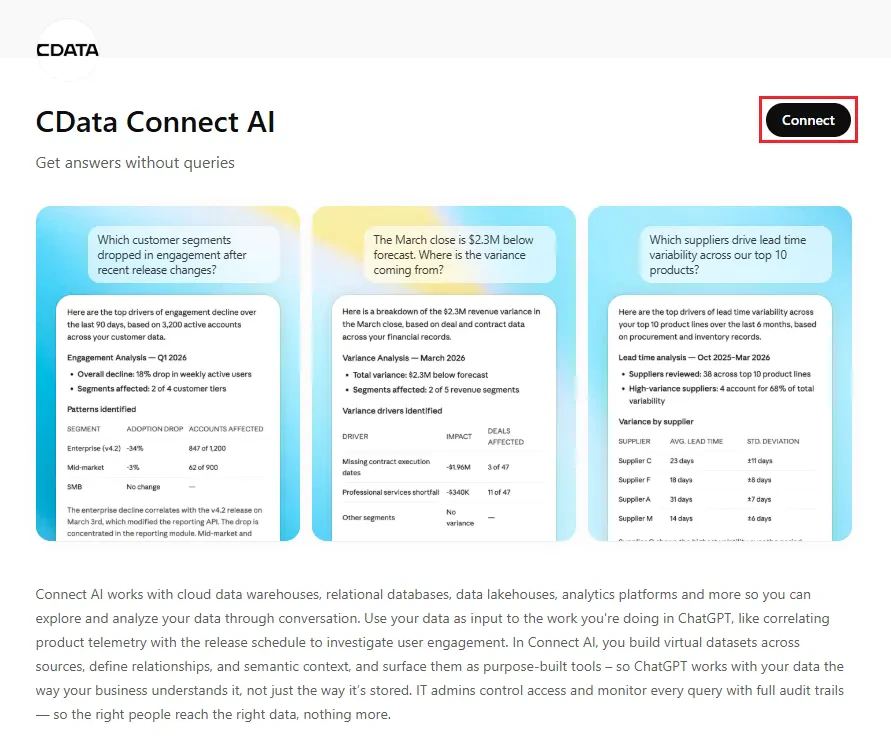
Click Connect to authenticate to your Connect AI account.
Connect to CData Connect AI
5
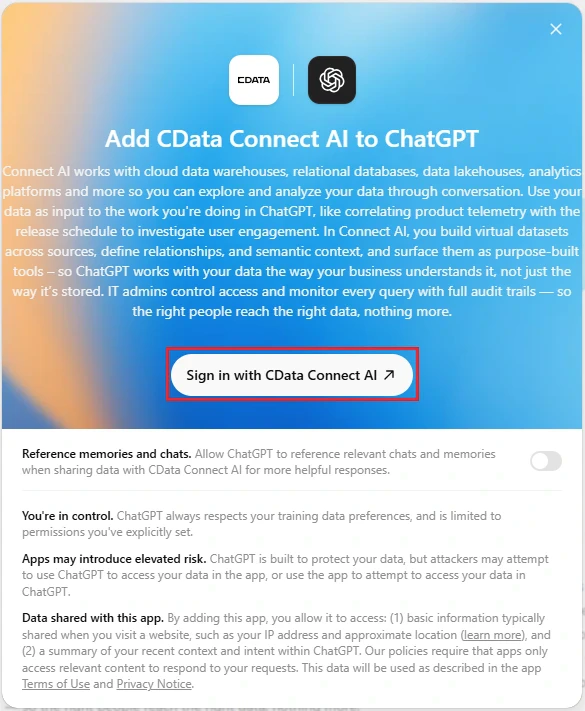
Click Sign in with CData Connect AI and complete the sign-in.
Sign in with CData Connect AI
6
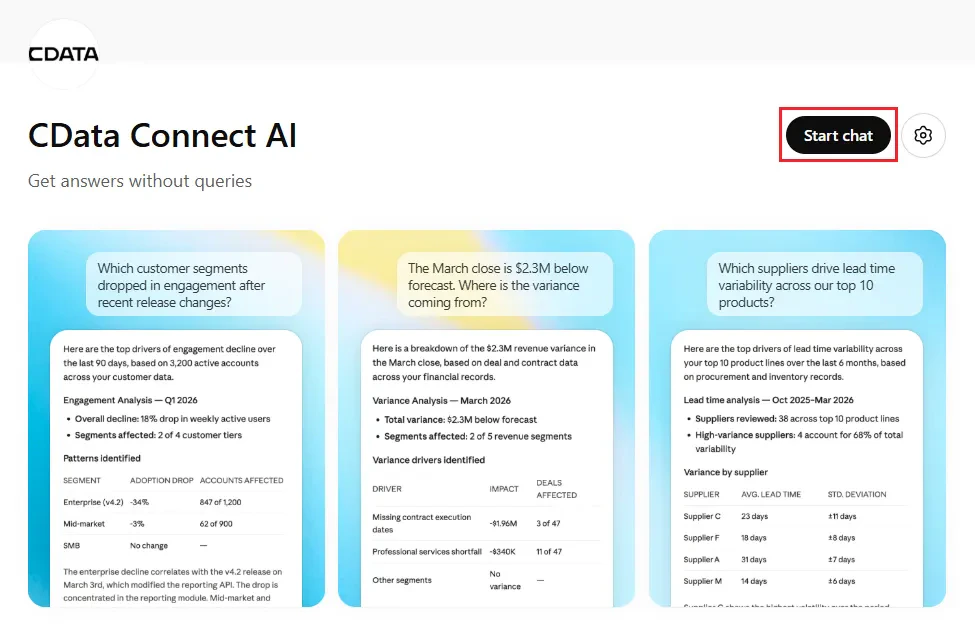
After successful authorization, click Start chat.
Start chat with CData Connect AI
7
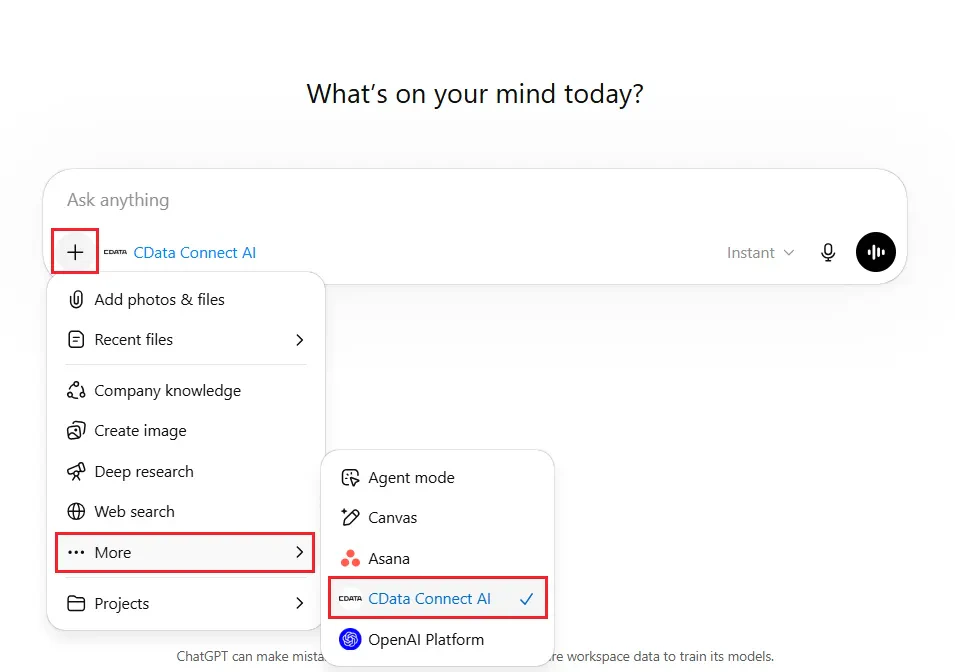
CData Connect AI should be automatically enabled in the chat. If not, click +, select More, and then select CData Connect AI from the drop-down list.
Enable CData Connect AI in the chat
8
You can now start exploring your data with natural language prompts. ChatGPT uses the Connect AI MCP server to query your live data and may ask your permission before accessing it.Refer to CData’s prompt library for prompt ideas.
ChatGPT’s Apps feature is currently in beta and its setup process is subject to change. Refer to ChatGPT’s documentation for the latest setup information.