


- API
- Confluence
- Databricks
- GitHub
- Jira
- MySQL
- PostgreSQL
- QuickBooks
- SAP Business One
- SAP Gateway
- Snowflake
- Splunk
- SQL Server
2
Install and run the connector in each location where your on-premises data is located. You can either deploy the Private Cloud Connector with Docker or deploy the Private Cloud Connector on Kubernetes.
3
Finish the Private Cloud Connector setup in Connect AI to test the connector and complete the connection.
Register the Private Cloud Connector in Connect AI
To register the Private Cloud Connector in Connect AI:1
Go to Sources and click Add Connection for a new connection, or edit an existing connection.
2
Click the Private Cloud Connector tab in the Add/Edit Connection page.
3
In Connectors, click Add. The Add Connector dialog appears.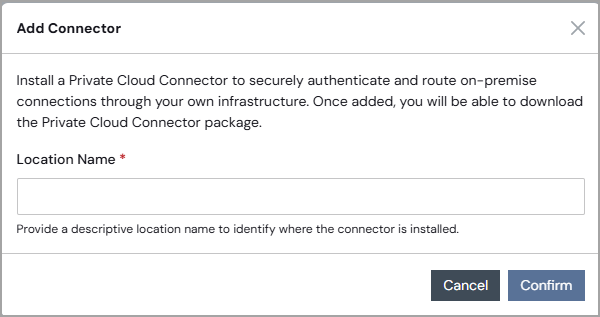
4
Enter a descriptive location name to identify where the connector is installed, and click Confirm.Your location appears in the Connectors list, along with a key and a Pending status. Click the eye icon to view the key.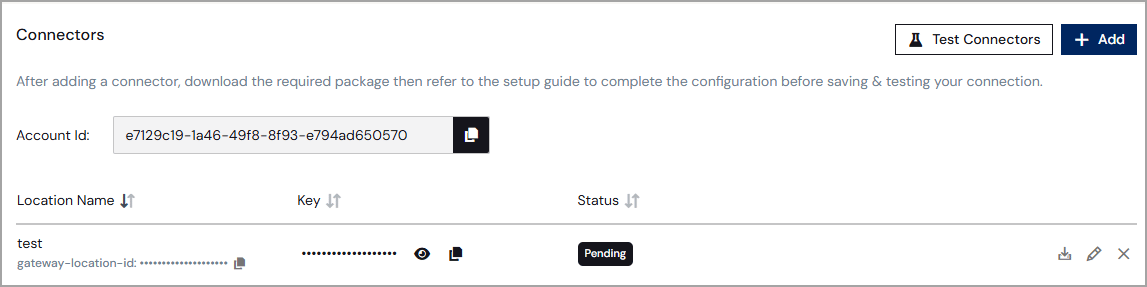
- Account Id–this is the ACCOUNT_ID environment variable for the connector.
- Location Id–this is the GATEWAY_LOCATION_ID environment variable for the connector.
- Key–this is the GATEWAY_API_KEY environment variable for the connector.
Deploy the Private Cloud Connector with Docker
The Private Cloud Connector is a lightweight service that runs inside your network and acts as a secure reverse tunnel between Connect AI and your local data sources. The connector registers itself with Connect AI on startup. It then listens for incoming connections, via Azure Relay technology, without ever exposing them to the public internet. The connector is protocol-agnostic: it forwards raw bytes without any knowledge of the database protocol (such as MySQL, PostgreSQL, or SQL Server), making it compatible with any TCP-based data source.Prerequisites
To run the Private Cloud Connector as a Docker container, you must have the following:- Docker installed on the host machine.
- Network access to
cloud.cdata.com. - The connector created in Connect AI.
- Host IP forwarding (
net.ipv4.ip_forward=1) enabled. Docker requires this for container outbound connectivity; note that OS patching and security-hardening baselines (CIS/STIG) may reset it to 0. - Egress TLS inspection must be bypassed for
*.servicebus.windows.net,*.azurecr.io, and*.cdata.com. SSL inspection on these endpoints will prevent the connector relay tunnel from establishing.
Environment Variables
The following environment variables are required to run the connector:Run the Connector in Docker
Run the connector as follows:docker run will pull the Docker image from the registry if it is not already present on the host.View Docker Logs
Stop the Connector
Docker Compose
Copy the following and save asdocker-compose.yml:
Start the Private Cloud Connector
docker compose up will pull the Docker image from the registry if it is not already present on the host.View Logs
Stop the Private Cloud Connector
Deploy the Private Cloud Connector on Kubernetes
The Private Cloud Connector Kubernetes Helm chart is available in a GitHub repository.Prerequisites
To deploy the Private Cloud Connector on Kubernetes, you must have the following:- Kubernetes 1.25 or later
- Helm 3.10 or later
- Metrics Server installed on your cluster (required for memory-based autoscaling)
- Network egress from the cluster to
cloud.cdata.com - Egress TLS inspection must be bypassed for
*.servicebus.windows.net,*.azurecr.io, and*.cdata.com. SSL inspection on these endpoints will prevent the connector relay tunnel from establishing. - Your Account Id, Location Id, and Key from Connect AI. See Register the Private Cloud Connector in Connect AI for the location of these values.
Quick Start
Add the Helm repository:For production, create a Kubernetes Secret containing your gateway credentials and pass
--set existingSecret=<secret-name> instead of --set gateway.apiKey=…. Passing the API key with --set writes it to shell history and to the Helm release’s stored values. See the Helm chart Readme file for secret-management patterns.Verify the Private Cloud Connector is Running
Check that the connector pods are ready and view their logs:Upgrade the Private Cloud Connector
Uninstall the Private Cloud Connector
Finish Private Cloud Connector Setup
Return to Connect AI and finish the Private Cloud Connector setup.1
After you complete the steps to deploy the Private Cloud Connector with Docker or deploy the Private Cloud Connector on Kubernetes, you can test the connectors you added to Connectors. Click the Private Cloud Connector tab of the Add/Edit Connection page. Click Test Connectors. The Status turns to Success if all connector setup is complete.
You still must click Save & Test to test the entire connection.
2
Return to the Basic Settings tab of your connection. Under Connection Type, select Private Cloud Connector.
3
Select the Private Cloud Connector location to use from the drop-down list.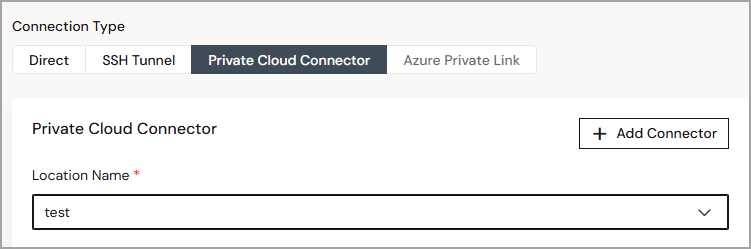
4
Enter the Authentication instructions for the connector according to the connector’s Documentation pane.
5
Click Save & Test to authenticate your connector.