

Step 1: Sign Up
Go to Connect AI and create a free account. The pricing page lists what each plan includes. If you already have an account, log in instead.Step 2: Connect Your Agent
Connect AI exposes a single remote MCP server at https://mcp.cloud.cdata.com/mcp. Point your agent at that URL and authorize it with OAuth in the browser. The agent can then discover and query every source you connect. Connecting the agent first means it is ready to use right after you add a data source, and it lets the agent create the connection for you.- Claude
- Claude Code
- ChatGPT
- Copilot Studio
- Gemini
- Cursor
- Visual Studio Code
- Other Clients
Connect AI publishes a connector in the Claude connector directory, so no configuration file is
required.
- Log in to Claude.
- Click your user name in the bottom-left corner, select Settings, and then click Connectors.
- Click Browse connectors and search for CData Connect AI.
- Click CData Connect AI, click Connect, and grant access.
This guide uses OAuth, which requires no token management. To use Basic authentication with a
personal access token instead, see Authentication.
Step 3: Add a Data Source
Your agent is connected but has nothing to read yet. Choose how you want to create the connection. The web interface handles any source, including the sample weather file. The other two paths drive the Management MCP server, which configures OAuth sources such as Google Sheets and Salesforce. Whichever you choose, the rest of this guide is identical afterward.- Ask Your Agent
- Use the Web Interface
- Manual Setup
The Management MCP server creates and tests connections programmatically, so the agent you connected in
Step 2 can set the source up for you. Register a second server alongside the first, at
https://mcp.cloud.cdata.com/mcp/mgmt, using whichever method you used in Step 2, and authorize it the
same way. In Claude Code that is:Now describe the source you want instead of configuring it through the user interface. Pick one of the
two below.Google Sheets, your own data, one Google sign-in:Salesforce, your own data. A Salesforce administrator must
install the CData connector once before the first connection works:The agent calls Every plan includes the Management MCP server. For the full tool list, see Management MCP.
list_available_sources to confirm the source, get_source_properties to discover the
required fields, and create_connection to save it. Keep the connection names above, because the rest
of this guide refers to them.Both sources use OAuth, so the agent returns a sign-in URL rather than a finished connection. Open it in
a browser and grant access, then ask the agent to confirm the result:You now have a queryable data source. Whichever path you chose, your agent from Step 2 can already
reach it.
Step 4: Ask a Question
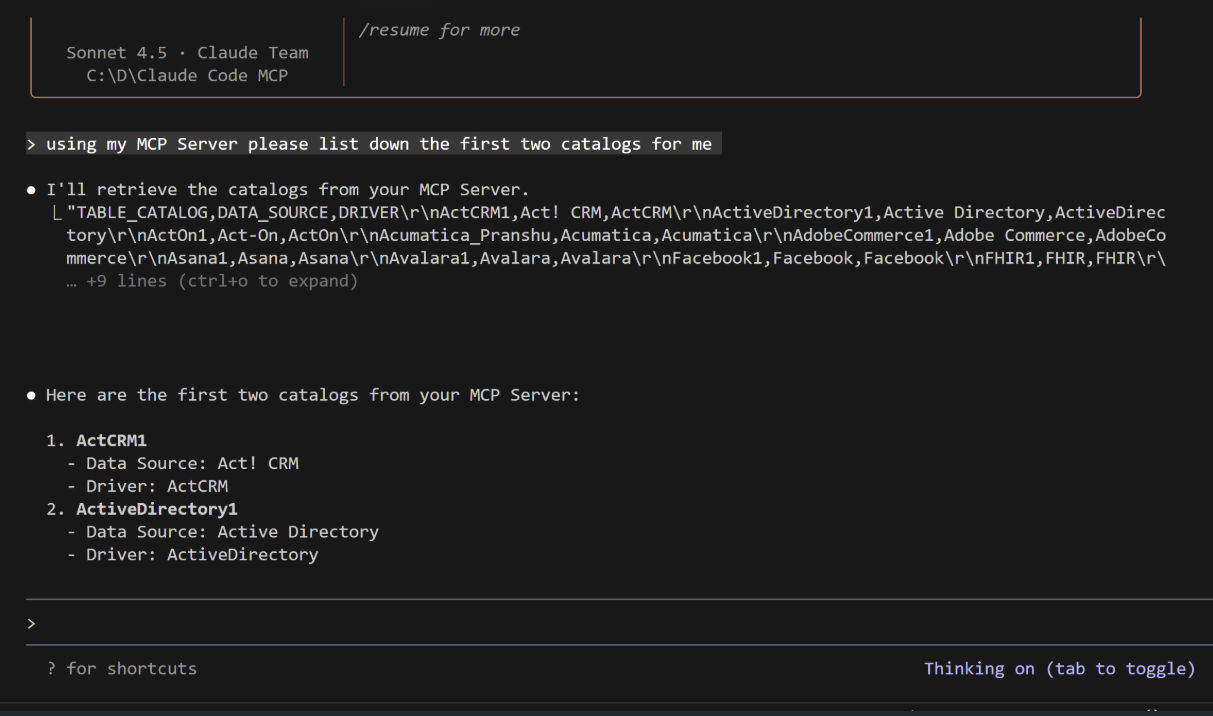
First, confirm that your agent reaches Connect AI at all:getCatalogs and returns the connection you just made. That confirms both the client
setup from Step 2 and the connection from Step 3.
Now ask a real question. Name the server in your prompt so that you can confirm the answer came from
Connect AI rather than from the model’s own knowledge. If you connected the sample weather file:
You made your first MCP query. Your agent discovered the data model and queried live data
through Connect AI, without any source-specific code.
Troubleshooting
Check the connection one layer at a time. The first check that fails tells you where the problem is. Confirm the client registered the server. For Claude Code, runclaude mcp list:
Confirm the data source works. Open Data Explorer and select your connection. If it returns rows
but your agent does not, the problem is in the client configuration rather than in the connection. If no
tables appear, click Refresh Metadata on the Edit Connection page.
See exactly what your agent ran. Open Logs > Query Log. Every query your agent sent appears
with a timestamp, the user, a status, and the full query text. Click a row to expand it. This is the
authoritative record of what the agent did, and it is the fastest way to tell a malformed query apart
from a permissions problem. See Logs.
Confirm the server responds, independently of any client. This separates a Connect AI problem from a
client problem, and it works before any client is configured. Create a personal access token on
the Personal Access Tokens page, then run:
getCatalogs, getTables, and
queryData. For the complete list, see MCP.
Other common causes:
- Told that you are not allowed to perform the requested action? Creating a connection needs the Administrator or Connection Administrator role. Ask an Administrator to grant it or to make the connection for you. See Permissions.
- Authentication errors? Reauthorize OAuth and confirm scopes.
- Slow queries? Filter early and limit columns.
- Agent cannot find your data? Confirm it uses fully qualified table names in the form [Catalog].[Schema].[Table].
Ask More of Your Data
The same connection answers new questions with no further setup, and the agent writes fresh SQL each time:getCatalogs, which means one conversation can reach Salesforce, HubSpot, and
Jira together without any per-source setup:
Use the Connection From Other Tools
One connection serves every consumer, with the same permissions applied to each. The same data is available via MCP, REST, OData, and the Virtual SQL Server endpoint at once, with no source-specific code between them. REST and OData authenticate with a personal access token, and OData also needs a virtual schema. See API for the complete API reference. BI tools read the connection you made in Step 3 through those endpoints, so there is nothing new to set up on the Connect AI side. Start with Power BI Desktop, Excel, or Tableau Desktop, or see Integrations for the rest.Next Steps
Your data is connected and queryable from agents, APIs, and BI tools. These are what people usually reach for next.Get More Out of the Connection
- Add another data source—Agents and BI tools pick up new connections without being reconfigured, and you can then query across sources.
- Explore and model in the browser—Data Explorer runs SQL against a connection directly, which is the fastest way to see what a source exposes or confirm an answer the agent gave you. Save a query as a derived view and agents read it like a table.
- See what ran—The Query Log records every query with its full text, which is the fastest way to trace an unexpected result or an unexpected bill from a source API.
- Make the connection read-only—Add
?ops=to the server URL so an agent can query your data but cannot change it. - Ask questions without an agent—Playground answers natural-language questions about your connected data from inside Connect AI, with no client to configure.
- Reach data behind your firewall—Connect Gateway is a reverse tunnel you run as a Docker container or on Kubernetes, so Connect AI can query data in a private network or VPC without exposing it to the internet.
Control Access
- Permissions—Grant SELECT, INSERT, and EXECUTE access by need-to-know at the source or virtual schema level, and choose whether each source uses a shared service account or per-user authentication, so an agent sees only what the person driving it is allowed to see.
- Virtual Schemas—Group sources and derived views, and share them with teams.
- Data Security—Data masking rules tagged to regulations such as HIPAA, PCI DSS, and CCPA, plus rate limits, IP allowlists, and audit logging.
- Security and compliance—How Connect AI handles PII, and the frameworks it maintains, including SOC 2 Type II, ISO, and GDPR.
- Toolkits—Expose only the tables and operations an agent needs. Check the prerequisites on that page first: Toolkits have both a plan and a role requirement.
Get Help
- Status page—current status and incident history for the application services.
- CData Technical Support—also reachable from the Support link at the bottom of the dashboard.
- Release Notes—new connectors, enhancements, and fixes.