Key Vaults
By using key vaults instead of entering data source information directly into the Connect AI user interface, you can have centralized control of all your credentials. You can establish an audit trail in your vault logs every time Connect AI reads a credential. You can also regularly update values in your vault without affecting your data source connection in Connect AI.- Azure Key Vault is currently supported, with more vault support to come. This feature is only available in Connect AI’s Business tier.
- Not available for Connect AI Embed.
- Only Shared Authentication is supported when key vaults are turned on.
Use a Key Vault for a Connection
Follow these steps to add your Azure key vault to Connect AI and then use the key vault for your connection.1
Enter your Azure Key Vault information in the Keys tab of the Settings page.
2
In the Add Connection page for your connection, toggle on Use Key Vaults to Authenticate. This enables the connection to use secrets stored in a key vault for its credentials.
3
In the Key Vault drop-down list, select the key vault to use for the connection. Key icons () then appear next to the connection’s credential fields (for example, User and Password).
4
Click the field’s key to change the key from outlined to solid, and then enter the vault secret in the field.
- If the key is outlined (), the field is treated like a normal input field.
- If the key is solid (), the value is treated as the name of a secret in the selected key vault, NOT the actual value of the field. For example, you can enter salesforce-password to reference the Salesforce password in the key vault.
5
Save and test your credentials as usual.
Rate Limits
The Connect AI rate limit is 100 requests per user per minute. This limit is shared across all data sources, so if a user issues 70 requests in a minute to one connection, that user can only issue 30 more requests to another connection in the same minute. Note that requests with excessively long response times might time out. If your request times out, please refine the query to reduce the time it takes to execute.IP Allowlist
Connect AI uses a range of static IP addresses to communicate with external data sources. To ensure that you can access your data, you must allow these static IP addresses in your data sources. The table below lists these IP addresses.Logging and Audit
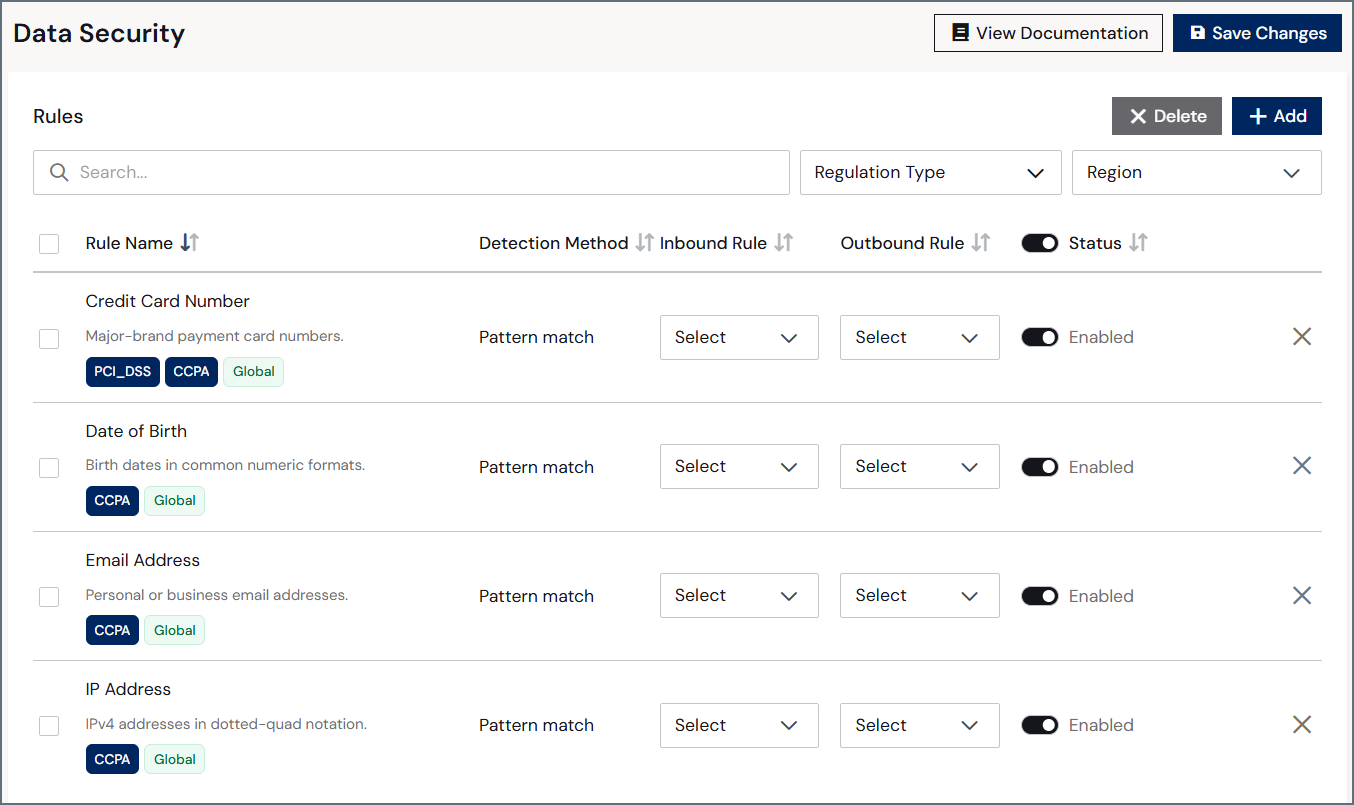
CData Connect AI provides comprehensive logging and audit capabilities to help you monitor data access, track system activity, and maintain compliance with security and regulatory requirements. The platform captures detailed information about user actions, data queries, connection activity, and system events. See Logs for details. You can forward these audit log events to an external Security Information and Event Management (SIEM) platform in real time, enabling your security team to monitor Connect AI activity alongside other enterprise systems for threat detection, compliance reporting, and incident response. Configure SIEM endpoints in the SIEM Endpoints tab of Settings.Personally Identifiable Information (PII)
Personally identifiable information (PII) is any data that can identify a specific individual, either on its own or when combined with other information. Common examples include names, email addresses, phone numbers, government identifiers such as Social Security numbers, financial details such as credit card numbers, and location data. Because Connect AI moves data between your sources and the applications, AI agents, and users that consume it, that data can include PII. Many regulations govern how PII must be handled, including the California Consumer Privacy Act (CCPA / CPRA), the Gramm-Leach-Bliley Act (GLBA), the Payment Card Industry Data Security Standard (PCI DSS), and the Health Insurance Portability and Accountability Act (HIPAA). Mishandling PII can lead to regulatory penalties, loss of customer trust, and increased security risk. Protecting PII typically involves identifying where sensitive values occur and controlling how they are exposed, for example by redacting or blocking them before they reach a user or a downstream system. Enter PII rules on the Data Security page.