

In Connect AI, privileges are administrative actions, while permissions are data and execution
access. Access roles are being replaced by policies, which are now the recommended way to grant permissions to data. You can assign policies to users, system roles, and SCIM groups (if SCIM groups are provisioned).
- Administrator has full access to all Connect AI functions, including adding and managing users.
- Workspace Administrator has full control within their assigned workspaces, including the privileges of a Connection Administrator. They manage workspace membership, the LLM and MCP Gateways, and context for those workspaces. Workspace Administrators do not see the Identities page.
- Connection Administrator manages connections, virtual schemas, jobs, the data warehouse, and global context; also assigns connection and virtual schema permissions.
- User Administrator manages users within their assigned workspaces. They can also add users to and remove users from those workspaces.
-
Query users can authenticate to a connection with their own credentials, as long as the user and connection meet the following criteria:
- An Administrator, Workspace Administrator, or Connection Administrator grants the user permission to use the connection.
- An Administrator selects Per-User Authentication, rather than Shared Authentication, for the connection.
Role Assignment
The following rules determine who can assign each system role:- Only an Administrator can assign the Administrator role.
- An Administrator can assign the Workspace Administrator, Connection Administrator, and Query roles.
- A Workspace Administrator can assign only the Connection Administrator and Query roles, and only within their own workspaces.
- An Administrator or User Administrator can assign the User Administrator and Query roles, and a User Administrator can do so only within their own workspaces and only for users who currently hold the Query or User Administrator role.
Workspace Membership
An Administrator, Workspace Administrator, or User Administrator can add users to or remove users from a workspace. A Workspace Administrator or User Administrator can do so only in workspaces where they hold the role. See Permissions and Access Control for more information about the scope of these roles.By default, all CData Connect Spreadsheets users have an Administrator role. They have full
Select, Insert, Update, Delete, and Execute permissions.
- A system role (Administrator, Workspace Administrator, Connection Administrator, User Administrator, or Query) defines what a user can do across the platform (managing connections, managing users, and running queries), and every user has exactly one.
- An access role is an optional, admin-defined set of data and virtual schema permissions assigned on top of the system role; access roles are additive, so a user can hold several.
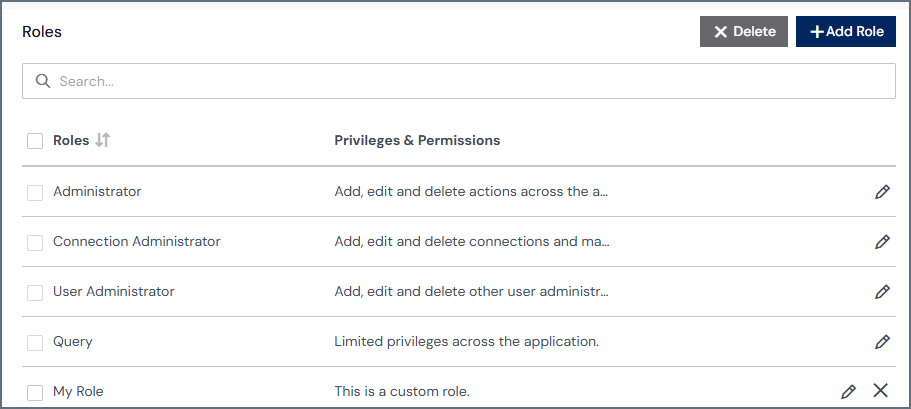
- A search bar to search for a role.
- A row for every role in your account:
- Role is the role name.
- Privileges & Permissions is a short overview of the scope of the role.
- Edit and delete icons for the role. System roles cannot be deleted.
Add an Access Role
Access roles are being replaced by policies, which are now the recommended way to grant permissions to data.
1
In the Roles tab of the Roles & Policies page, click Add Role to open the Add
Role page.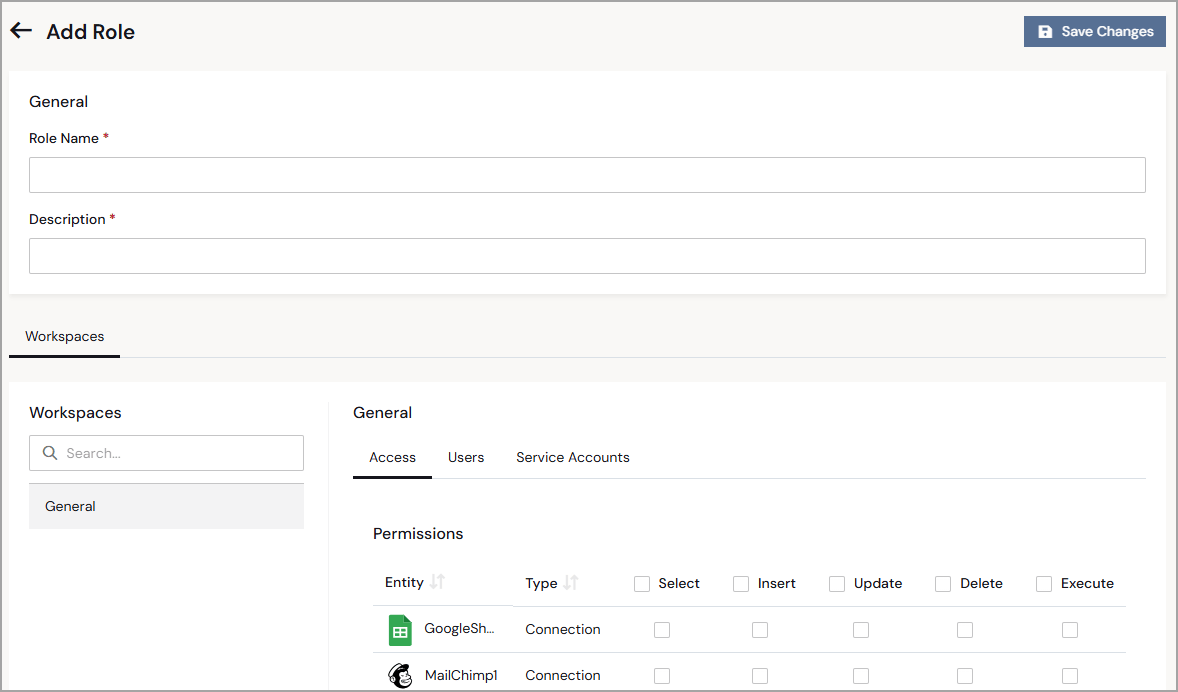
2
Enter the Role Name.
3
Enter a short description of the role that appears on the Roles list.
4
If you have more than one workspace, select the workspace in which to add the role.
5
Now assign permissions in the workspace (for example, General). In the Access tab,
select the appropriate permissions for entities (data connections and virtual schemas) in your
Connect AI instance. For more information about permissions, see Permissions and Access
Control.
6
In the Users tab, click + Assign Users to assign multiple users to the same access
role.
You can also add permissions to a user on an individual basis. These permissions are added to
the role-based permissions.
7
Select one or more users to assign to the role, and click Confirm.
8
In the Service Accounts tab, click + Assign Service Accounts to assign multiple service
accounts to the same access role.
9
Click Save Changes to save the role.
Edit a Role
You can modify a role at any time by clicking its edit icon in the Roles list. You can delete an access role by clicking its delete icon.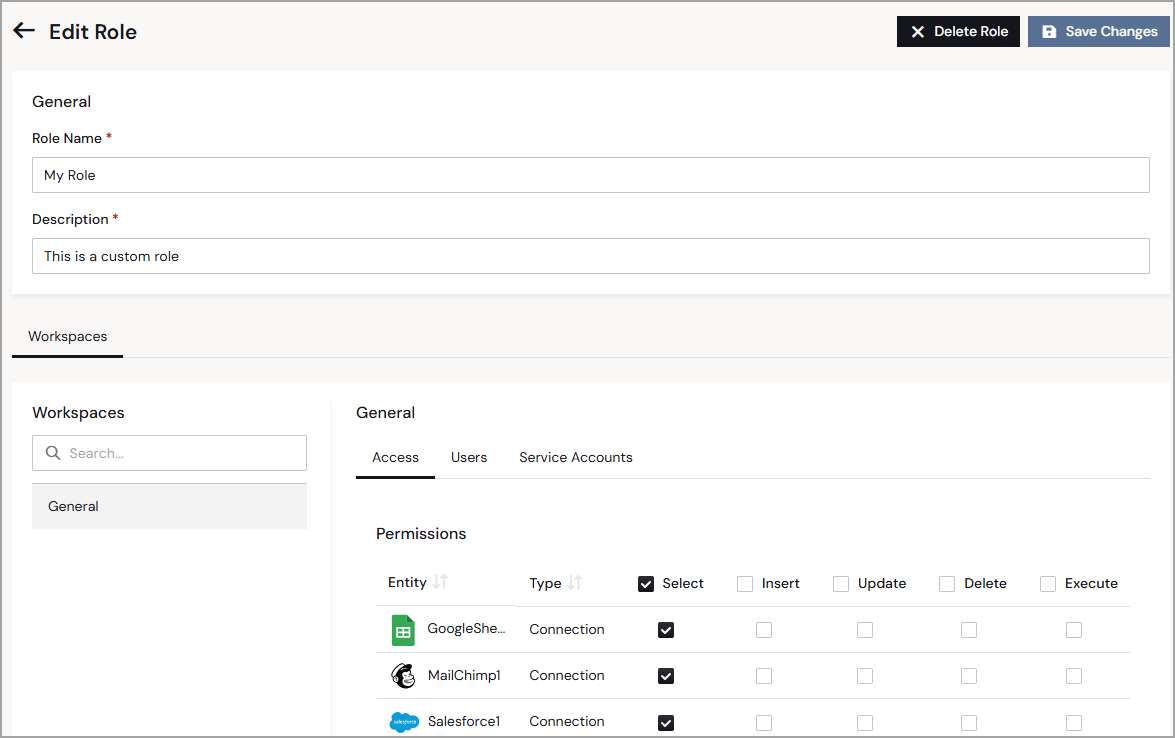
- Edit the Role Name and Description fields (access roles only).
- Edit the permissions for the role (access roles only).
- Assign users to or remove users from the role.
- Assign service accounts to or remove service accounts from the role (access roles only).
- Delete the entire role (access roles only).