

SCIM groups must be enabled on your account. See SCIM Groups for the prerequisites and for instructions on configuring group provisioning in your identity provider (IdP).
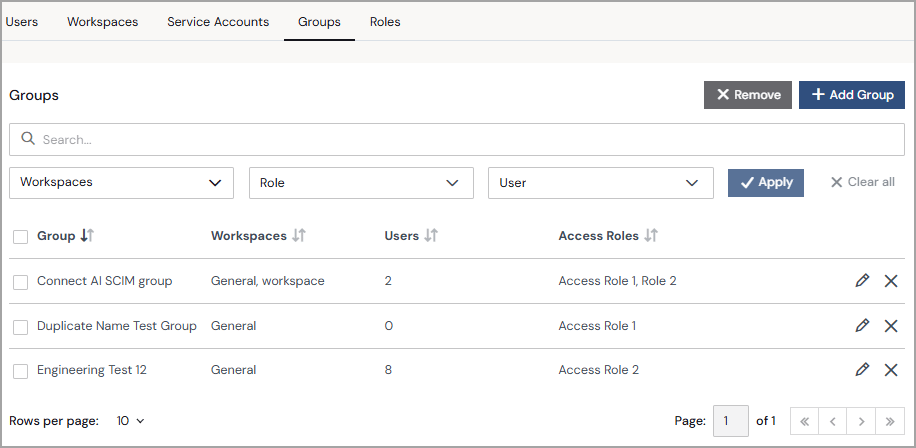
- A search bar for entering a group name.
- Lists for filtering by workspace name, role, and user.
- A row for every group in your account:
- Group displays the SCIM group name synced to your Connect AI account.
- Workspaces displays the workspace or workspaces the group is a member of.
- Users displays the number of users in the group.
- Access Roles displays one or more access roles assigned to the group. See Roles for more information.
- Edit and delete icons for the group. Deleting a group in Connect AI disables it. The group still exists in your IdP. See Deleted Groups.
Add Groups
1
In the Groups tab of the Identities page, click + Add Group to open the Add Group dialog.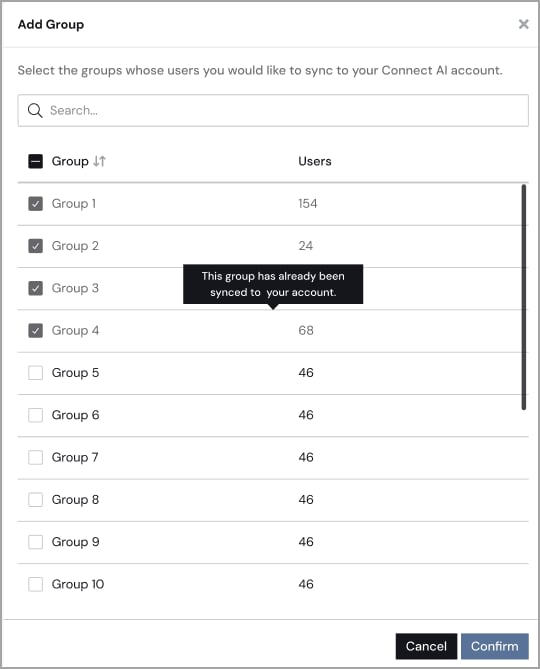
2
Select the SCIM group or groups to sync to your Connect AI account.
SCIM groups that are already synced are dimmed.
3
Click Confirm to add the SCIM groups.
Edit Groups
Click a group in the list (or click the edit icon) to open the Edit Group page.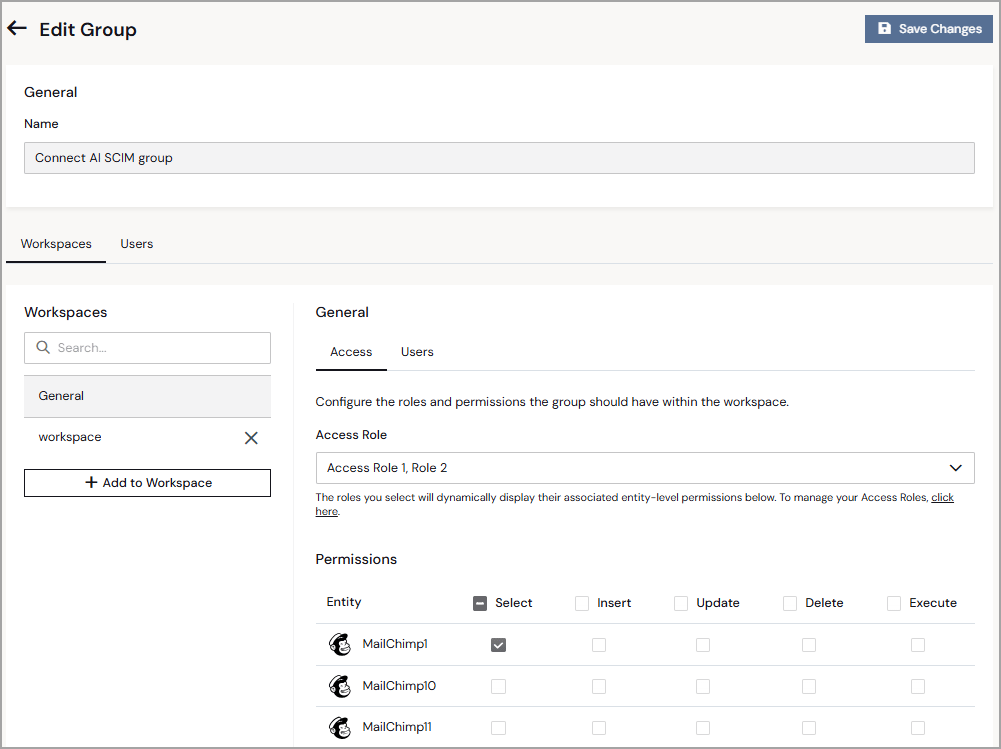
- A non-editable Name field.
- A Workspaces tab with an Access Role list where you add or remove access roles for the selected workspace.
- The Permissions section shows the permissions for the selected access role (view only). See Permissions for more information about roles and permissions.
- A Users tab, nested in the workspace view, lists the group members who have access to that workspace (view only).
- A Users tab that lists all users assigned to the group through your IdP (view only).
Manage Group Roles
To create access roles, see Roles.
1
In the Groups tab, click the edit icon next to the group whose roles you want to manage.
2
In the Workspaces tab, select the workspace, then select one or more access roles in the Access Role list to assign to your group. To remove a role from the group, cancel its selection.
3
Click Save Changes. The access role or roles appear in the Groups list under Access Roles.
Add a Group to a Workspace
You can add a group to a workspace so that the members of the group have access to that workspace. You can also add groups from the workspace’s Edit Workspace page. See Add a Group to a Workspace.1
In the Groups tab, click the edit icon next to the group that you want to add to a workspace.
2
On the Workspaces tab of Edit Group, select the workspace to add the group to.
3
Click + Add to Workspace. An Add Group to Workspace dialog appears.
4
Select the group or groups that you want to include in the workspace (Step 1 in the dialog).
5
Select an Access Role for the group in the workspace, if desired (Step 2 in the dialog).
6
Click Add. The workspace appears in the Workspaces tab of the Edit Group page.