

前提条件
接続する前にまず以下を実行します。- データソースをConnect AI アカウントに接続します。詳しくは、Sources を参照してください。
- Settings ページでPersonal Access Token (PAT) を生成します。PAT をコピーし、認証時にパスワードとして使用します。
Connect AI に接続する
Workato からConnect AI の仮想SQL Server API へのコネクションを確立するには以下の手順に従います。1
Log in to Workato.
2
On the navigation bar, click Projects.
3
Enter a name for the new project and click Create project.
4
In your new project, click Create > Connection.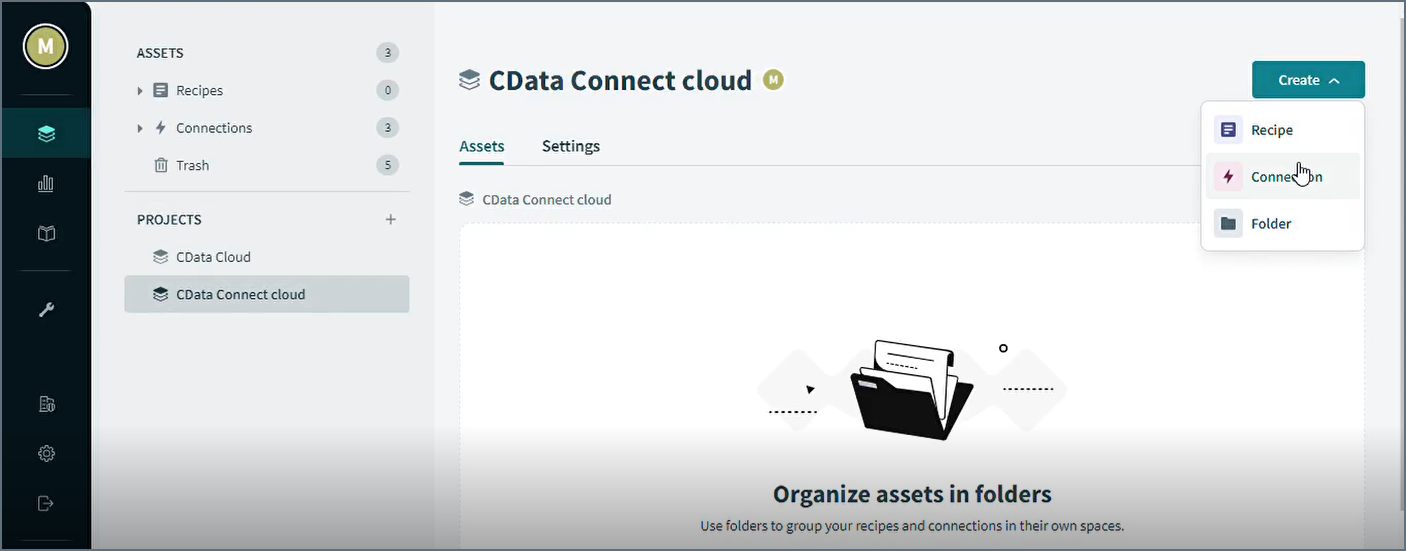
5
In the search bar, enter “SQL Server”. The Connect to SQL Server screen appears.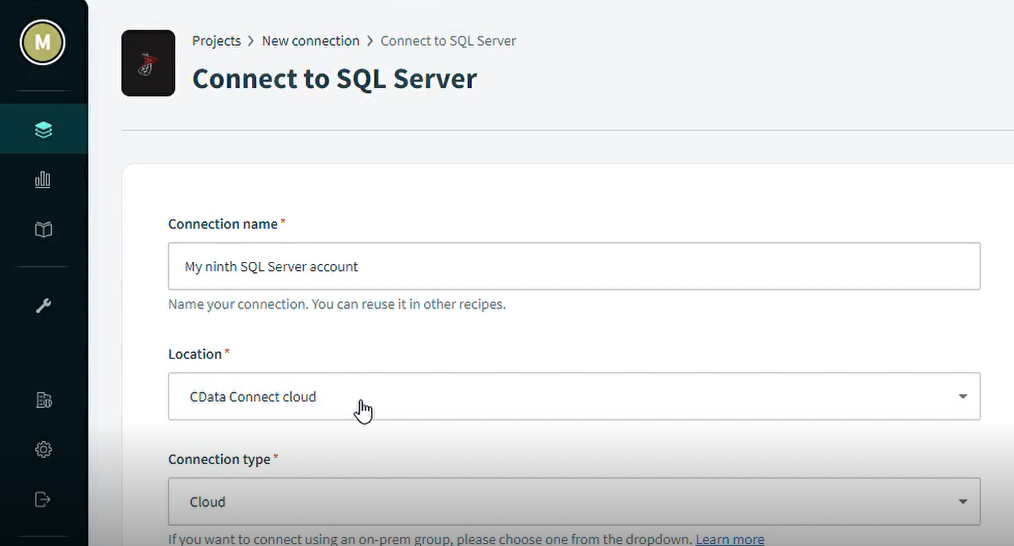
6
In Connect to SQL Server, enter the connection name and the following connection settings.
- Location—The name of the project in which to create the connection.
- Connection type—select Cloud.
- Host—tds.cdata.com
- Port—14333
- Username—Connect AI のユーザー名を入力します。ユーザー名は、Connect AI の画面の右上に表示されています。例:
[email protected] - Password—Settings ページで生成したPAT を入力します。
- Database—接続したいConnect AI データソースのConnection Name を入力します。例:Salesforce1
7
Click Connect. A Connection established message appears.
8
The next step is to set up your recipe. In your project, click Create > Recipe.
9
In Set up your recipe, enter the name and location of your recipe.
10
Select Run on a schedule.
11
Select the actions that occur on the schedule.
12
Select a table from your SQL Server connection, and any filters, if applicable.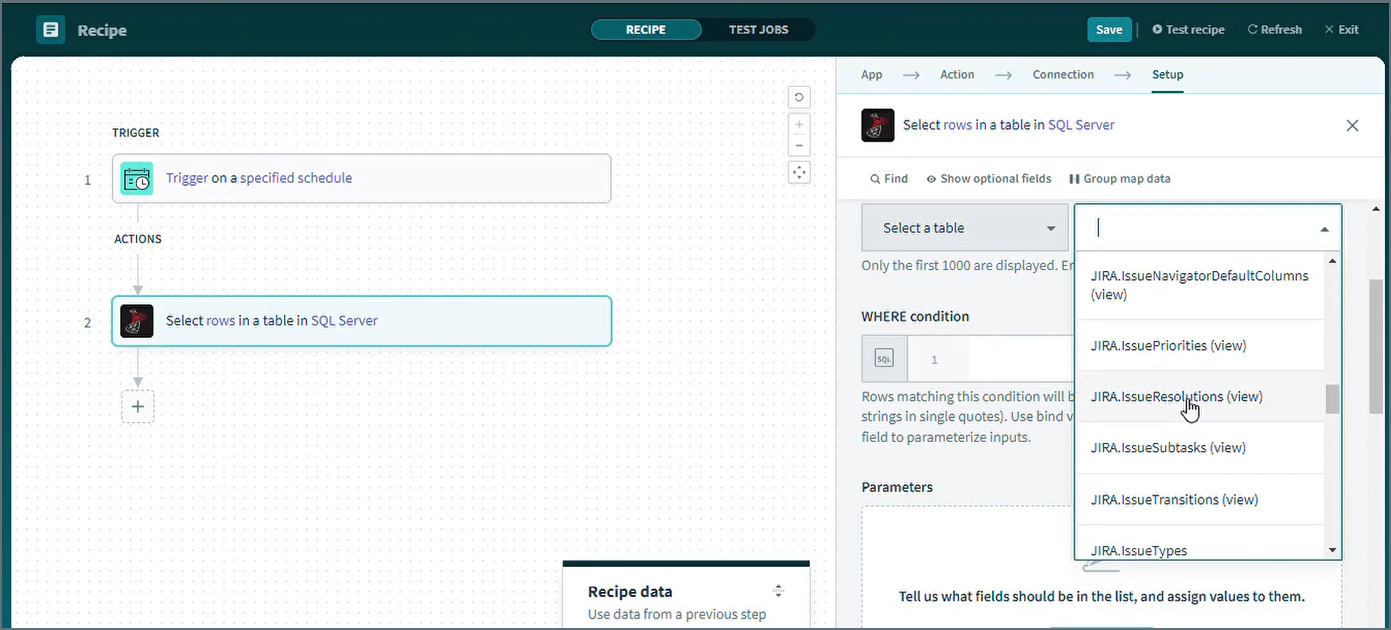
13
Click Save to save the recipe.
14
Click Test Jobs to test your recipe.