前提条件
接続する前にまず以下を実行します。- データソースをConnect AI アカウントに接続します。詳しくは、Sources を参照してください。
- Settings ページでPersonal Access Token (PAT) を生成します。PAT をコピーし、認証時にパスワードとして使用します。
Connect AI に接続する
Bubble からConnect AI の仮想SQL Server API へのコネクションを確立するには以下の手順に従います。1
Log in to Bubble.
2
On the left hand menu, click Plugins.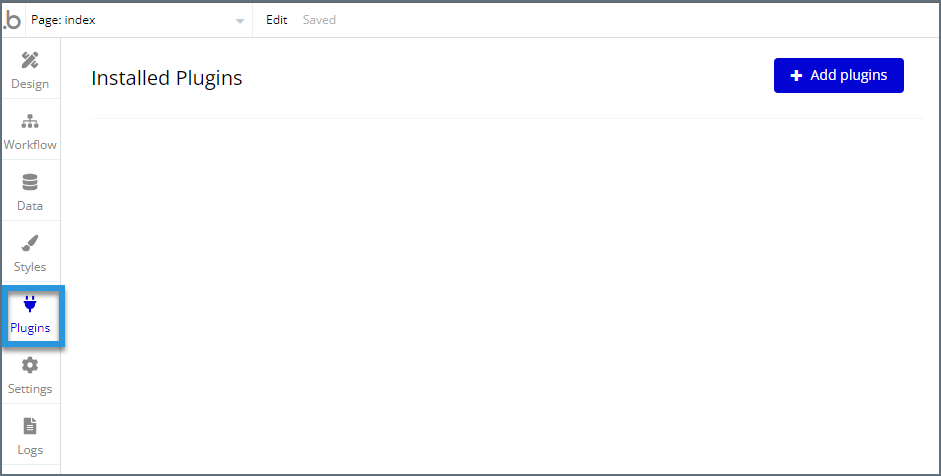
3
Click Add plugins.
4
Search for “SQL Database Connector” and click Install.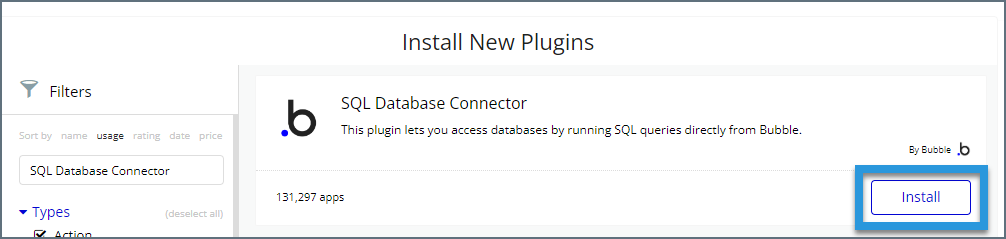
5
Once it is installed, it is available to use as shown below. Click Add a new connection.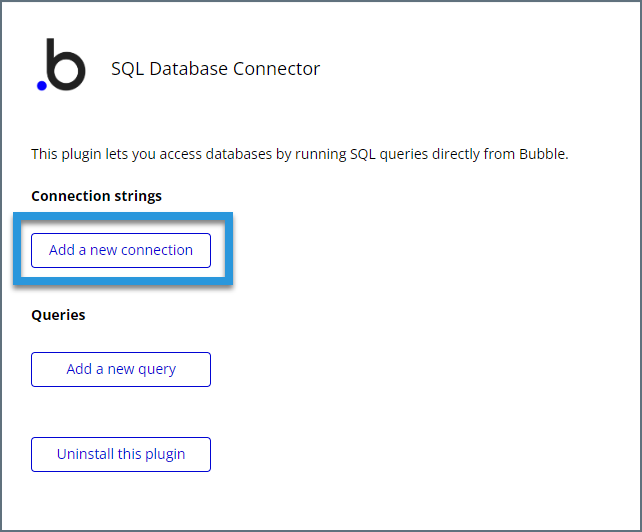
6
Enter the connection settings.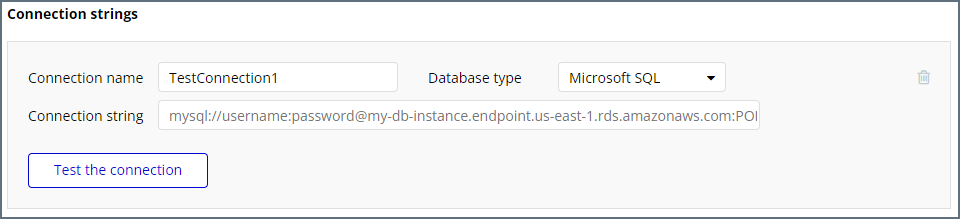
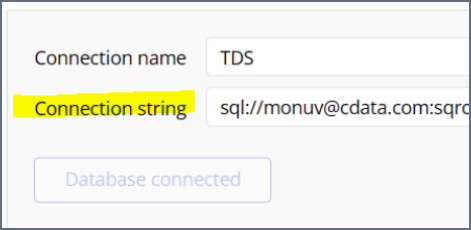
- Connection name—enter a name for the connection to Connect AI.
- Database type—select Microsoft SQL.
- Connection string—enter the SQL database connection string. This string includes a username and password in a format like:
sql://[Username]:[Password]@tds.cdata.com:14333/
- Username—Connect AI のユーザー名を入力します。ユーザー名は、Connect AI の画面の右上に表示されています。例:
[email protected] - Password—Settings ページで生成したPAT を入力します。
Note: The password portion of the connection string should not contain any forward slashes, because Bubble interprets them as separators. Replace any forward slashes with the URL-encoded string
%2F.Note: It is also possible to add a database connection name at the end of the connection string like
sql://[Username]:[Password]@tds.cdata.com:14333/[ConnectionName].7
Click Test the connection. If the connection succeeds, this button becomes gray and says Database connected as shown below.