

Prerequisites for Connecting via OpenAPI
Before you connect via OpenAPI, you must first do the following:- In Connect AI:
- Connect a data source to your Connect AI account. See Sources for more information.
- Add a workspace to Workspaces.
- Add assets to your workspace.
- Generate a Personal Access Token (PAT) on the Settings page. Copy this down, as it acts as your password during authentication.
- In Retool:
- Go to Settings > API and click Create new to generate an access token. See the Retool documentation for more information.
Connect to Connect AI via OpenAPI
To establish a connection from Retool to Connect AI via OpenAPI, follow these steps.1
In Workspaces in Connect AI, select a workspace and copy the OpenAPI URL for the workspace. Keep the default options. See OpenAPI for more information.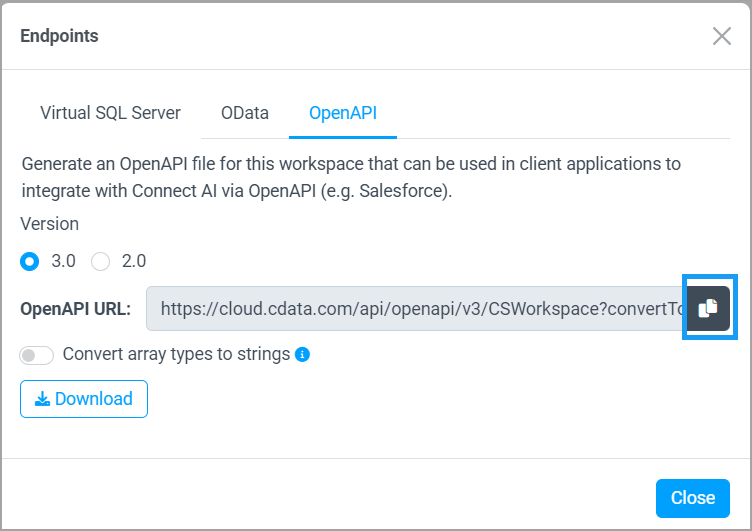
2
Log in to Retool.
3
In the Resources tab, click Create new > Resource.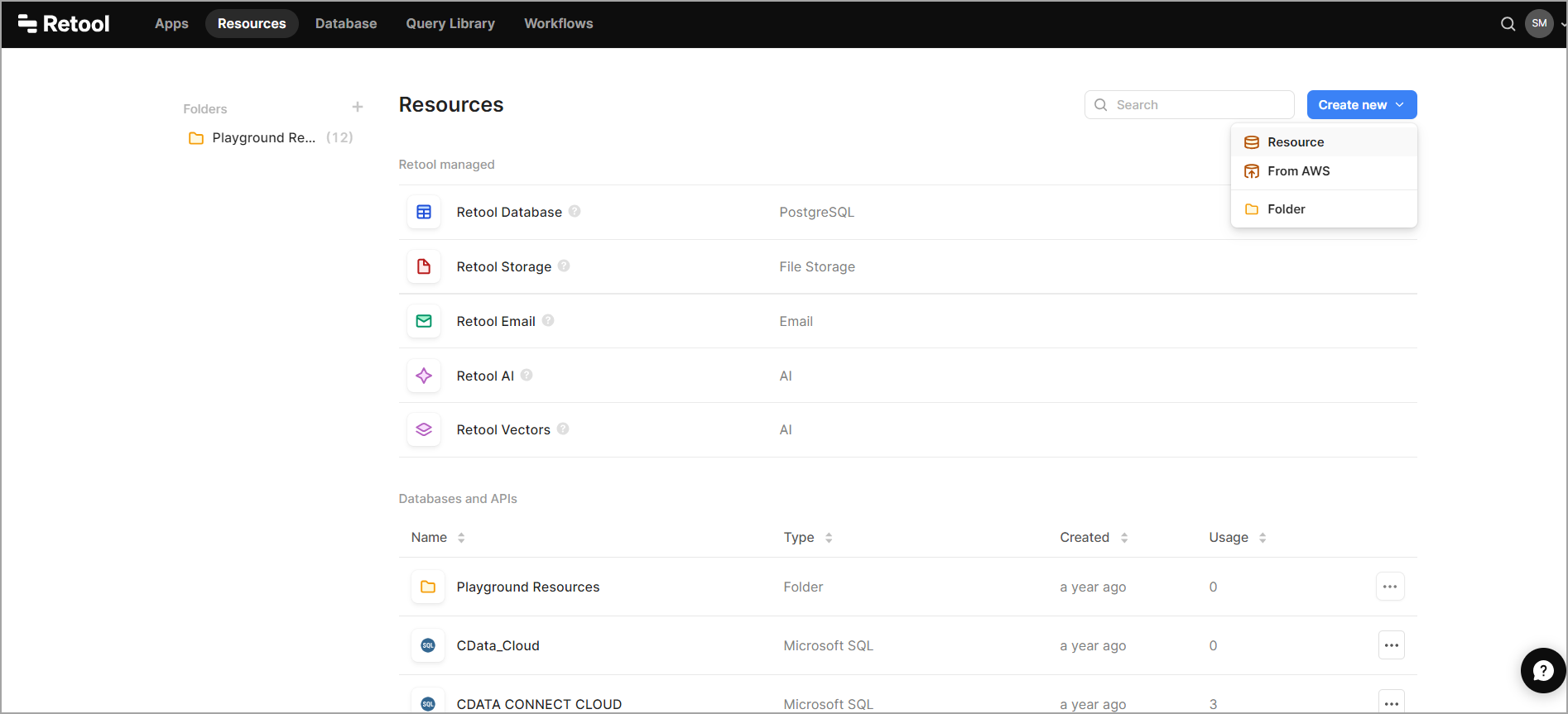
4
In the Select a resource type search bar, enter OpenAPI.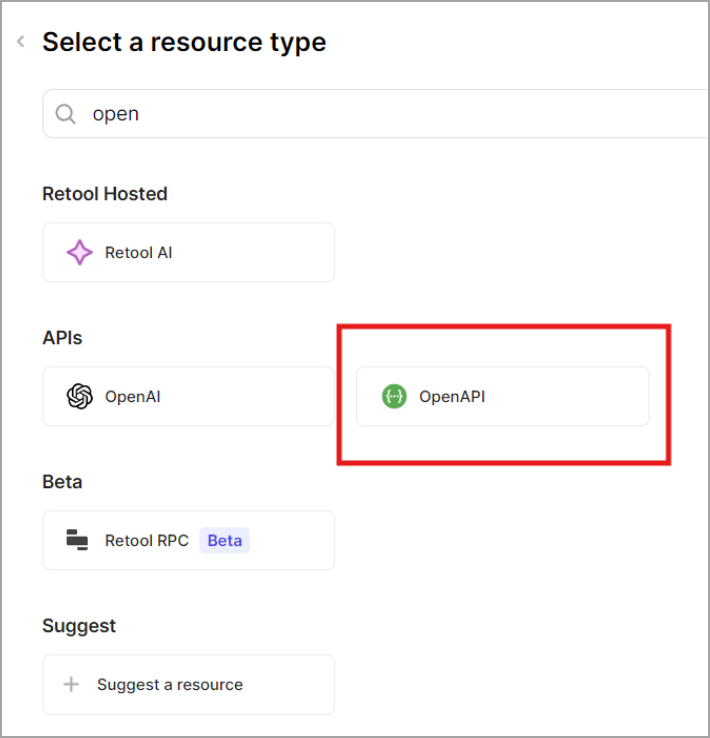
5
Click OpenAPI. The Configure OpenAPI screen appears.
6
Enter the following information to configure the OpenAPI connector: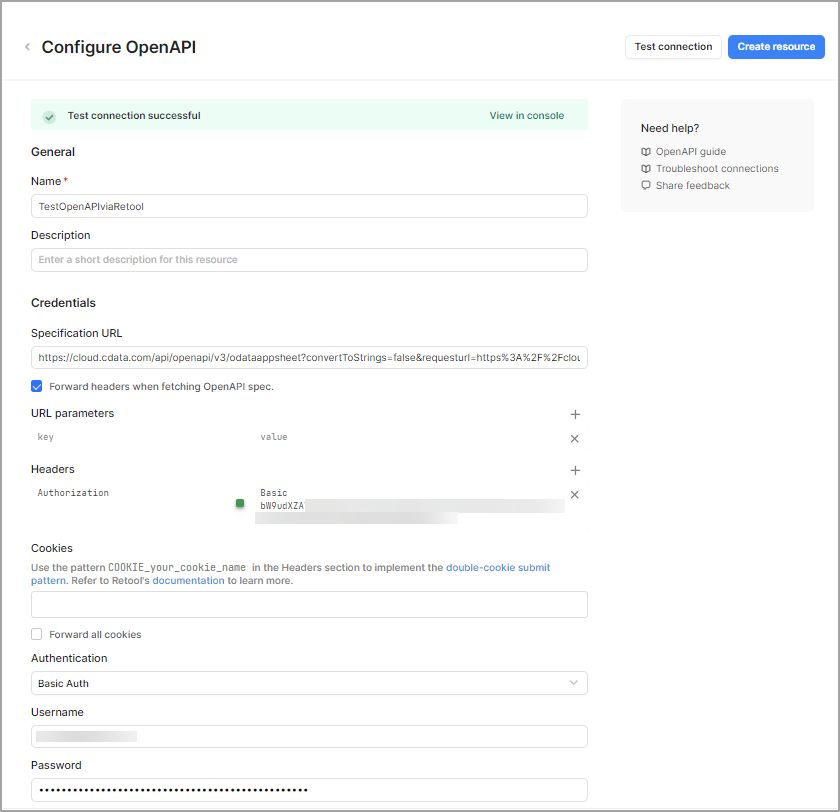
- Name—the name to use to identify the connector.
- Specification URL—the OpenAPI URL you copied in Connect AI. Paste the URL here.
- Forward headers when fetching OpenAPI spec—must be selected.
- Headers—Authorization is Basic. Then, Retool requires that you Base64 encode your Connect AI username and PAT using the input format username:PAT. The PAT is the token you created in the prerequisites. You can use a tool such as the one here. Click Encode and copy the Base64 encoded result into this field. For example, for
[email protected]:12345, the Base64 encoded value is dGVzdEBjZGF0YS5jb206MTIzNDU=. - Username—Connect AI のユーザー名を入力します。ユーザー名は、Connect AI の画面の右上に表示されています。例:
[email protected] - Password—Settings ページで生成したPAT を入力します。
7
Click Test connection to test your connection configuration.
8
Once you have a successful connection, click Create resource.
9
Create the app in Retool in which to integrate your data.
10
Click Create resource query.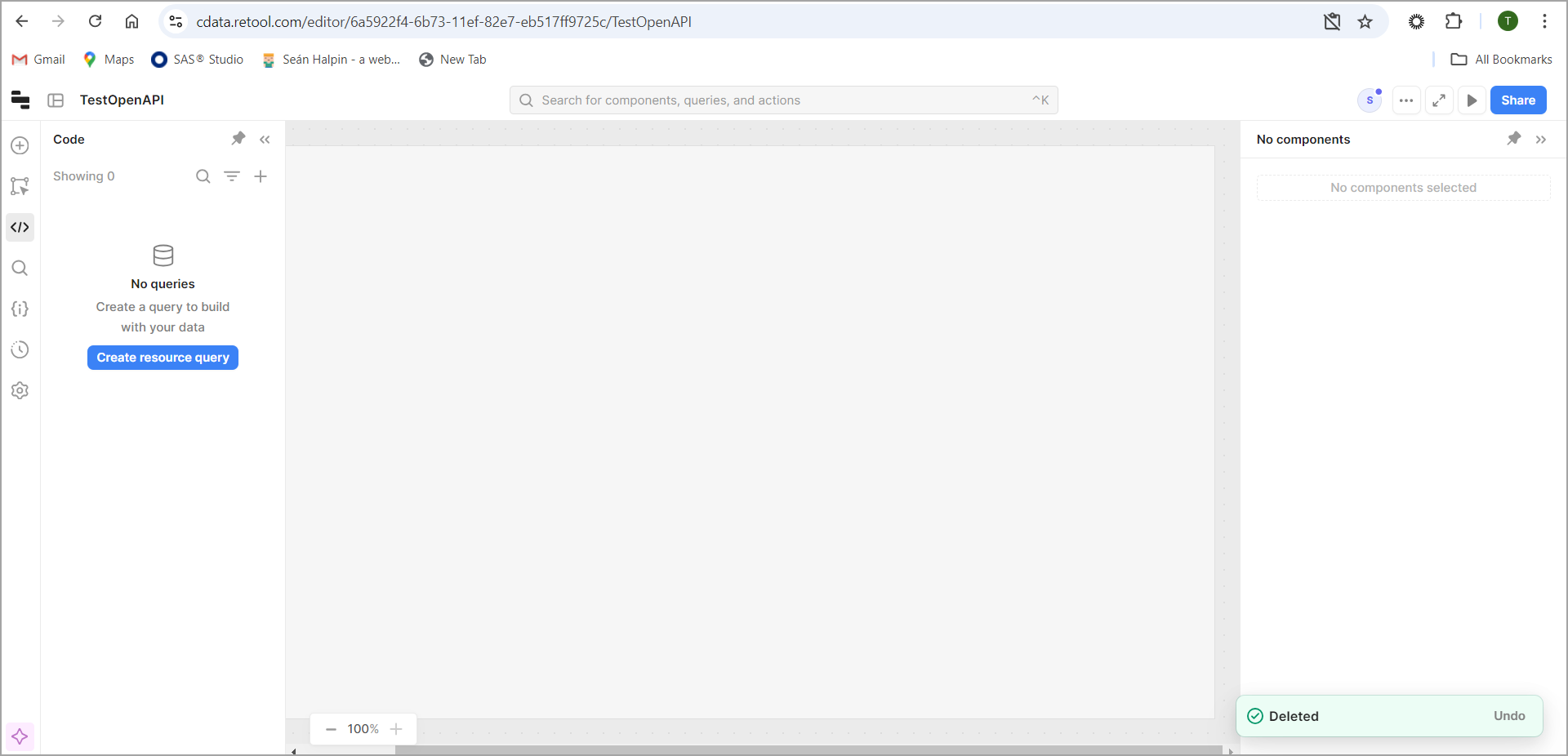
11
Select the new resource you created, and view the endpoints that are available.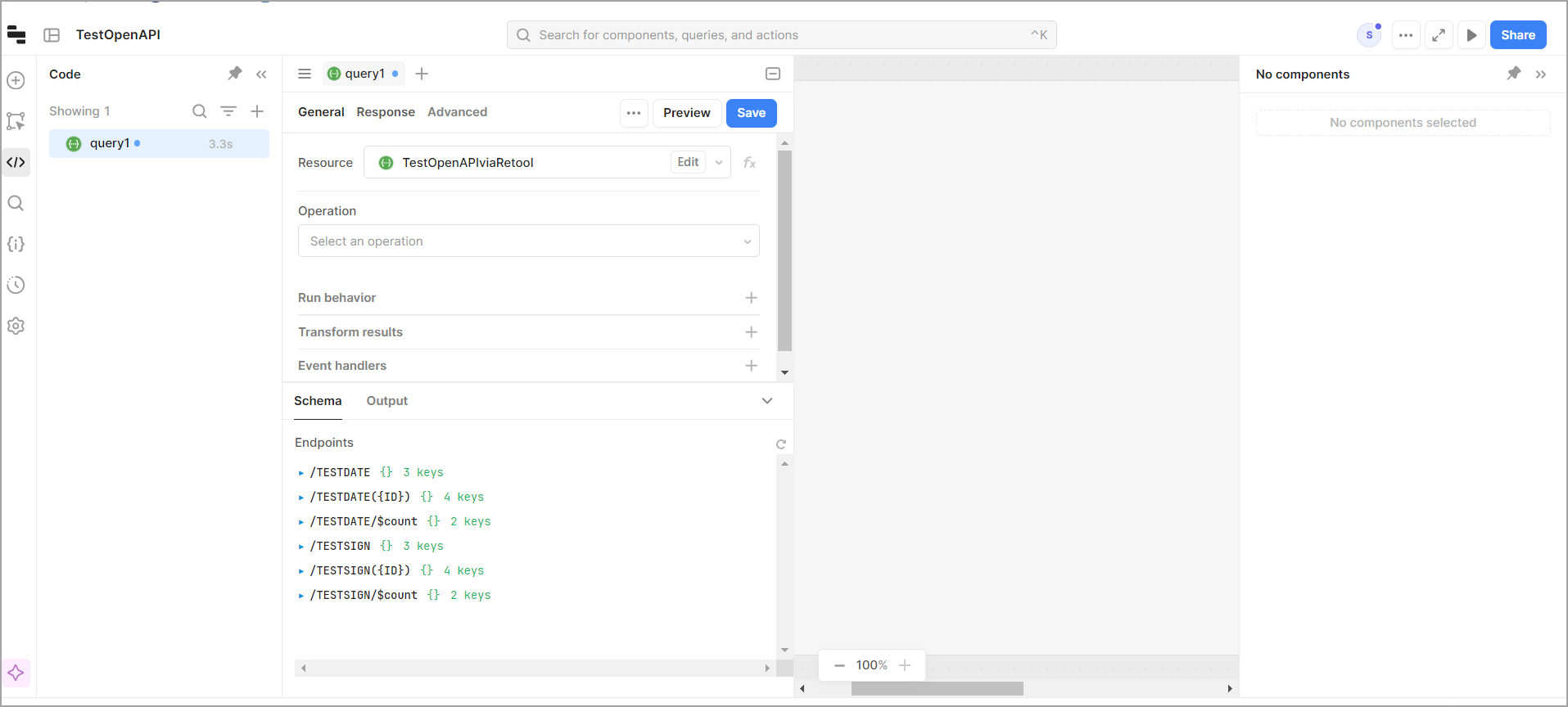
12
You can now build your app with the data.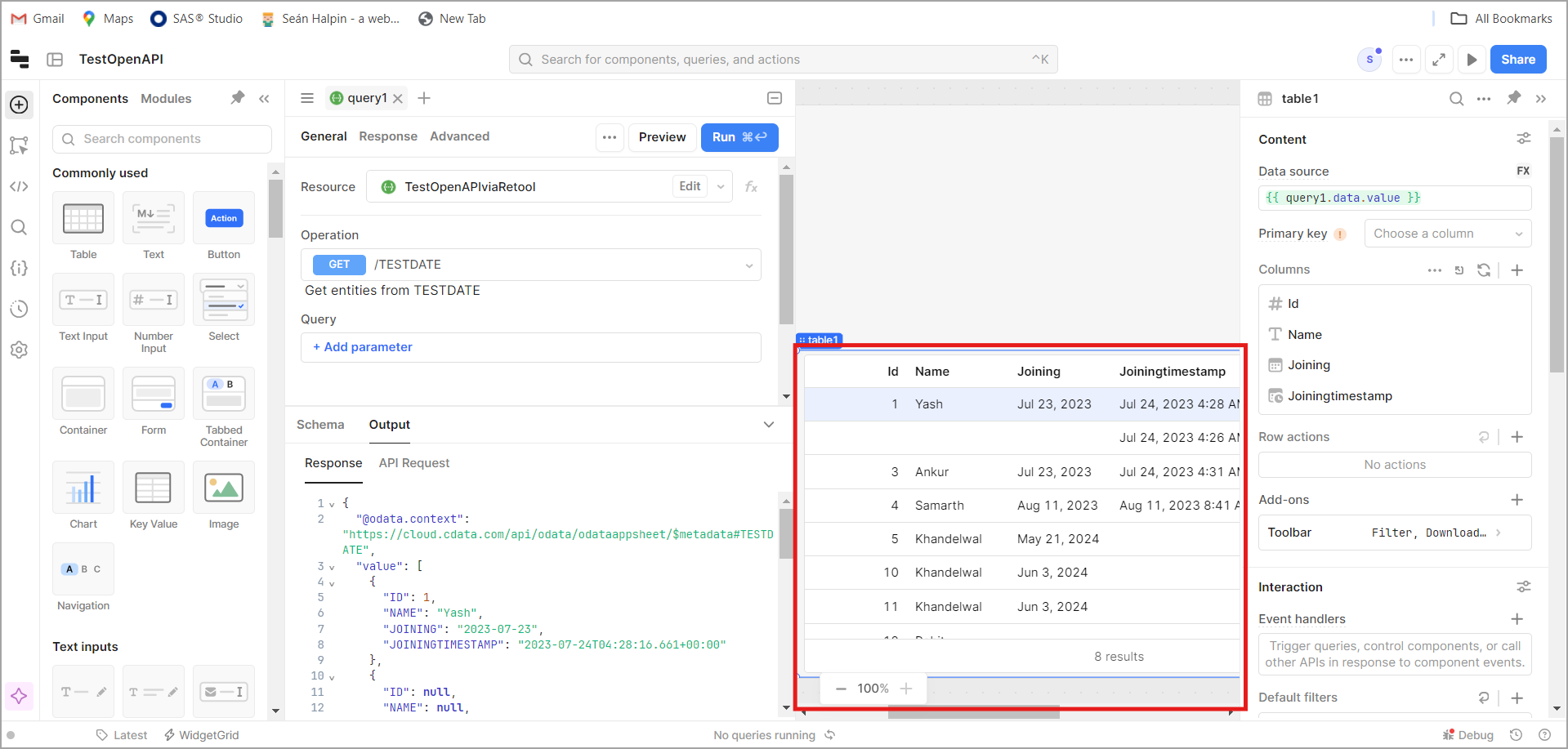
Prerequisites for Connecting via Virtual SQL Server API
Before you connect, you must first do the following:- Connect a data source to your Connect AI account. See Sources for more information.
- Generate a Personal Access Token (PAT) on the Settings page. Copy this down, as it acts as your password during authentication.
Connect to Connect AI via Virtual SQL Server API
To establish a connection from Retool to the Connect AI Virtual SQL Server API, follow these steps.1
Log in to Retool.
2
Under Resources, click Connect a resource.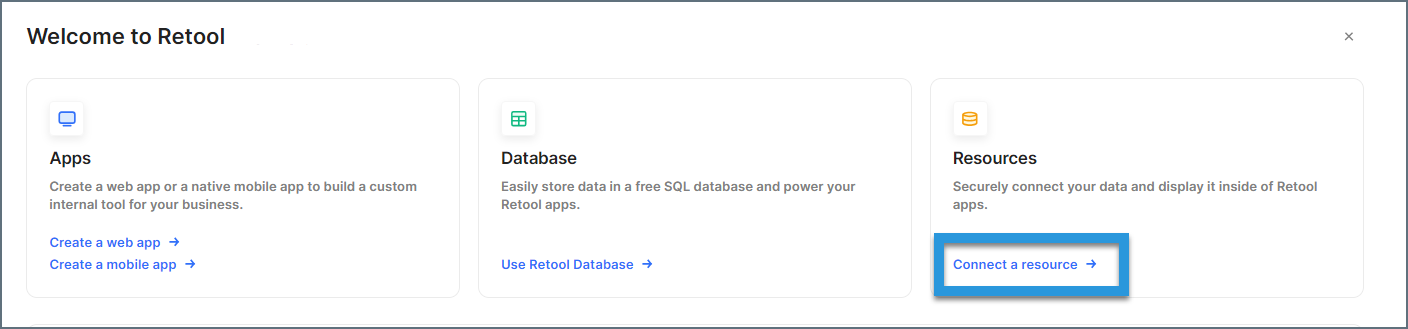
3
Enter “Microsoft SQL” in the search bar and click the resulting option.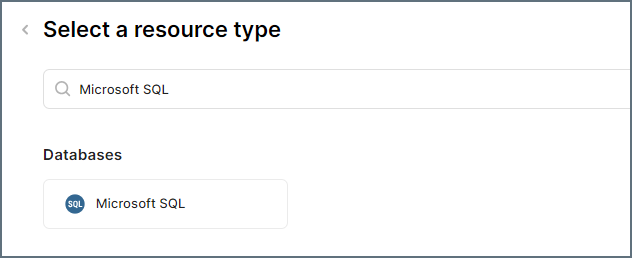
4
Enter the connection settings.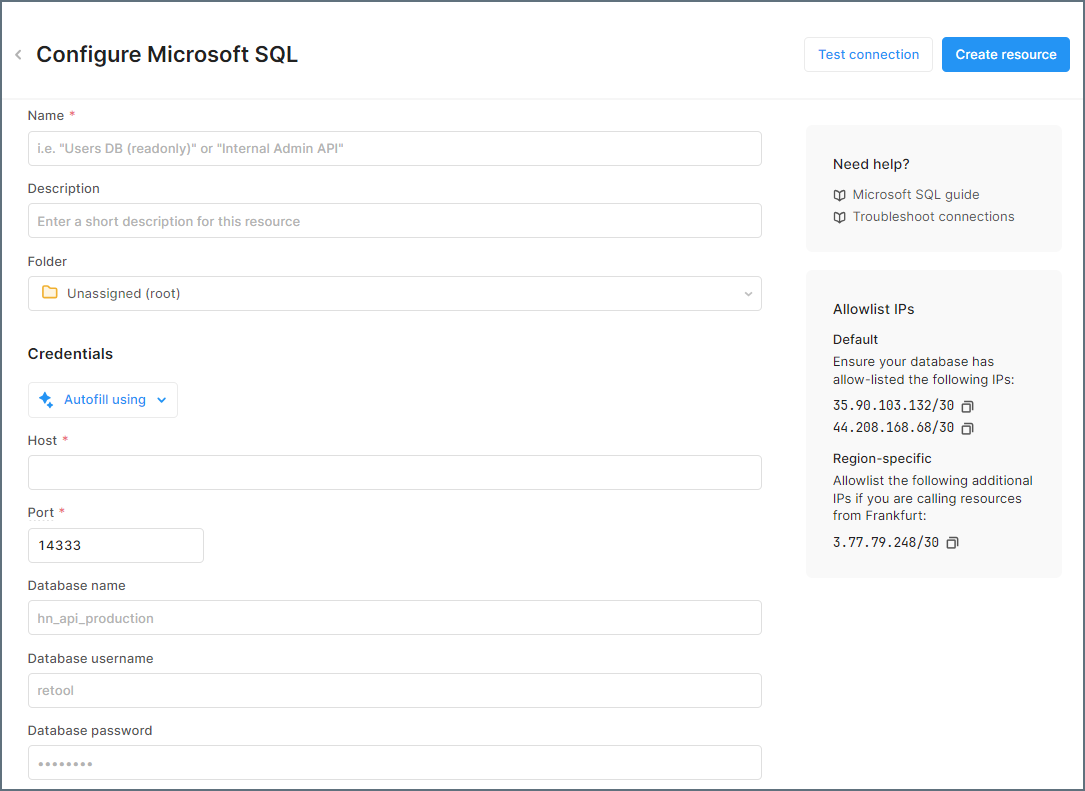
- Name—a name for the connection to Connect AI
- Host—tds.cdata.com
- Port—14333
- Database name—接続したいConnect AI データソースのConnection Name を入力します。例:Salesforce1
- Database username—Connect AI のユーザー名を入力します。ユーザー名は、Connect AI の画面の右上に表示されています。例:
[email protected] - Database password—Settings ページで生成したPAT を入力します。
5
Click Test connection. If it succeeds, you can click Create resource. Your connection to Connect AI is ready to use.