

前提条件
接続する前にまず以下を実行します。- データソースをConnect AI アカウントに接続します。詳しくは、Sources を参照してください。
- ワークスペースを作成します。後の手順で、(
https://cloud.cdata.com/api/odata/{workspace_name}) ページのOData Service URL と関連するワークスペース名を使用してコネクションを確立します。 - Settings ページでPersonal Access Token (PAT) を生成します。PAT をコピーし、認証時にパスワードとして使用します。
Connect AI への接続
OData プロトコルを使用してSAP Analytics Cloud からConnect AI へのコネクションを確立するには、以下の手順に従います。1
From the SAP Analytics Cloud dashboard, open the navigation menu and click Connections.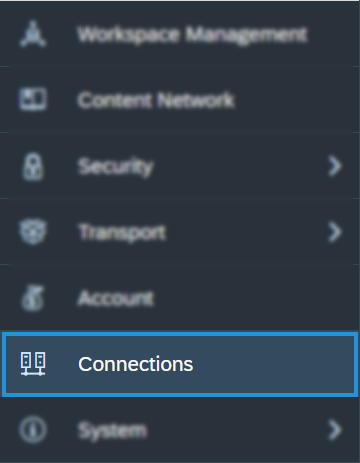
2
On the Connection page, click Add Connection.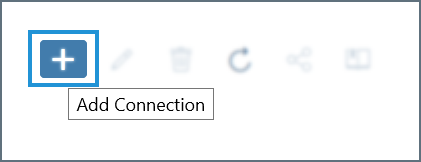
3
In the Select a data source dialog, type odata into the search bar and select OData Services. You can also find it listed under the Acquire Data category without searching.
4
Configure the connection: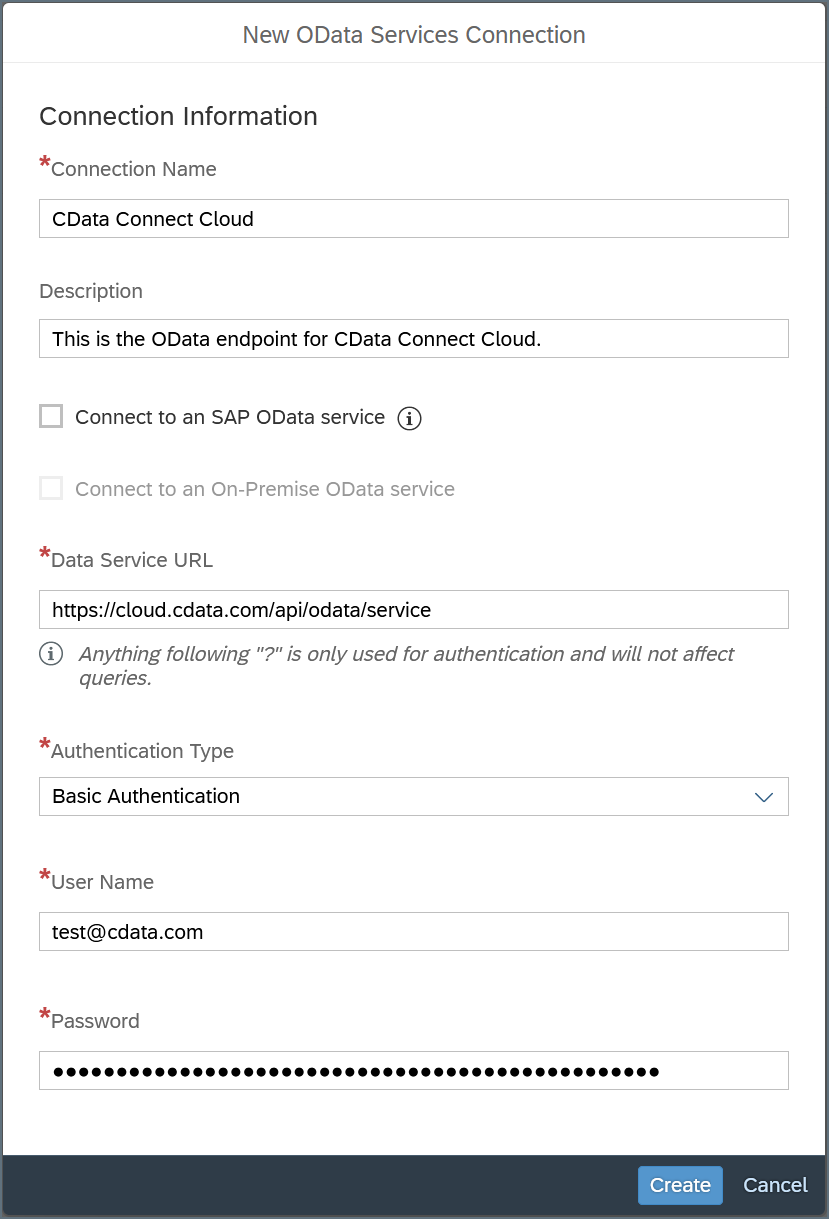
- Enter a Connection Name and, optionally, a Description.
- Data Service URL—enter https://cloud.cdata.com/api/odata/{workspace_name}
- Authentication Type—select Basic Authentication.
- User Name—Connect AI のユーザー名を入力します。ユーザー名は、Connect AI の画面の右上に表示されています。例:
[email protected] - Password—Settings ページで生成したPAT を入力します。
5
Click Create to save the connection.
Query Your OData API
After establishing the connection to your Connect AI OData API, you can access it as a data source in SAP Analytics Cloud. Follow these steps to access it:1
In SAP Analytics Cloud, open the navigation menu and click Datasets or Modeler.
2
In the Create New section, click From a Data Source.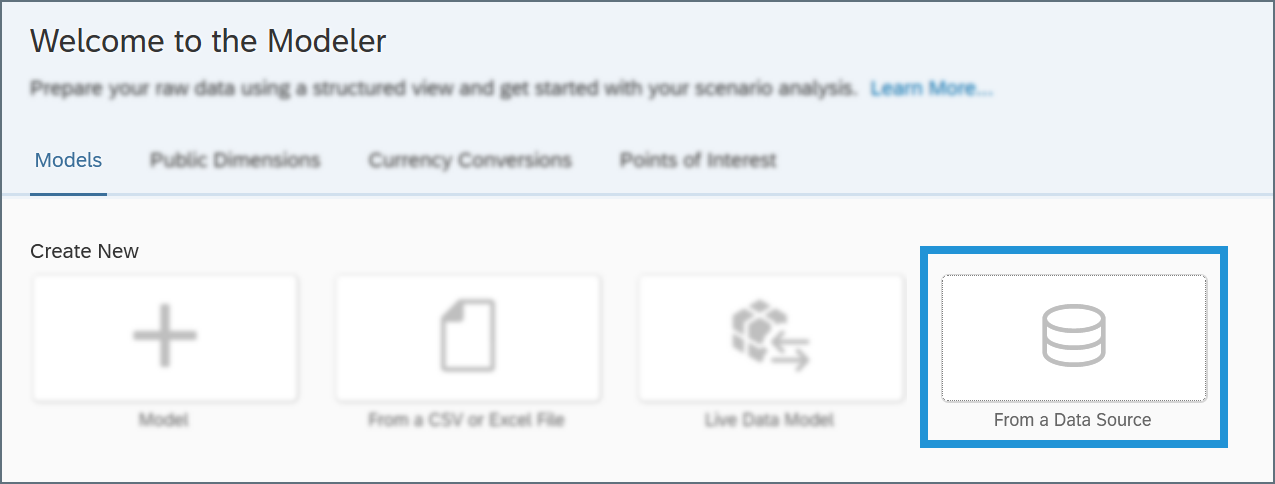
3
In the Select a data source dialog, select OData Services.
4
In the Connection drop-down menu, select the connection you created. If you are using the Modeler tab, select the Create a new query radio button.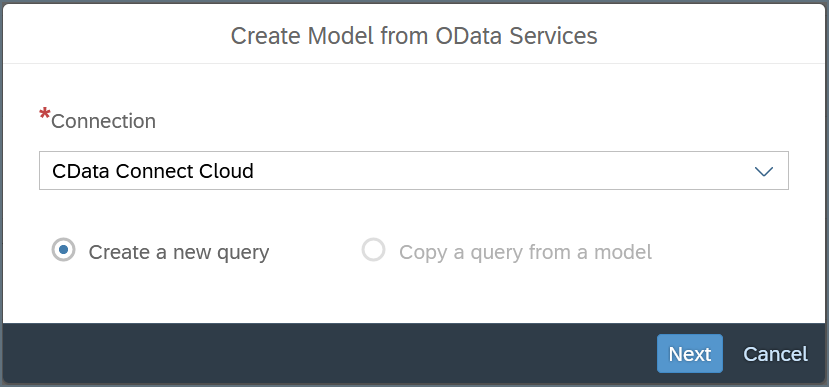
5
Click Next and build your query according to your needs.