

前提条件
接続する前にまず以下を実行します。- データソースをConnect AI アカウントに接続します。詳しくは、Sources を参照してください。
- Settings ページでPersonal Access Token (PAT) を生成します。PAT をコピーし、認証時にパスワードとして使用します。
Connect AI に接続する
Zoho Analytics からConnect AI の仮想SQL Server API へのコネクションを確立するには以下の手順に従います。1
Log in to Zoho Analytics.
2
Create a new connection and select Other Cloud Services to open the connection dialog.
3
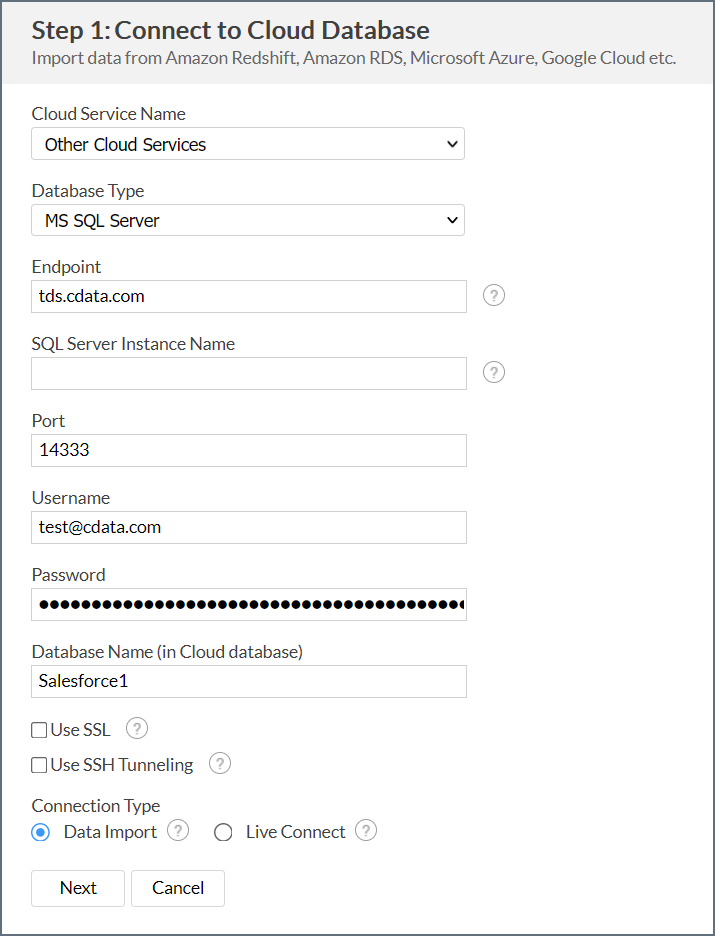
Enter the following information:
- Database Type—select MS SQL Server.
- Endpoint—enter tds.cdata.com
- SQL Server Instance Name—leave this blank.
- Port—enter 14333
- Username—Connect AI のユーザー名を入力します。ユーザー名は、Connect AI の画面の右上に表示されています。例:
[email protected] - Password—Settings ページで生成したPAT を入力します。
- Database Name—接続したいConnect AI データソースのConnection Name を入力します。例:Salesforce1
- Connection Type—select Data Import.
4
Click Next to test and create your connection.
5
Continue through each step of the connection dialog to import your data as needed.
Note: If your table contains underscores, such as
account_move, you need to first create a derived view for that table without an underscore in the name. Then load the derived view instead. Zoho Analytics cannot load tables whose names include underscores.