Prerequisites
Before you can configure and use Claude Code with Connect AI, you must first connect a data source to your Connect AI account. See Sources for more information. Settings ページでPersonal Access Token(PAT)を生成します。PAT をコピーし、認証時にパスワードとして使用します。Connect to Connect AI
1
Open PowerShell as an Administrator and run the following command:
2
Once the installation is done, try running:
npm list -g @anthropic-ai/claude-code in your terminal to confirm the installation. You should see something like this:3
Create a project named
Claude code and open it in Visual Studio Code.4
In the terminal of your project, run the following command.This creates a JSON file with your MCP Server.
5
Type 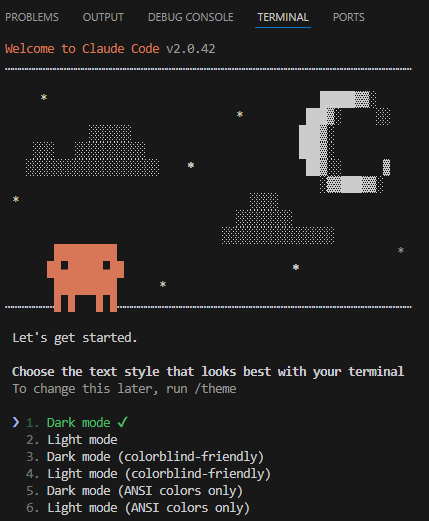
claude. A welcome screen appears:6
Choose a text style and login method. Claude Code opens the browser to log in to Claude.
7
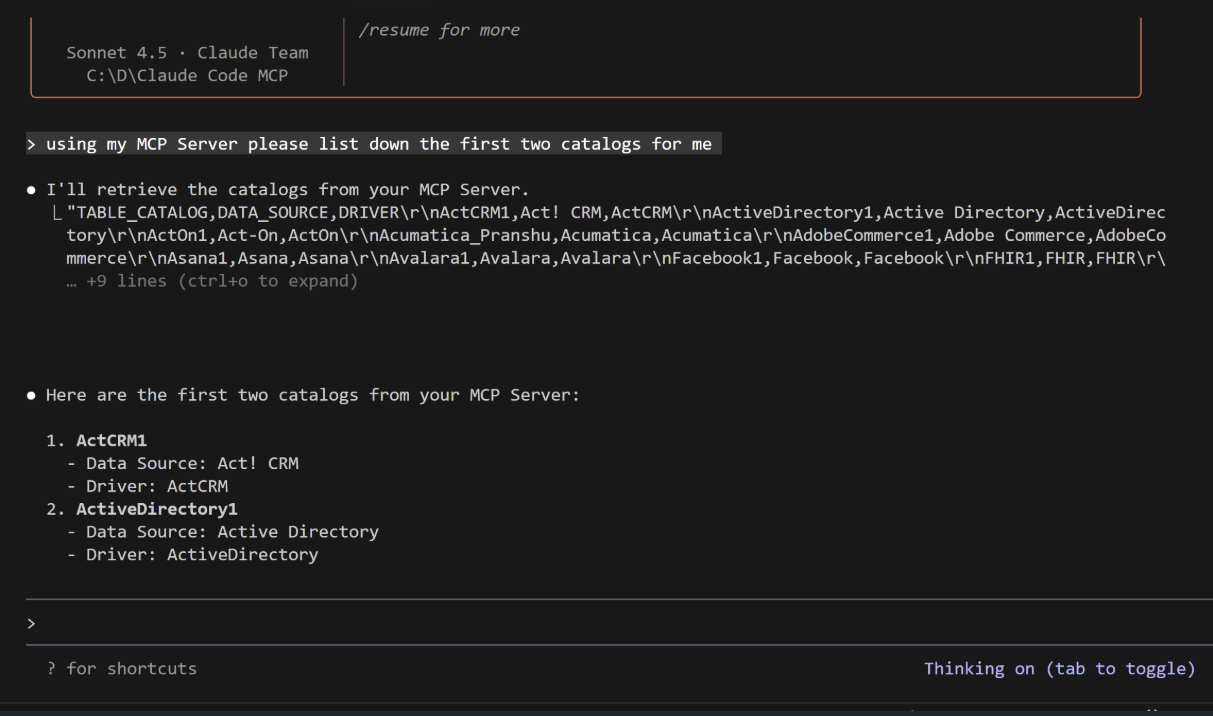
You can now interact with the MCP server: