Prerequisites
Before you connect, you must first do the following:- Connect a data source to your Connect AI account. See Sources for more information.
- Generate a Personal Access Token (PAT) on the Settings page. Copy this down, as it acts as your password during authentication.
Connect to Connect AI
To establish a connection from CData Sync to Connect AI, follow these steps.1
Log in to CData Sync.
2
In the navigation menu, select Connections. Click Add Connection.
3
On the Select Connectors page, select the Sources tab, and enter CData Connect in the search field.
Note: Click the download icon to download the connector if it is not already installed.
4
Click CData Connect to configure the connection. A New Connection page appears.
5
Enter the following settings for your connection for your source data.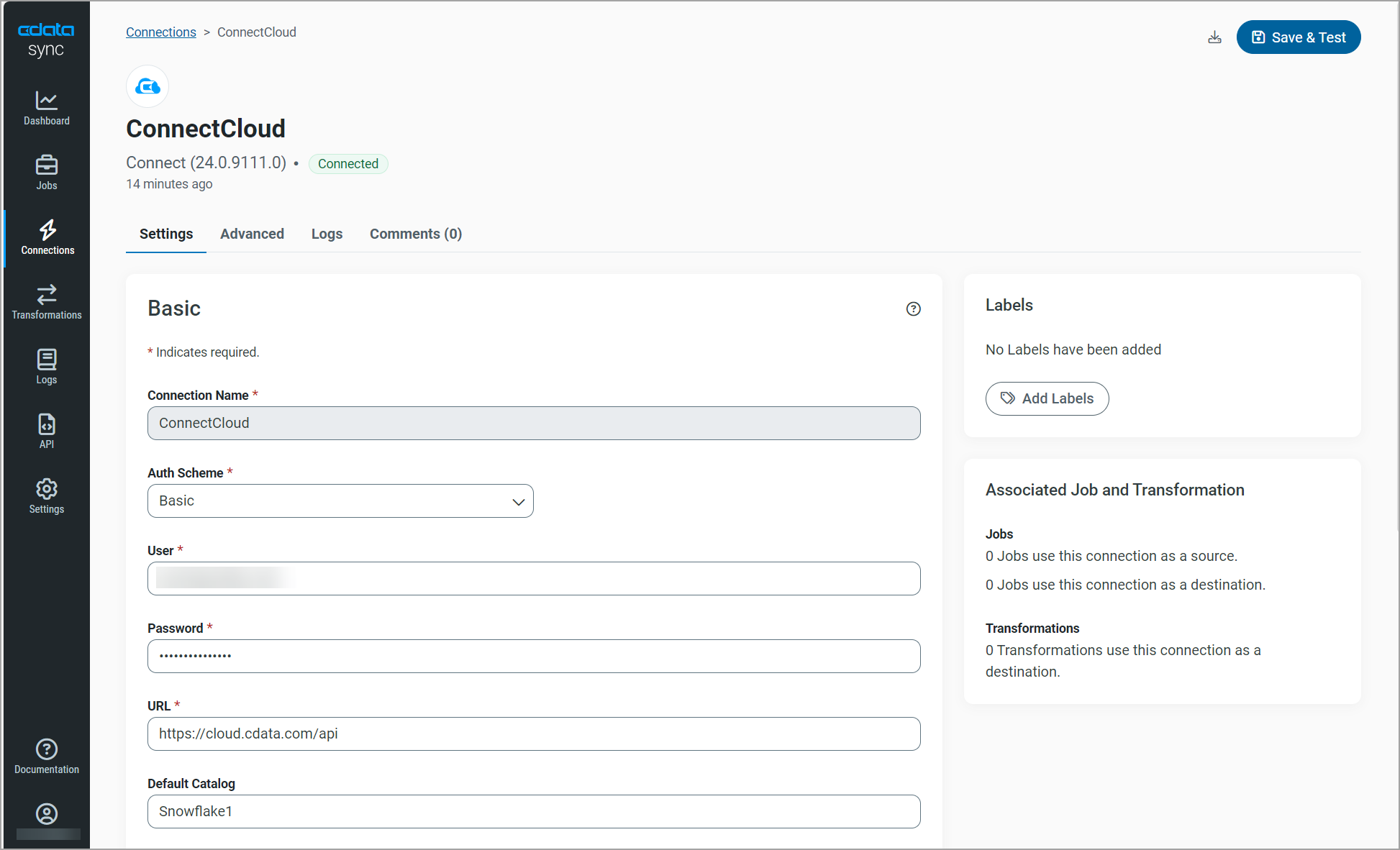
- Connection name—enter the name of your connection for display purposes.
- Auth Scheme—use Basic.
- User—Connect AI のユーザー名を入力します。ユーザー名は、Connect AI の画面の右上に表示されています。例:
[email protected] - Password—Settings ページで生成したPAT を入力します。
- URL—Enter
https://cloud.cdata.com/api. - Default Catalog—(optional) enter the name of your default catalog.
- Workspace—(optional) enter the name of the workspace with which you want to connect.
6
Click Create & Test. If the connection is successful, the Connect AI connection appears on the Connections page.
1
In the navigation menu, select Connections. Click Add Connection.
2
On the Select Connectors page, select the Destinations tab, and enter SQL Server in the search field.
Note: Click the download icon to download the destination connector if it is not already installed.
3
Click SQL Server to configure the connection. A New Connection page appears.
4
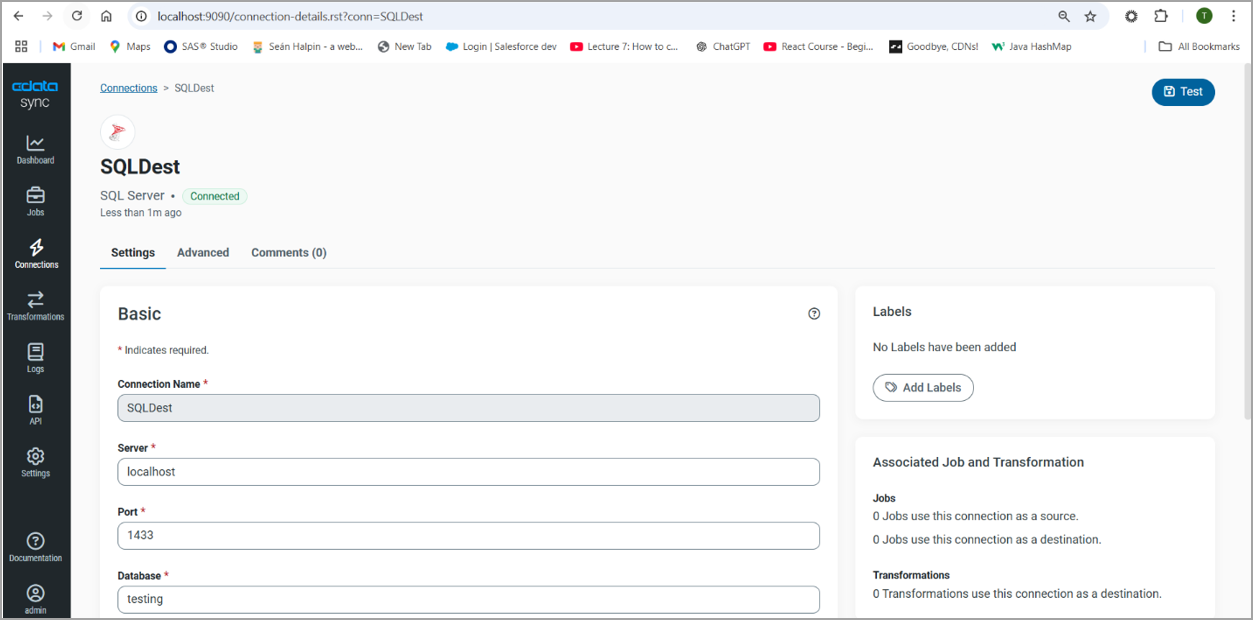
Enter the following settings for your connection for your destination data.
Note: For other destination connection configurations, see the CData Sync documentation.
- Connection name—enter the name of your connection for display purposes.
- Server—enter the host name or IP address of the server that hosts the SQL Server database. The default server is localhost.
- Port—enter the port number for SQL Server. The default port value is 1433.
- Database— enter the default database to which you want to connect when you connect to SQL Server.
- User—enter the username that you use to authenticate to SQL Server.
- Password—enter the password that you use to authenticate to SQL Server.
5
Click Create & Test. If the connection is successful, the connection appears on the Connections page.
1
In the navigation menu, select Jobs. Click Add Job > Add New Job.
2
In the Add Job dialog, enter the following information.
- Name—enter the name of the job for display purposes.
- Source—select the Connect AI connection you created.
- Destination—select the destination connection you created.
- Type—select either Standard or Sync All.
3
Click Add Job.
4
In Jobs, click the new job you just created. In the Task tab, click Add Tasks.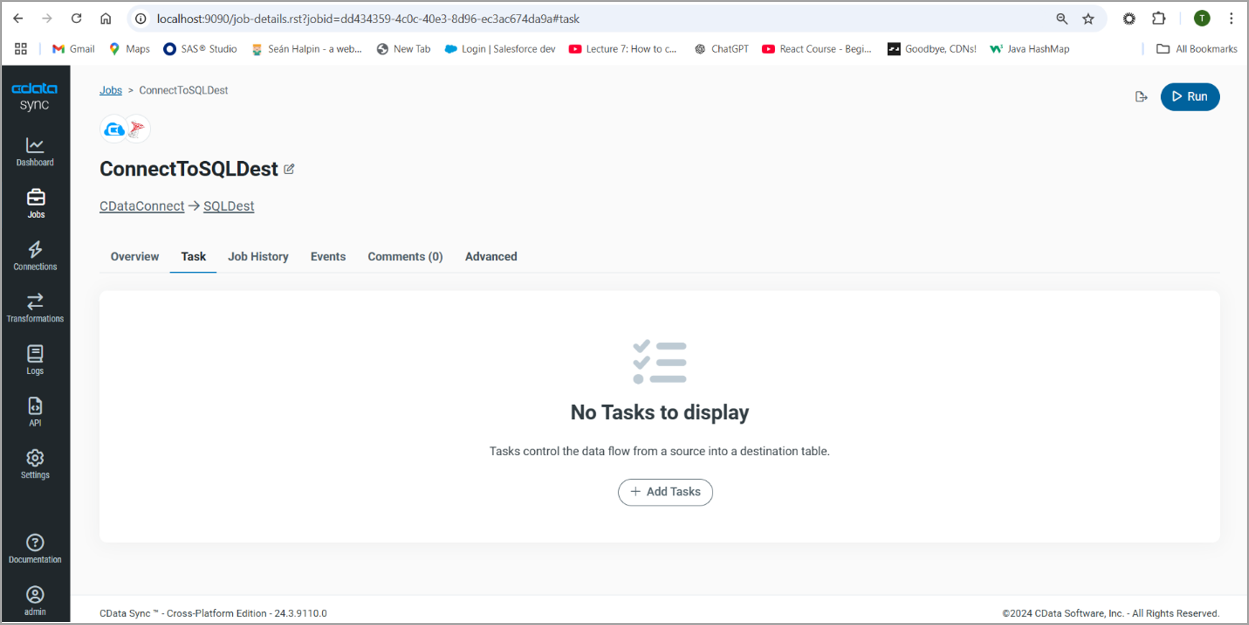
5
In the Select Schema dialog, select the schema and table you want to replicate.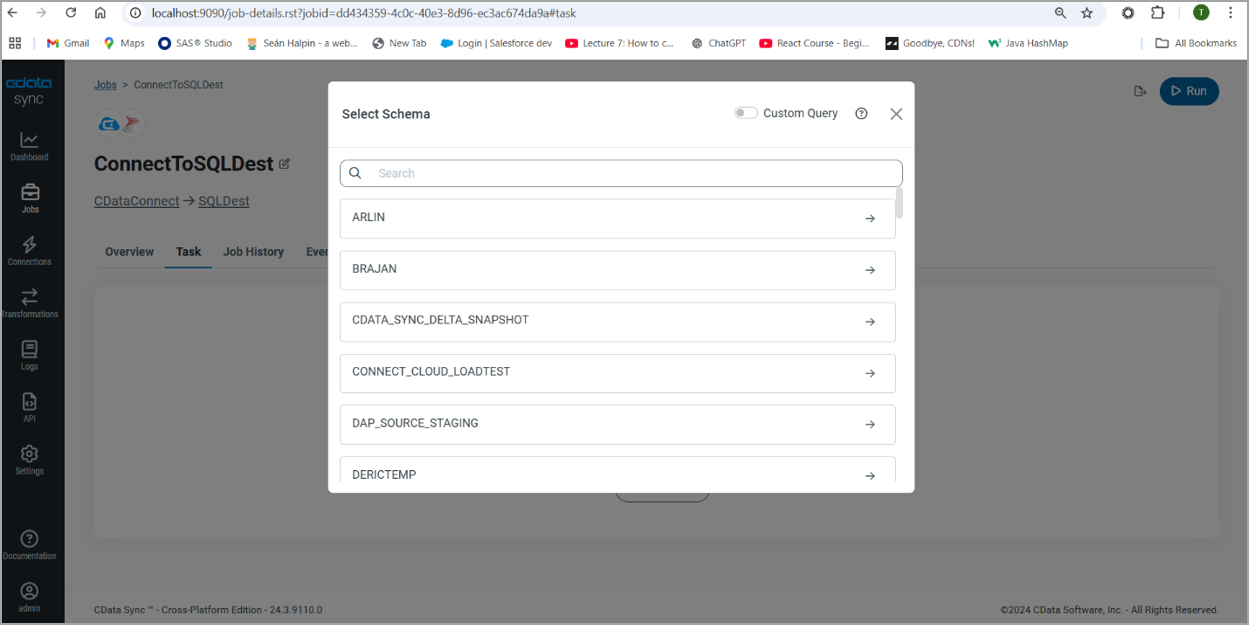
6
The table is added as a task. Click Run to run the task.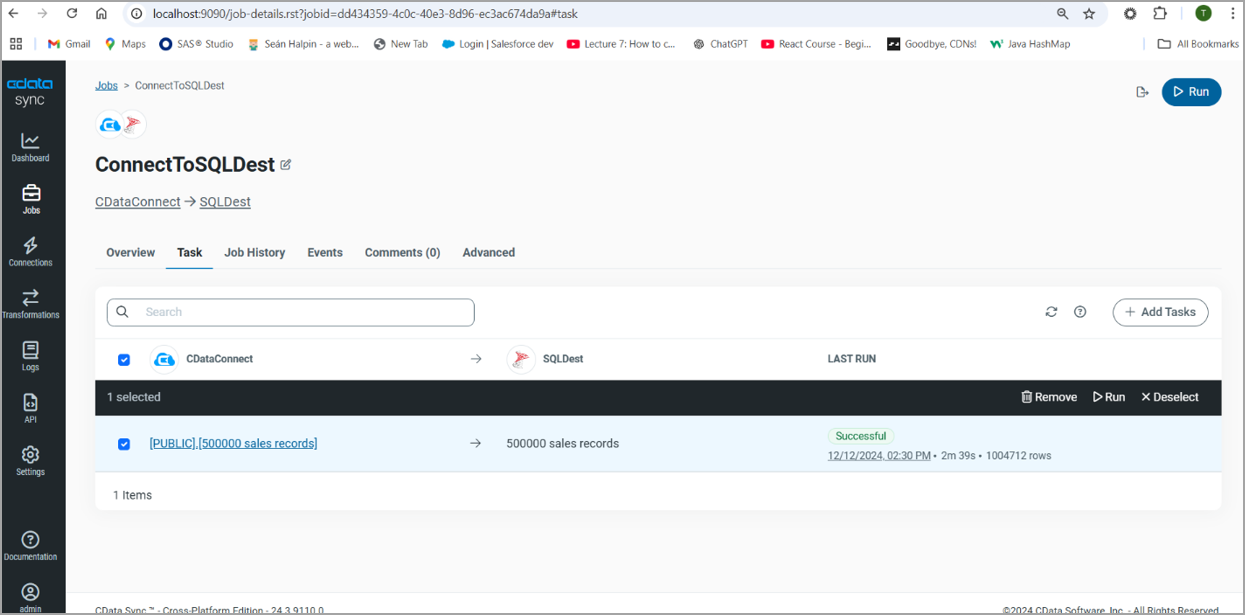
7
The table is replicated to your destination.