

Prerequisites
Before you can configure and use Codex with Connect AI Embed, you must first do the following:- Install Node.js 18 or later.
- Have a ChatGPT plan that includes Codex (Plus, Pro, Business, Edu, or Enterprise), or an OpenAI API key.
- Generate an OAuth JWT bearer token. Copy this down, as it acts as your password during authentication.
Connect Codex to the Connect AI MCP
1
Install the Codex CLI globally:
2
Start Codex and sign in:The first time you run Codex, select Sign in with ChatGPT and complete the authentication in your browser. To use an API key instead, set the
OPENAI_API_KEY environment variable.3
Register the Connect AI MCP server. Open your Codex configuration file at Replace
~/.codex/config.toml and add the following:{Your_OAuth_JWT_Token} with the OAuth JWT bearer token you generated in the prerequisites.OAuth JWT bearer tokens are short-lived, and Codex passes the token as-is without refreshing it. When the token expires, generate a new one, update the Authorization header value, and start Codex again.4
Confirm that Codex registered the server:
Start a Codex Session
Start a Codex session and explore your data with natural language prompts. Codex uses the Connect AI MCP server to query your live data.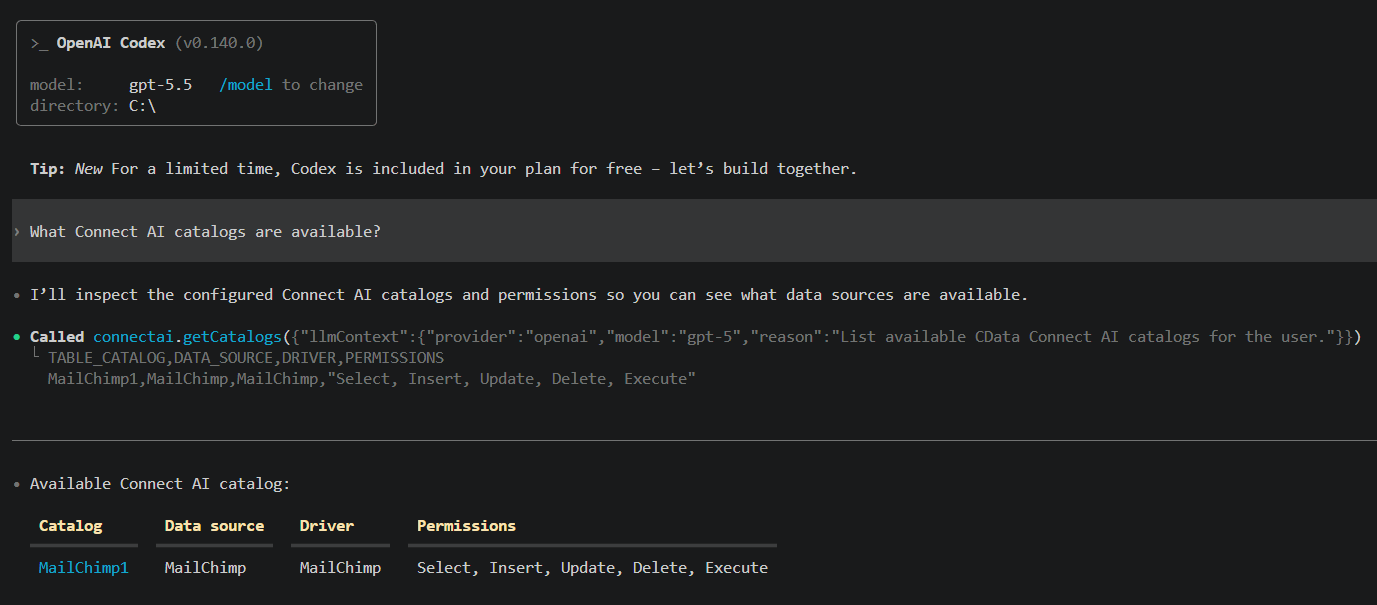
If Codex reports that MCP startup is incomplete, the server did not initialize within Codex’s default 10-second startup window. Increase
startup_timeout_sec in the server configuration (for example, to 30 or higher), then start Codex again. First-time connections often need the extra time.Codex’s MCP support and setup process are subject to change. Refer to OpenAI’s Codex MCP documentation for the latest setup information.