


Profile
The Profile tab opens by default when you access Settings. This tab contains settings for the account you are currently signed in with.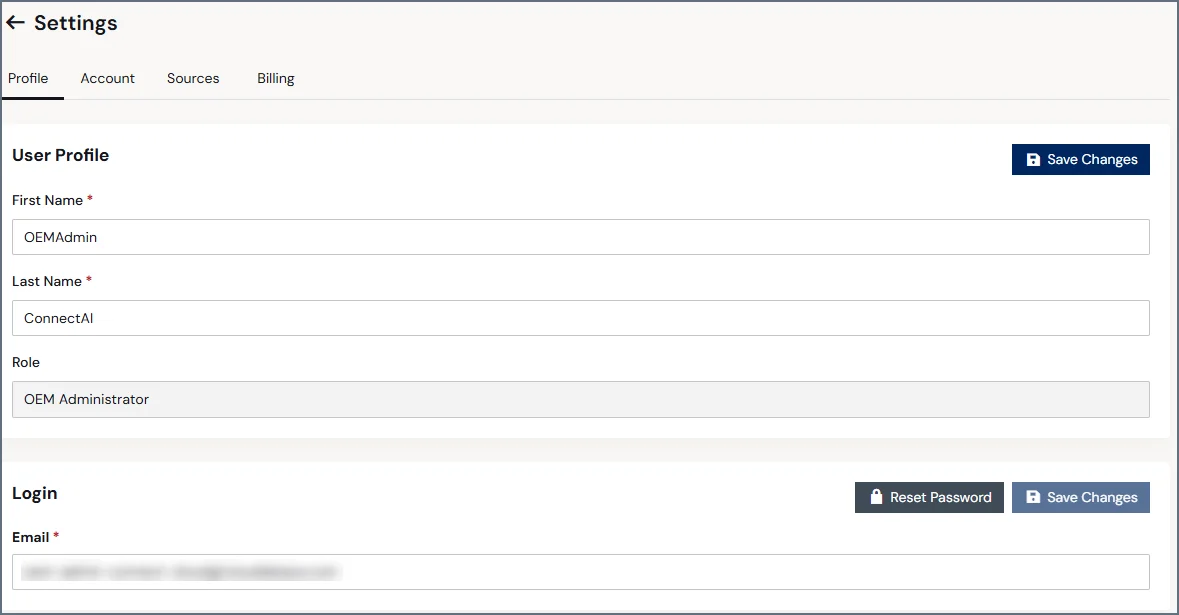
Account
The Account tab provides access to account-wide settings and troubleshooting features.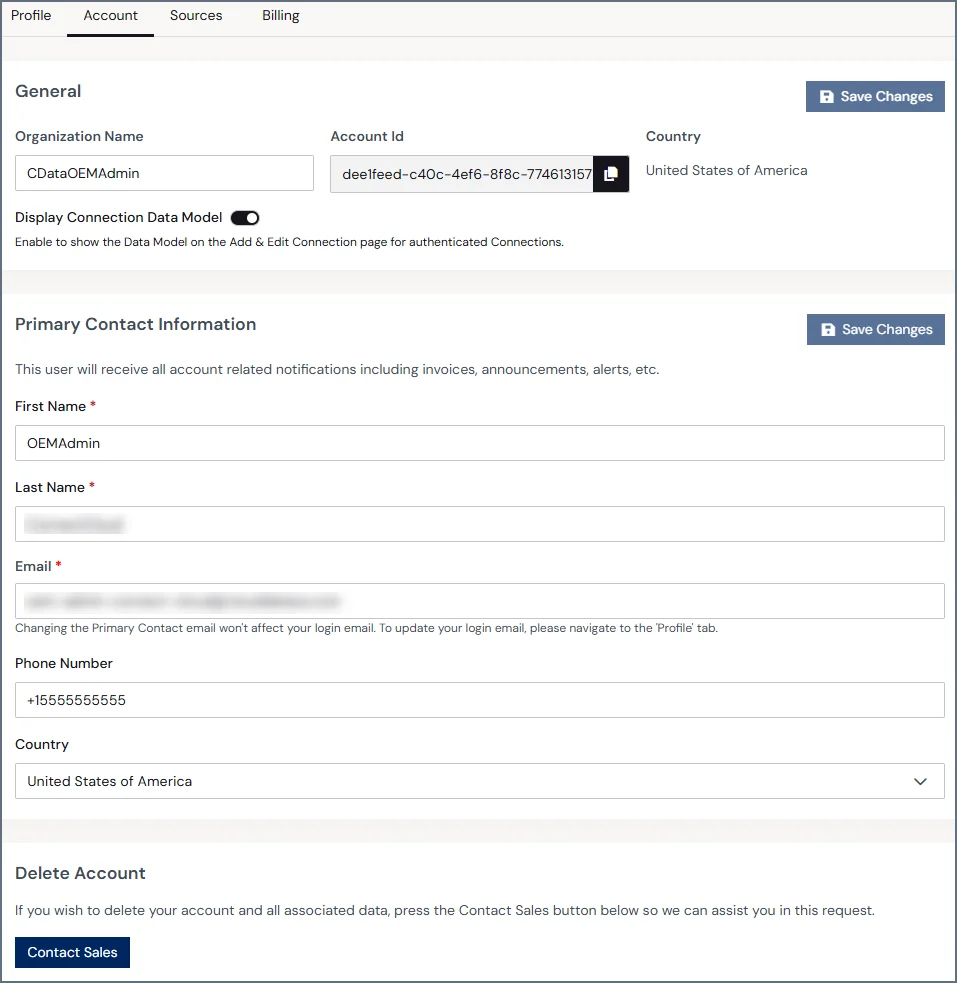
General
The General section lists the following global account information:- Organization Name
- Account Id
- Country
Primary Contact Information
This section contains the following fields that define the account’s primary contact for invoices, announcements, and other communication:- First name
- Last name
- Phone Number
- Country
Delete Account
If you want to delete your Connect AI Embed account and all of its data, click Contact Sales for assistance.Account deletion is permanent. If you delete your account, you need to create a new account if you want to use Connect AI Embed in the future.
Sources
By default, when your customers’ end users authenticate to an OAuth data source (such as Salesforce or Google), they see CData’s application name in the OAuth consent screen. Connection Overrides allow you to register your own OAuth application with each data source provider so that end users see your application name and branding instead. This keeps the authentication experience consistent with your product and removes CData’s name from your customers’ view. The Sources tab allows the administrator of the Connect AI Embed parent account to manage connection string properties for the sub-accounts, ensuring consistent configurations across sub-accounts and OAuth sign-in with your brand name.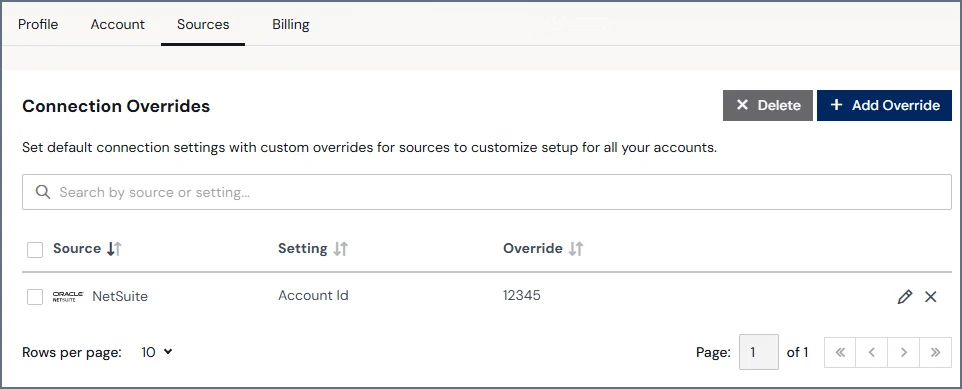
-
The Source Access Control section allows administrators to choose which data sources your accounts can use when creating new connections. Administrators can limit end users to specific sources.
The Source Access Control section is only relevant if your sub-accounts are using the Add Connection page that displays all the sources.
-
The Connection Overrides section allows administrators to add custom overrides to simplify account setup. For example, you can override an account’s OAuth sign-in credentials so that end users must use their own organization’s credentials rather than CData credentials. Click Add Override and then select the setting and the override value.
Connection Overrides contains the following information about each override:
- Source—the data source name.
- Setting—the connection setting to override.
- Override—the new value of the setting to use.
- Job Actions—the icons in the last column represent the actions you can perform on a job.
- Edit (🖉)—edit the override value. Note that you can only edit the value of the override, and you cannot edit the setting to be overridden.
- Delete (🗙)—delete the connection override for future connections. Note that existing connections remain unchanged.
Not all data sources have available setting overrides.
1
Click +Add Override.
2
Search for the data source you want to configure the override for.
3
Select the override setting and the override value.
4
Select whether the override should be applied to new connections only (the Add Connection page), or to all new and existing connections (the Add Connection and Edit Connection pages).
If you apply the override to all new and existing connections, you may be required to reauthenticate existing connections.
5
Click Confirm. The new connection override appears in the Connection Overrides section.
Billing
The Billing tab provides information and controls for your account plan and usage.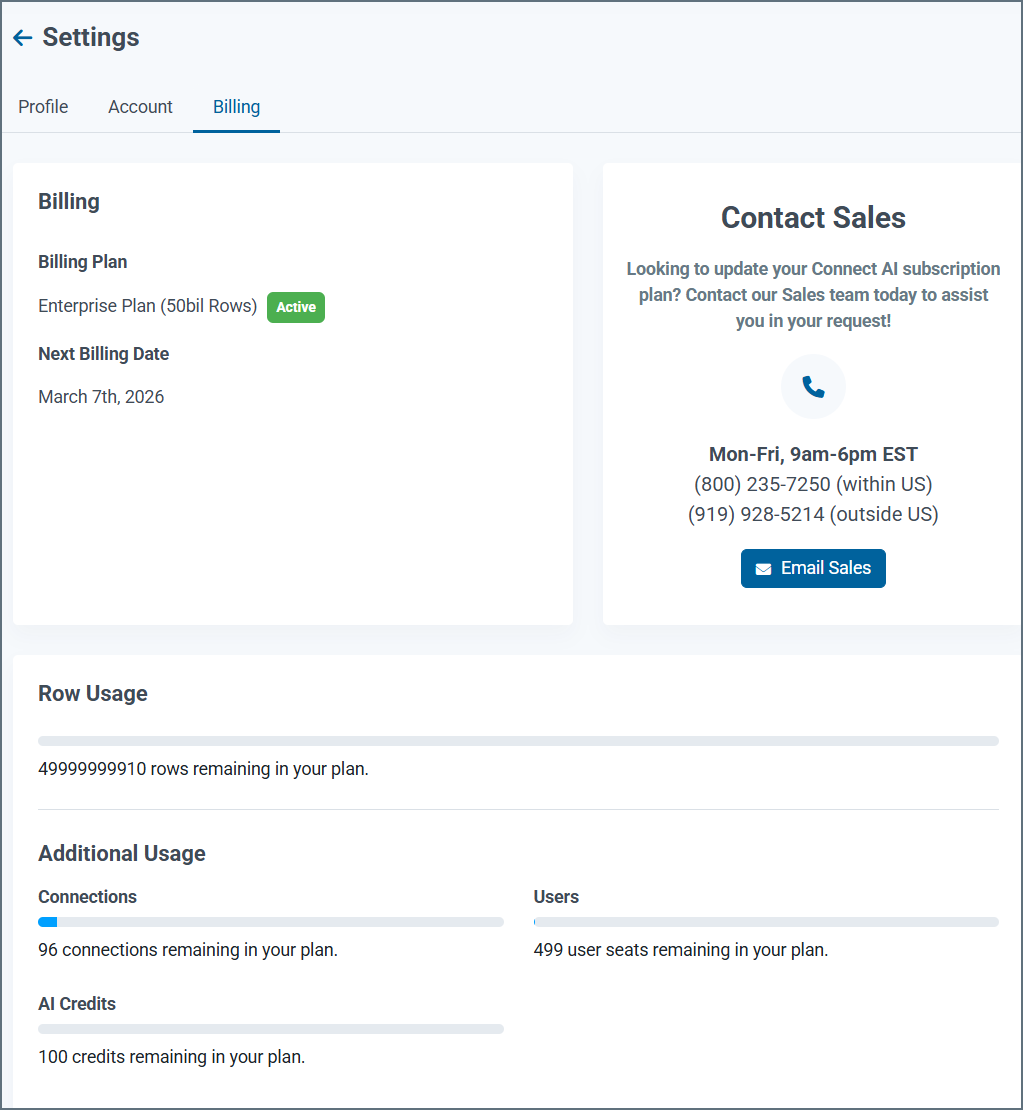
- The Billing section displays your plan information and next billing date.
- The Your Plan Includes section displays what is included in your current plan.
- The lower pane displays your remaining usage in the plan.