> ## Documentation Index
> Fetch the complete documentation index at: https://docs.cloud.cdata.com/llms.txt
> Use this file to discover all available pages before exploring further.
# OAuth Apps
> クライアントインテグレーション向けにカスタム OAuth アプリケーションを生成します。
**OAuth Apps** タブでは、クライアントインテグレーション向けにカスタム OAuth アプリケーションを生成できます。利用可能な OAuth アプリの一覧(アプリケーションタイプと作成日を含む)が表示されます。
 ## カスタム OAuth アプリケーションの作成
カスタム OAuth アプリケーションを作成するには:
**+ Create App** をクリックします。**Create OAuth App** ダイアログが表示されます。
## カスタム OAuth アプリケーションの作成
カスタム OAuth アプリケーションを作成するには:
**+ Create App** をクリックします。**Create OAuth App** ダイアログが表示されます。
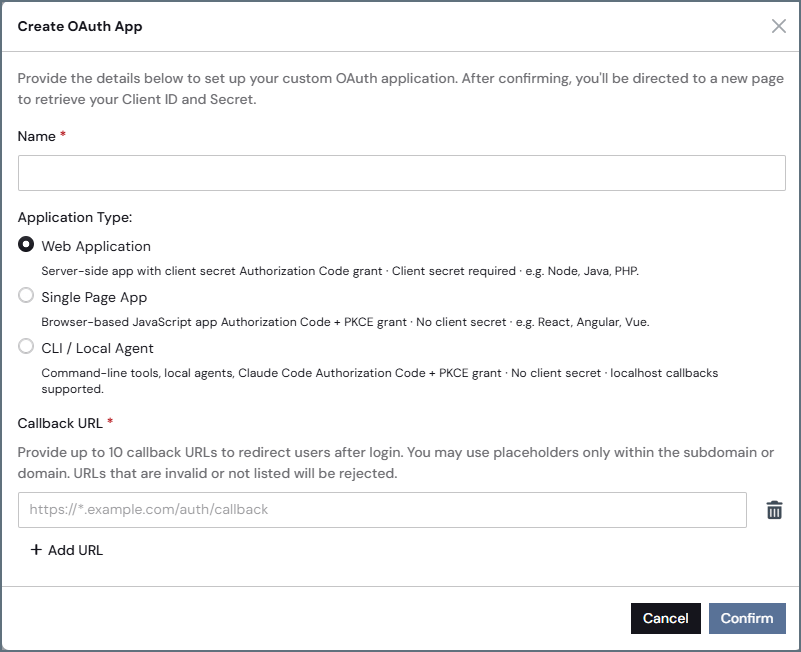 OAuth アプリの**Name** を入力します。
OAuth アプリケーションの **Application Type** を選択します。
サービスや自動化されたアプリケーションには、代わりに [Service Accounts](/ja/Service-Accounts) を使用してください。
* **Web Application**–クライアントシークレットを使用する Authorization Code グラントのサーバーサイドアプリ向けです。クライアントシークレットが必要です。
* **Single Page App**–ブラウザベースの Authorization Code + PKCE グラント向けです。クライアントシークレットは不要です。
* **CLI/Local Agent**–コマンドラインツール向けです。クライアントシークレットは不要です。
クライアントアプリケーションに移動し、新しいアプリケーションを登録します。クライアントアプリケーションがコールバック URL を提供します。
Connect AI の **Create OAuth App** ダイアログに戻り、クライアントアプリケーションの **Callback URL** を貼り付けます。この URL はログイン後にユーザーをリダイレクトします。OAuth アプリには最大 10 個のコールバック URL を設定できます。
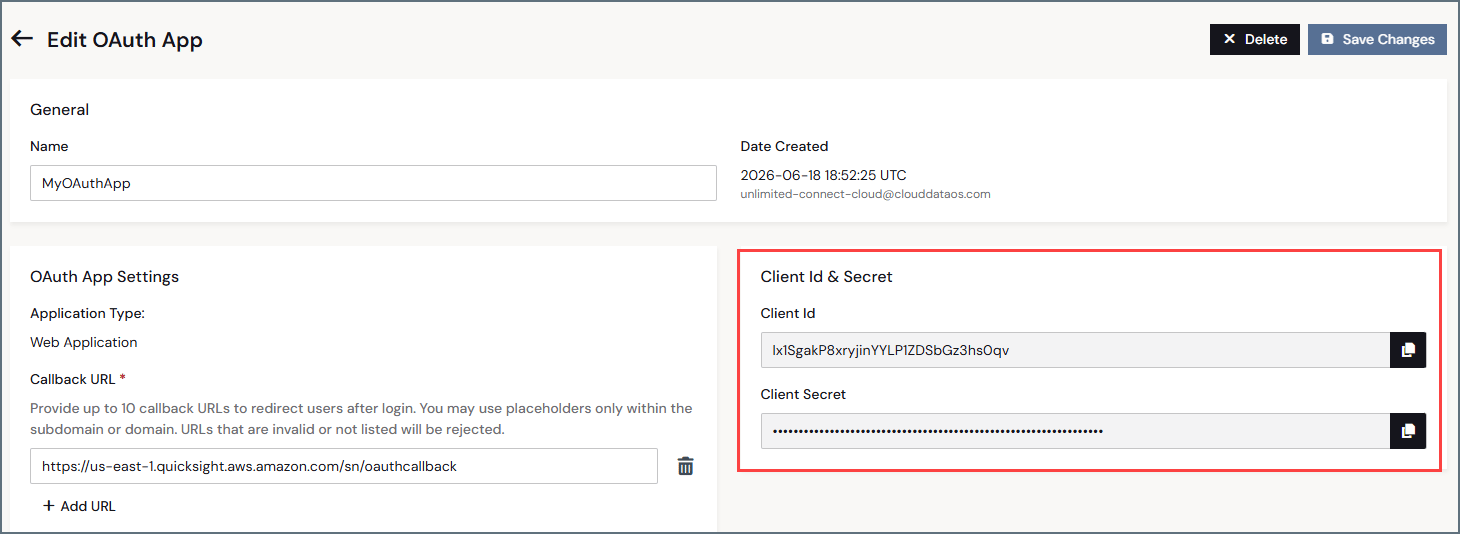
**Confirm** をクリックします。Connect AI がOAuth アプリを作成し、クライアントアプリケーション用の**Client Id** と**Client Secret** を生成します。これらの値をコピーします。
OAuth アプリの**Name** を入力します。
OAuth アプリケーションの **Application Type** を選択します。
サービスや自動化されたアプリケーションには、代わりに [Service Accounts](/ja/Service-Accounts) を使用してください。
* **Web Application**–クライアントシークレットを使用する Authorization Code グラントのサーバーサイドアプリ向けです。クライアントシークレットが必要です。
* **Single Page App**–ブラウザベースの Authorization Code + PKCE グラント向けです。クライアントシークレットは不要です。
* **CLI/Local Agent**–コマンドラインツール向けです。クライアントシークレットは不要です。
クライアントアプリケーションに移動し、新しいアプリケーションを登録します。クライアントアプリケーションがコールバック URL を提供します。
Connect AI の **Create OAuth App** ダイアログに戻り、クライアントアプリケーションの **Callback URL** を貼り付けます。この URL はログイン後にユーザーをリダイレクトします。OAuth アプリには最大 10 個のコールバック URL を設定できます。
**Confirm** をクリックします。Connect AI がOAuth アプリを作成し、クライアントアプリケーション用の**Client Id** と**Client Secret** を生成します。これらの値をコピーします。
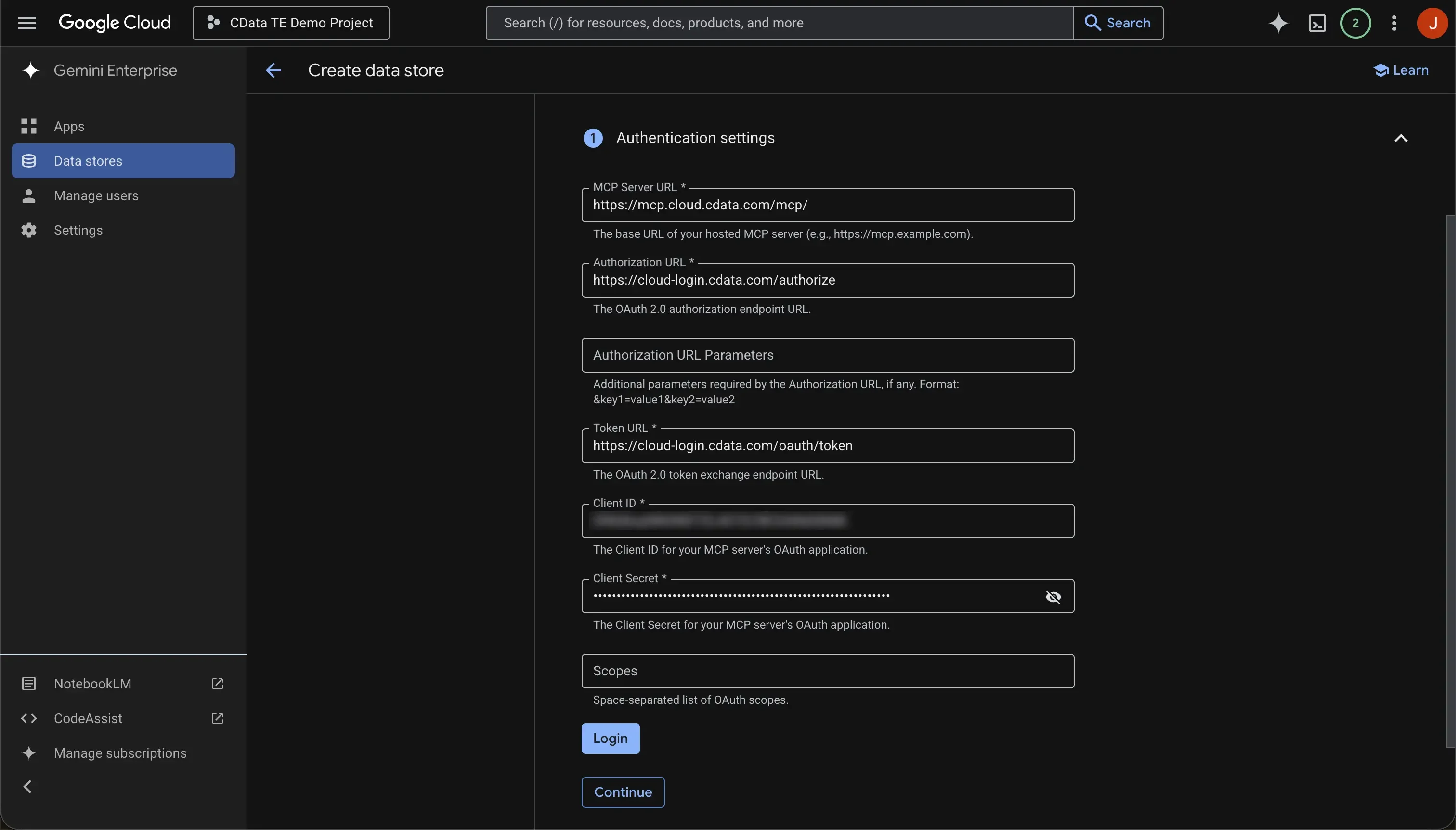
 クライアントアプリケーションに戻り、**Client Id** と **Client Secret** を該当するフィールドに貼り付けます。例えば、Gemini Enterprise の場合:
 新しいOAuth アプリがアプリ一覧に表示されます。必要に応じて、編集アイコン()をクリックしてアプリを編集し、他のクライアントアプリケーション用のコールバックURLを追加できます。
ご利用の外部システムから、 CData の認証、トークン、および登録URLに関する情報を求められる場合があります。それらは以下のとおりです:
| エンドポイント | 値 |
| :---------------------------- | :------------------------------------------------------------------------------------- |
| **Authorization URL** | [https://cloud-login.cdata.com/authorize](https://cloud-login.cdata.com/authorize) |
| **Token URL** | [https://cloud-login.cdata.com/oauth/token](https://cloud-login.cdata.com/oauth/token) |
| **Registration URL** | [https://mcp.cloud.cdata.com/register](https://mcp.cloud.cdata.com/register) |
| **Authorization server base** | [https://mcp.cloud.cdata.com](https://mcp.cloud.cdata.com) |
| **Resource** | [https://mcp.cloud.cdata.com/mcp](https://mcp.cloud.cdata.com/mcp) |
新しいOAuth アプリがアプリ一覧に表示されます。必要に応じて、編集アイコン()をクリックしてアプリを編集し、他のクライアントアプリケーション用のコールバックURLを追加できます。
ご利用の外部システムから、 CData の認証、トークン、および登録URLに関する情報を求められる場合があります。それらは以下のとおりです:
| エンドポイント | 値 |
| :---------------------------- | :------------------------------------------------------------------------------------- |
| **Authorization URL** | [https://cloud-login.cdata.com/authorize](https://cloud-login.cdata.com/authorize) |
| **Token URL** | [https://cloud-login.cdata.com/oauth/token](https://cloud-login.cdata.com/oauth/token) |
| **Registration URL** | [https://mcp.cloud.cdata.com/register](https://mcp.cloud.cdata.com/register) |
| **Authorization server base** | [https://mcp.cloud.cdata.com](https://mcp.cloud.cdata.com) |
| **Resource** | [https://mcp.cloud.cdata.com/mcp](https://mcp.cloud.cdata.com/mcp) |