> ## Documentation Index
> Fetch the complete documentation index at: https://docs.cloud.cdata.com/llms.txt
> Use this file to discover all available pages before exploring further.
# Zoho Analytics
> このページではZoho Analytics をConnect AI の仮想SQL Server API に接続する手順の概要を示します。
## 前提条件
接続する前にまず以下を実行します。
* データソースをConnect AI アカウントに接続します。詳しくは、[Sources](/ja/Sources) を参照してください。
* [Settings](/ja/Settings#personal-access-tokens) ページでPersonal Access Token (PAT) を生成します。PAT をコピーし、認証時にパスワードとして使用します。
## Connect AI に接続する
Zoho Analytics からConnect AI の仮想SQL Server API へのコネクションを確立するには以下の手順に従います。
Log in to Zoho Analytics.
Create a new connection and select **Other Cloud Services** to open the connection dialog.
Enter the following information:
* **Database Type**—select *MS SQL Server*.
* **Endpoint**—enter *tds.cdata.com*
* **SQL Server Instance Name**—leave this blank.
* **Port**—enter *14333*
* **Username**—Connect AI のユーザー名を入力します。ユーザー名は、Connect AI の画面の右上に表示されています。例:*[test@cdata.co.jp](mailto:test@cdata.co.jp)*
* **Password**—[Settings](/ja/Settings#personal-access-tokens) ページで生成したPAT を入力します。
* **Database Name**—接続したいConnect AI データソースのConnection Name を入力します。例:*Salesforce1*
* **Connection Type**—select *Data Import*.
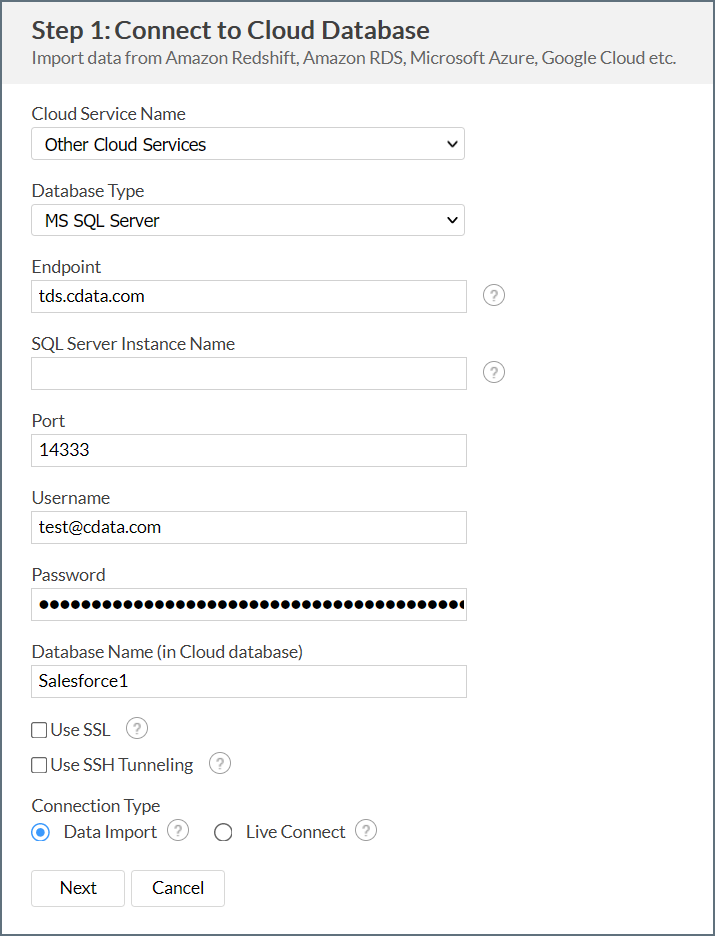 Click **Next** to test and create your connection.
Continue through each step of the connection dialog to import your data as needed.
When the data import process finishes, your data will be available to use in Zoho Analytics.
If your table contains underscores, such as `account_move`, you need to first create a derived view for that table without an underscore in the name. Then load the derived view instead. Zoho Analytics cannot load tables whose names include underscores.
Click **Next** to test and create your connection.
Continue through each step of the connection dialog to import your data as needed.
When the data import process finishes, your data will be available to use in Zoho Analytics.
If your table contains underscores, such as `account_move`, you need to first create a derived view for that table without an underscore in the name. Then load the derived view instead. Zoho Analytics cannot load tables whose names include underscores.