> ## Documentation Index
> Fetch the complete documentation index at: https://docs.cloud.cdata.com/llms.txt
> Use this file to discover all available pages before exploring further.
# Tableau Cloud
> This page outlines the steps to connect Tableau Cloud to the Connect AI Virtual SQL Server API.
## Prerequisites
Before you connect, you must first do the following:
* Connect a data source to your Connect AI account. See [Connections](/ja/Sources) for more information.
* Generate a Personal Access Token (PAT) on the [Settings](/ja/Settings#personal-access-tokens) page. Copy this down, as it acts as your password during authentication.
* If you want to connect to a workspace rather than a data source, first [Add a workspace](/ja/Workspaces#add-a-workspace) to Workspaces.
## Connect to Connect AI
To establish a connection from Tableau Cloud to the Connect AI Virtual SQL Server API, follow these steps.
Log in to Tableau Cloud.
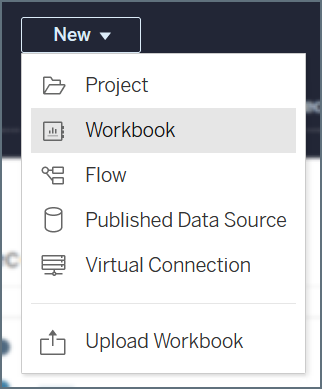
On the **Home** tab, click **New** > **Workbook**.
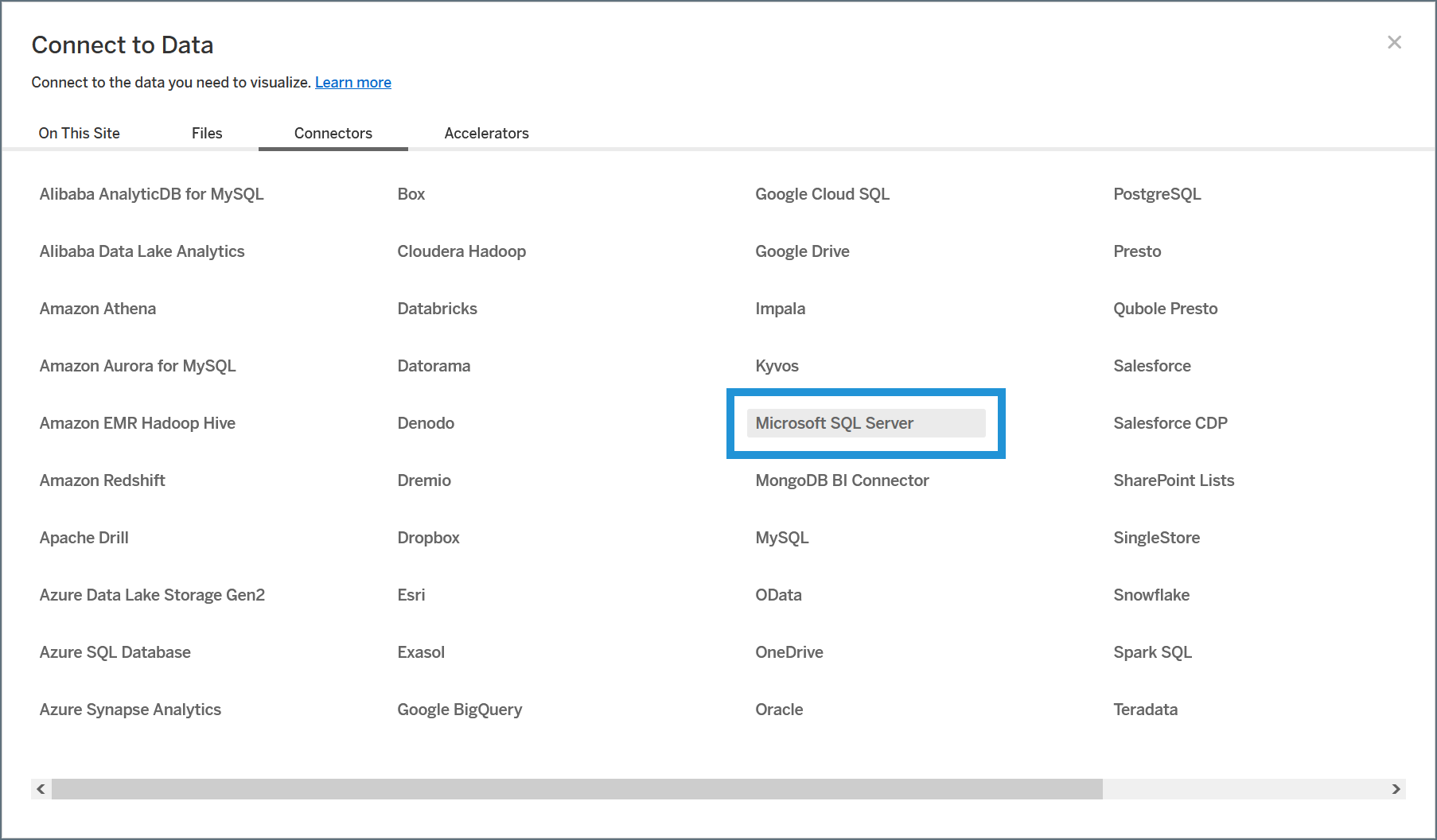
 On the **Connect to Data** dialog, select the **Connectors** tab. In the connectors list, select **Microsoft SQL Server**.
 Enter the connection settings.
* **Server**—enter the Virtual SQL Server endpoint and port separated by a comma: *tds.cdata.com*,*14333*
* **Database**—接続したいConnect AI データソースのConnection Name を入力します。例:*Salesforce1*
* **Authentication**—leave this as username and password.
* **Username**—Connect AI のユーザー名を入力します。ユーザー名は、Connect AI の画面の右上に表示されています。例:*[test@cdata.co.jp](mailto:test@cdata.co.jp)*
* **Password**—[Settings](/ja/Settings#personal-access-tokens) ページで生成したPAT を入力します。
* **Require SSL**—leave this selected.
Click **Sign In**.
Once the connection succeeds, your data is available to use in your workbook. Follow these steps to access it:
In the **Connections** section of the data pane to the left of the workbook, select your connection.
In the **Database** section of the data pane, select the data source that you want to use. The tables for that data source populate in the **Table** section.
Drag your tables into the workbook space or perform queries as needed.
## Modify a Connection
You can modify your connection by following these steps:
In your workbook, click the drop-down arrow next to your connection in the **Connections** section.
Select **Edit Connection**.
Enter the connection settings.
* **Server**—enter the Virtual SQL Server endpoint and port separated by a comma: *tds.cdata.com*,*14333*
* **Database**—接続したいConnect AI データソースのConnection Name を入力します。例:*Salesforce1*
* **Authentication**—leave this as username and password.
* **Username**—Connect AI のユーザー名を入力します。ユーザー名は、Connect AI の画面の右上に表示されています。例:*[test@cdata.co.jp](mailto:test@cdata.co.jp)*
* **Password**—[Settings](/ja/Settings#personal-access-tokens) ページで生成したPAT を入力します。
* **Require SSL**—leave this selected.
Click **Sign In**.
Once the connection succeeds, your data is available to use in your workbook. Follow these steps to access it:
In the **Connections** section of the data pane to the left of the workbook, select your connection.
In the **Database** section of the data pane, select the data source that you want to use. The tables for that data source populate in the **Table** section.
Drag your tables into the workbook space or perform queries as needed.
## Modify a Connection
You can modify your connection by following these steps:
In your workbook, click the drop-down arrow next to your connection in the **Connections** section.
Select **Edit Connection**.
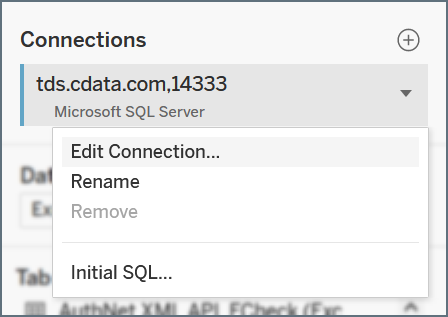 Edit your connection details and click **Sign In** when you are finished.
## Connect to a Workspace
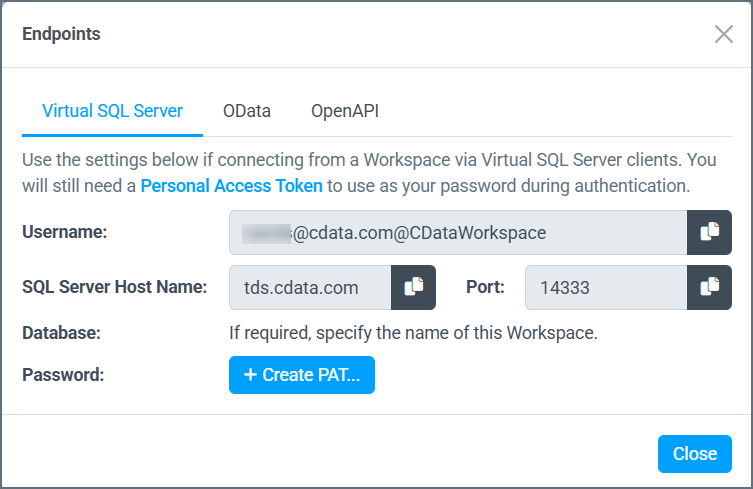
To connect Tableau Cloud to a specific [workspace](/ja/Workspaces) in Connect AI, you specify the workspace name after the Connect AI username in the format of `[your_email_address]@[workspace_name]`:
Edit your connection details and click **Sign In** when you are finished.
## Connect to a Workspace
To connect Tableau Cloud to a specific [workspace](/ja/Workspaces) in Connect AI, you specify the workspace name after the Connect AI username in the format of `[your_email_address]@[workspace_name]`:
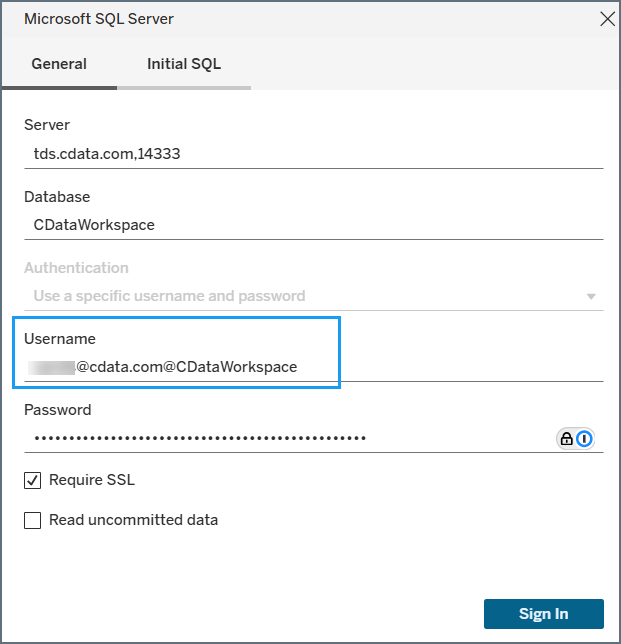 You can copy the **Username** from the **Virtual SQL Server** tab of the **Endpoints** dialog for your workspace and paste it in the Tableau Cloud **Username** field.
 ## Learn More
For more information about Tableau Cloud, please see the [Tableau Cloud help pages](https://help.tableau.com/current/online/en-us/tableau-online-home.htm).
## Learn More
For more information about Tableau Cloud, please see the [Tableau Cloud help pages](https://help.tableau.com/current/online/en-us/tableau-online-home.htm).