> ## Documentation Index
> Fetch the complete documentation index at: https://docs.cloud.cdata.com/llms.txt
> Use this file to discover all available pages before exploring further.
# SAP Analytics Cloud
> このページでは、[OData](/ja/API/OData-Dashboard) プロトコルを使用してSAP Analytics Cloud をConnect AI に接続する手順の概要を示します。これには、ワークスペースを使う必要があります。詳しくは、[Workspaces](/ja/Workspaces) ヘルプを参照してください。
## 前提条件
接続する前にまず以下を実行します。
* データソースをConnect AI アカウントに接続します。詳しくは、[Sources](/ja/Sources) を参照してください。
* [ワークスペース](/ja/Workspaces)を作成します。後の手順で、(*`https://cloud.cdata.com/api/odata/{workspace_name}`*) ページの**OData Service URL** と関連するワークスペース名を使用してコネクションを確立します。
* [Settings](/ja/Settings#personal-access-tokens) ページでPersonal Access Token (PAT) を生成します。PAT をコピーし、認証時にパスワードとして使用します。
## Connect AI への接続
OData プロトコルを使用してSAP Analytics Cloud からConnect AI へのコネクションを確立するには、以下の手順に従います。
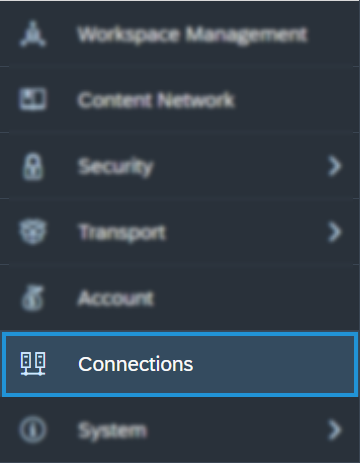
From the SAP Analytics Cloud dashboard, open the navigation menu and click **Connections**.
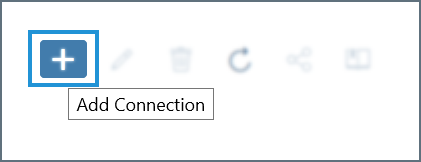
 On the Connection page, click **Add Connection**.
 In the **Select a data source** dialog, type *odata* into the search bar and select **OData Services**. You can also find it listed under the **Acquire Data** category without searching.
Configure the connection:
* Enter a **Connection Name** and, optionally, a **Description**.
* **Data Service URL**—enter *[https://cloud.cdata.com/api/odata/\{workspace\_name}](https://cloud.cdata.com/api/odata/\{workspace_name})*
* **Authentication Type**—select **Basic Authentication**.
* **User Name**—Connect AI のユーザー名を入力します。ユーザー名は、Connect AI の画面の右上に表示されています。例:*[test@cdata.co.jp](mailto:test@cdata.co.jp)*
* **Password**—[Settings](/ja/Settings#personal-access-tokens) ページで生成したPAT を入力します。
In the **Select a data source** dialog, type *odata* into the search bar and select **OData Services**. You can also find it listed under the **Acquire Data** category without searching.
Configure the connection:
* Enter a **Connection Name** and, optionally, a **Description**.
* **Data Service URL**—enter *[https://cloud.cdata.com/api/odata/\{workspace\_name}](https://cloud.cdata.com/api/odata/\{workspace_name})*
* **Authentication Type**—select **Basic Authentication**.
* **User Name**—Connect AI のユーザー名を入力します。ユーザー名は、Connect AI の画面の右上に表示されています。例:*[test@cdata.co.jp](mailto:test@cdata.co.jp)*
* **Password**—[Settings](/ja/Settings#personal-access-tokens) ページで生成したPAT を入力します。
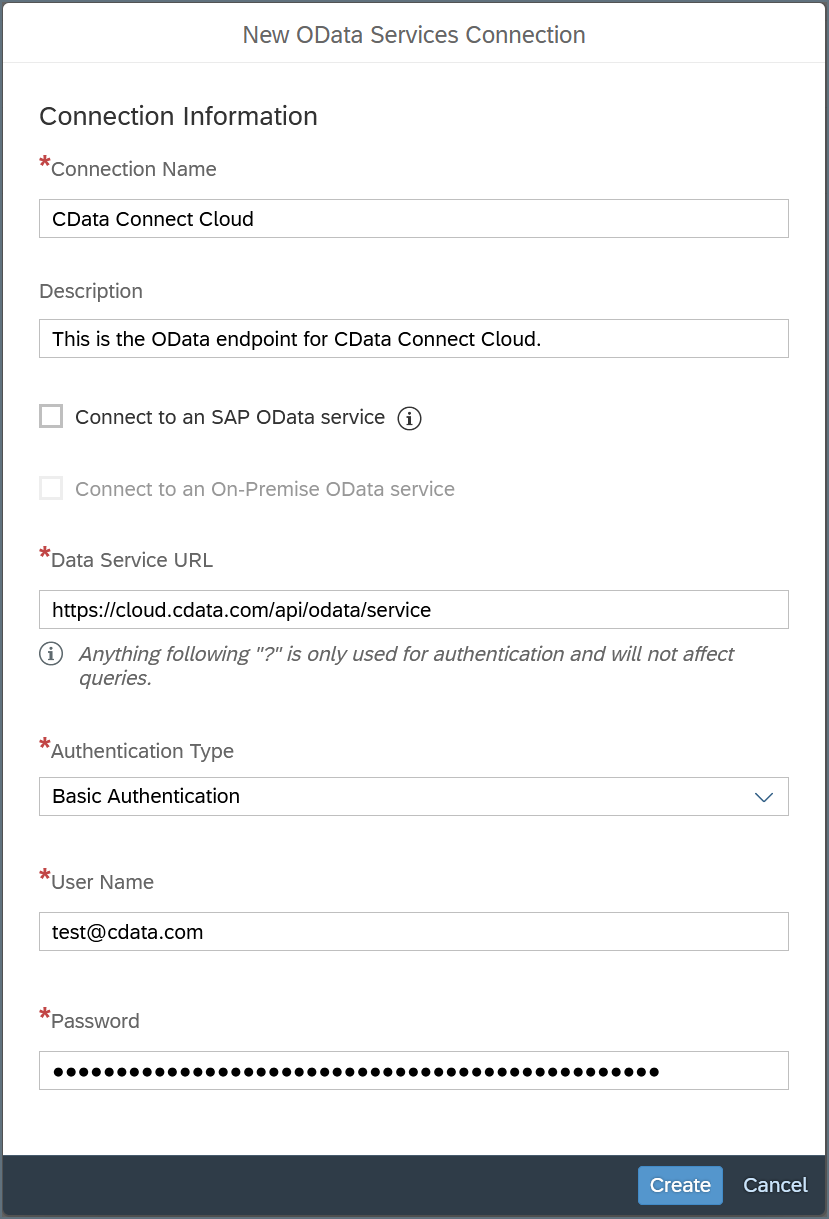 Click **Create** to save the connection.
## Query Your OData API
After establishing the connection to your Connect AI OData API, you can access it as a data source in SAP Analytics Cloud. Follow these steps to access it:
In SAP Analytics Cloud, open the navigation menu and click **Datasets** or **Modeler**.
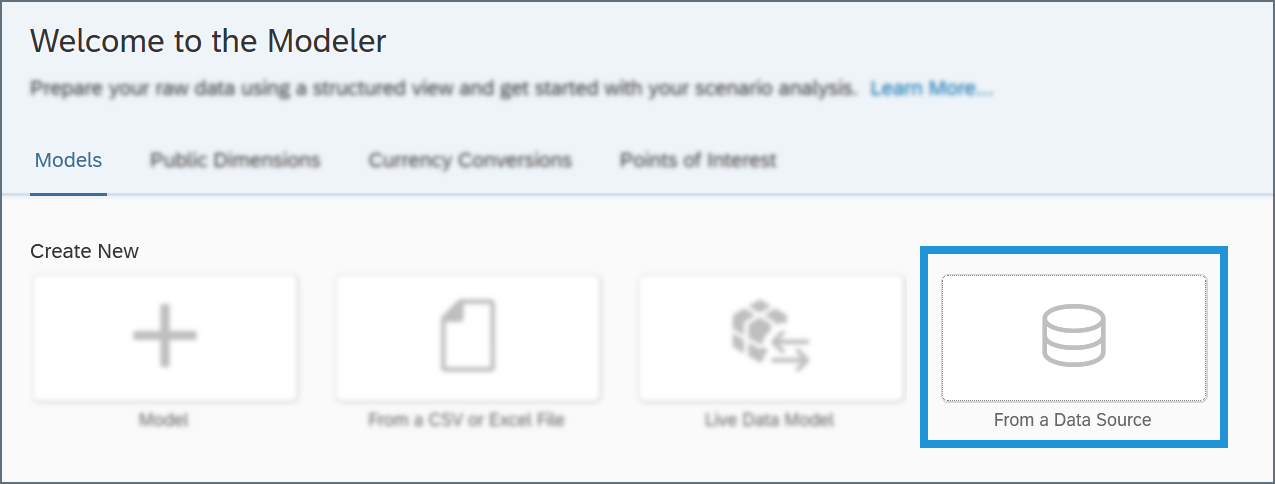
In the **Create New** section, click **From a Data Source**.
Click **Create** to save the connection.
## Query Your OData API
After establishing the connection to your Connect AI OData API, you can access it as a data source in SAP Analytics Cloud. Follow these steps to access it:
In SAP Analytics Cloud, open the navigation menu and click **Datasets** or **Modeler**.
In the **Create New** section, click **From a Data Source**.
 In the **Select a data source** dialog, select **OData Services**.
In the **Connection** drop-down menu, select the connection you created. If you are using the Modeler tab, select the **Create a new query** radio button.
In the **Select a data source** dialog, select **OData Services**.
In the **Connection** drop-down menu, select the connection you created. If you are using the Modeler tab, select the **Create a new query** radio button.
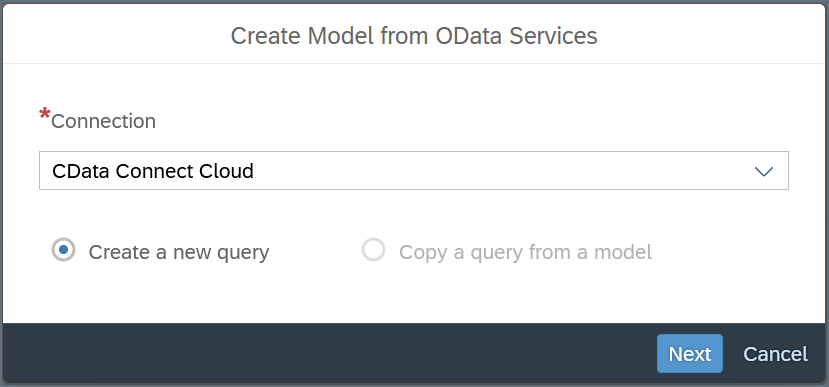 Click **Next** and build your query according to your needs.
For information about refreshing the data from your OData API, please see [this SAP Analytics Cloud help article](https://help.sap.com/viewer/00f68c2e08b941f081002fd3691d86a7/release/en-US/6aa6a99d4eb5467896c4fd47bc9c7642.html).
Click **Next** and build your query according to your needs.
For information about refreshing the data from your OData API, please see [this SAP Analytics Cloud help article](https://help.sap.com/viewer/00f68c2e08b941f081002fd3691d86a7/release/en-US/6aa6a99d4eb5467896c4fd47bc9c7642.html).