> ## Documentation Index
> Fetch the complete documentation index at: https://docs.cloud.cdata.com/llms.txt
> Use this file to discover all available pages before exploring further.
# Gemini
> Gemini is Google’s family of large language models (LLMs). It can generate text, images, audio, video, and code. This page explains how to connect the Connect AI MCP to Gemini through either the command-line interface or the Google Agent Development Kit (ADK).
## Prerequisites
Before you can configure and use Gemini with Connect AI, you must first generate an [OAuth JWT bearer token](/en/API/Authentication-Embedded). Copy this down, as it acts as your password during authentication.
You need Python >= 3.10 to use the Gemini tools.
## Connect through the Gemini Command Line Interface
After you install Gemini, do the following:
Go to your user directory `%USERPROFILE%` and create a `.gemini` folder.
Within the folder, create a file named `settings.json`.
Copy and paste the following into the `settings.json` file. `"Authorization"` should be set to `"Bearer OAUTH_JWT_TOKEN"`. This is the OAuth JWT token from the prerequisites.
```json theme={null}
{
"mcpServers": {
"connect-cloud": {
"httpUrl": "https://mcp.cloud.cdata.com/mcp",
"headers": {
"Authorization": "Bearer OAUTH_JWT_TOKEN" //Replace with your OAuth JWT Token
},
"trust": true
}
},
"selectedAuthType": "oauth-personal"
}
```
In the terminal, type:
```bash theme={null}
gemini
```
You may need to give Google authorization to access your account.
The Gemini screen appears as follows:
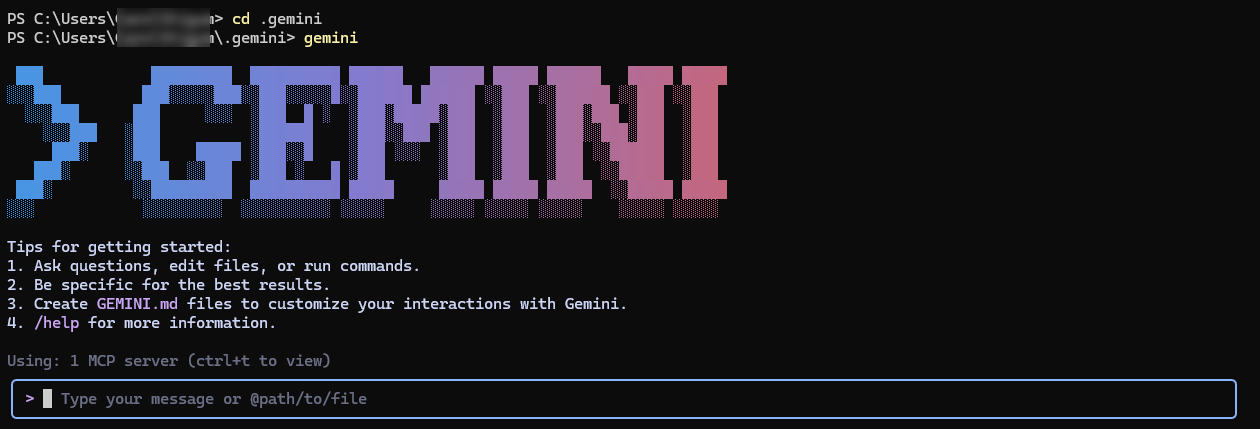 Enter a prompt in the prompt box to ask Gemini a question. Gemini uses the Connect AI tools such as `getCatalogs`, `getSchemas`, and `getTables` to retrieve data from connected data sources.
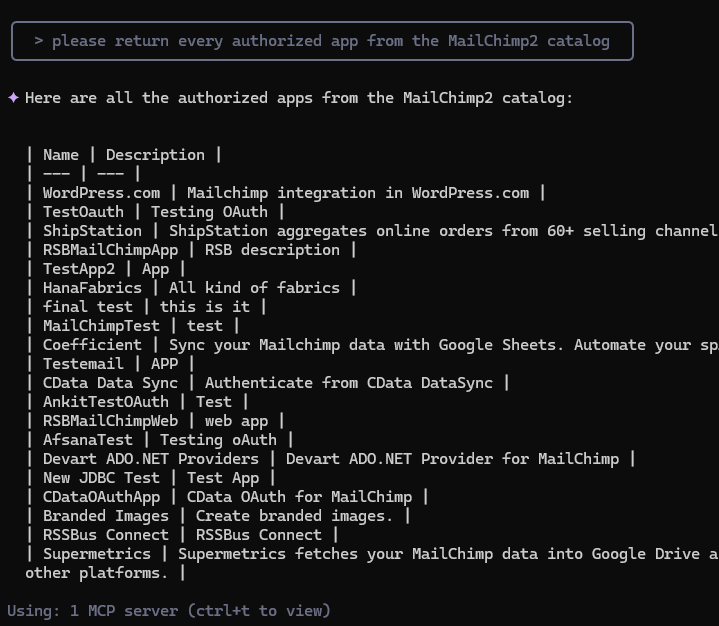
Gemini returns a response to your prompt.
Enter a prompt in the prompt box to ask Gemini a question. Gemini uses the Connect AI tools such as `getCatalogs`, `getSchemas`, and `getTables` to retrieve data from connected data sources.
Gemini returns a response to your prompt.
 ## Connect through the Google ADK
Download the folder [adk-mcp-client](https://github.com/CDataSoftware/adk-mcp-client) and unzip the folder.
Rename `.env example` to `.env`.
In the `.env` file, remove `MCP_USERNAME` and `MCP_PASSWORD`. You are using the OAuth JWT token from the prerequisites to authenticate.
Run the following command in your terminal:
```bash theme={null}
pip install -r requirements.txt
```
Run the following command. This starts the ADK at port 5000 on your local machine:
```bash theme={null}
python -m google.adk.cli web --port 5000
```
In your web browser, open `127.0.0.1:5000`. The application looks like the following:
## Connect through the Google ADK
Download the folder [adk-mcp-client](https://github.com/CDataSoftware/adk-mcp-client) and unzip the folder.
Rename `.env example` to `.env`.
In the `.env` file, remove `MCP_USERNAME` and `MCP_PASSWORD`. You are using the OAuth JWT token from the prerequisites to authenticate.
Run the following command in your terminal:
```bash theme={null}
pip install -r requirements.txt
```
Run the following command. This starts the ADK at port 5000 on your local machine:
```bash theme={null}
python -m google.adk.cli web --port 5000
```
In your web browser, open `127.0.0.1:5000`. The application looks like the following:
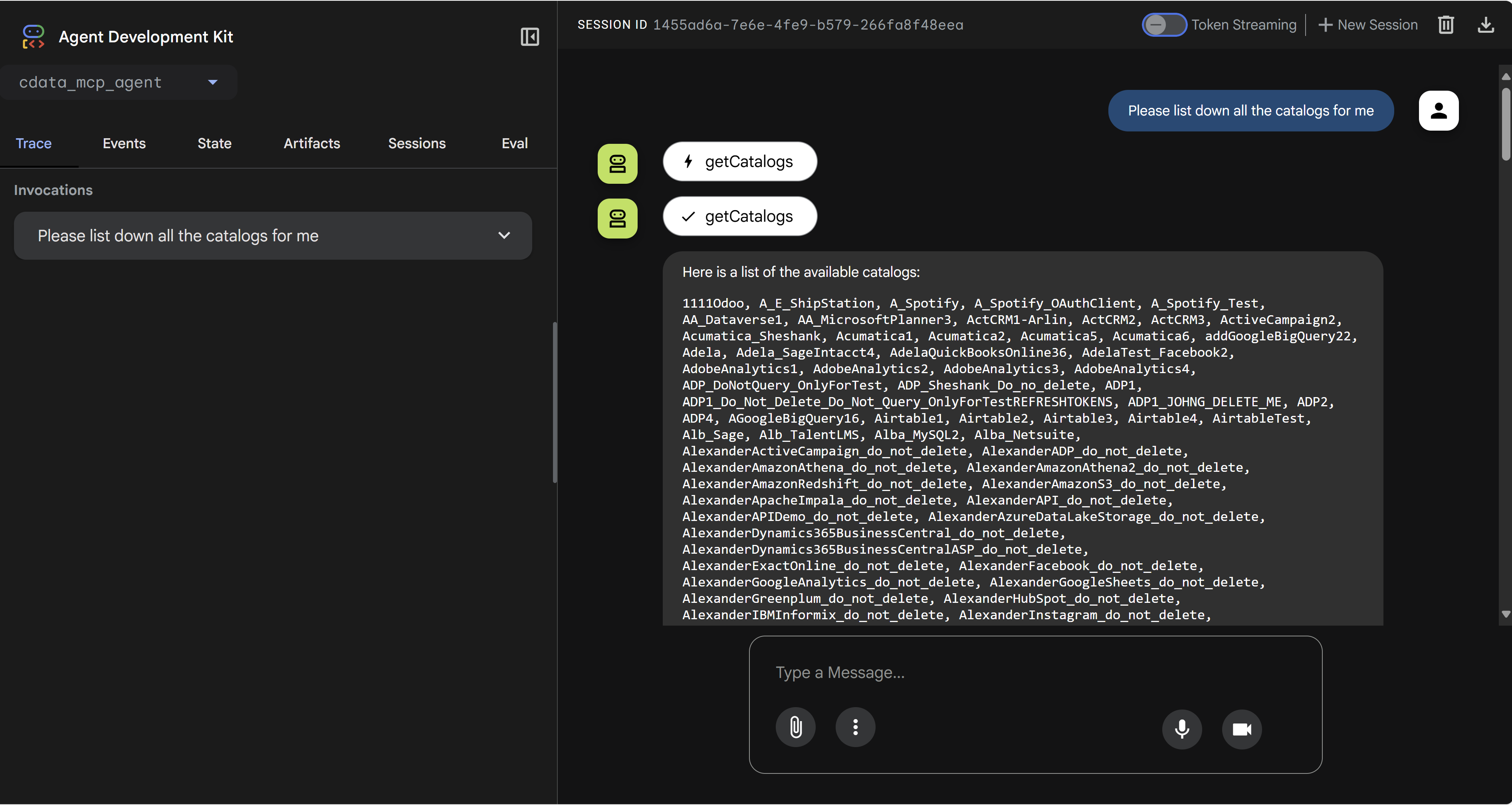
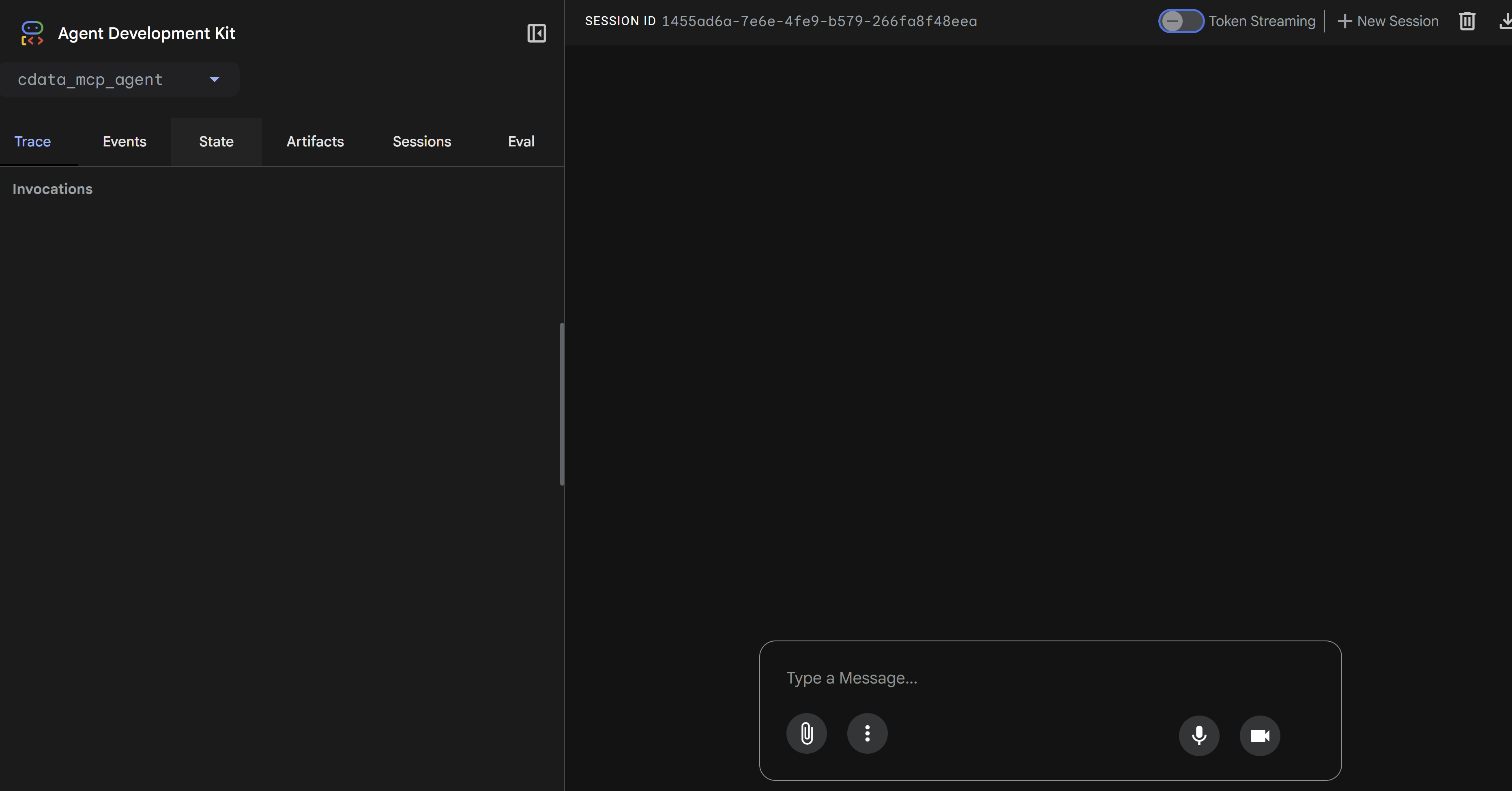 Enter a prompt in the **Type a Message** box. Gemini uses the Connect AI tools such as `getCatalogs`, `getSchemas`, and `getTables` to retrieve data from connected data sources.