> ## Documentation Index
> Fetch the complete documentation index at: https://docs.cloud.cdata.com/llms.txt
> Use this file to discover all available pages before exploring further.
# Accounts
> The ***Accounts*** page enables you to add and manage the sub-accounts in your Connect AI Embed account.
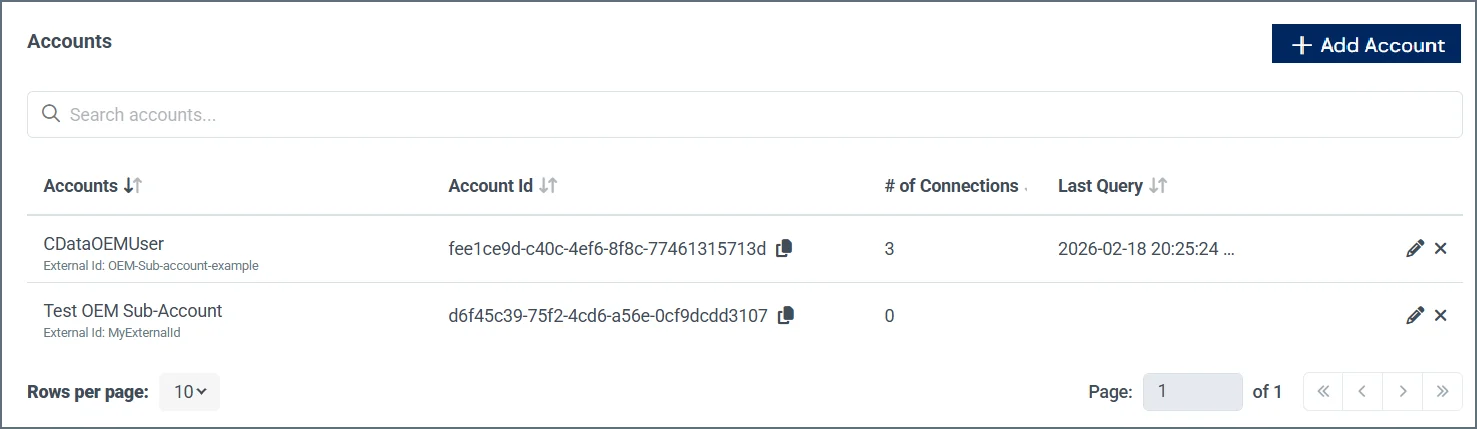 The **Accounts** page displays the following information about each sub-account:
* **Accounts**—The name and external Id name of the sub-account.
* **Account Id**—The internal CData account Id of the sub-account.
* **# of Connections**—The number of connections associated with the sub-account.
* **Last Query**—The date and time the sub-account last executed a query.
* **Account Actions**—The icons in the last column represent the various actions you can perform on an account.
* **Edit (🖉)**—Edit the account name and external Id of the sub-account.
* **Delete (🗙)**—Delete the sub-account.
To add a new sub-account, follow these steps:
Click **+Add Account**.
Enter the **Account Name** and **External ID**. The external Id is the customer's identifier.
Click **Confirm**.
The **Accounts** page displays the following information about each sub-account:
* **Accounts**—The name and external Id name of the sub-account.
* **Account Id**—The internal CData account Id of the sub-account.
* **# of Connections**—The number of connections associated with the sub-account.
* **Last Query**—The date and time the sub-account last executed a query.
* **Account Actions**—The icons in the last column represent the various actions you can perform on an account.
* **Edit (🖉)**—Edit the account name and external Id of the sub-account.
* **Delete (🗙)**—Delete the sub-account.
To add a new sub-account, follow these steps:
Click **+Add Account**.
Enter the **Account Name** and **External ID**. The external Id is the customer's identifier.
Click **Confirm**.