> ## Documentation Index
> Fetch the complete documentation index at: https://docs.cloud.cdata.com/llms.txt
> Use this file to discover all available pages before exploring further.
# Workspaces
> The **Workspaces** feature is a data catalog that streamlines the accessibility of diverse data sources.
## Overview
Workspaces provide a way to organize, catalog, and control access to specific data (assets) in Connect AI. You can bundle related assets separately in a simple and scalable way. Workspaces offer a customizable organization scheme that streamlines data analysis across numerous business functions.
In the Connect AI data catalog, you can view a preview of the workspace’s column metadata.
Workspace assets can be:
* **Folders**–you can create one level of folders within a workspace.
* **Tables and Views**–from connected Connect AI data sources
* **Derived Views**–derived from one or many data sources in Connect AI
Tables, views, and derived views are exposed directly without transformations, so the column names and other properties remain the same. Any table, view, or derived view can be added to any number of workspaces. They can be referenced by a unique **Alias**. Tables that are workspaces support full CRUD capabilities.
## Add a Workspace
Workspaces are the highest level of organization. They are customizable to adjust to various business needs. A business unit like marketing or data science can have their own separate workspaces. Sales may organize folders in their workspace for each client. Teams can pick the structure that supports them best.
To get started, you can create a workspace using the following steps:
Click **Workspaces** on the left side of the dashboard.
Click **Add** on the top right side.
Enter a **Workspace Name**.
Click **Confirm** to create your new workspace.
After setting a name and description for a *Workspace*, SQL Server, OData, and OpenAPI **Endpoints** are automatically generated. Endpoints are the door to a wide range of connections that form the backbone of workspaces.
To view connection details for connecting from a workspace via Virtual SQL Server, OData, or OpenAPI, click **View Endpoints**. The **Endpoints** dialog contains three tabs, one for **Virtual SQL Server**, one for **OData**, and one for **OpenAPI**.
### Inbound Connections
When connecting to Connect AI from a client application, you can connect directly to a workspace via workspace-specific endpoints. Connect AI supports several endpoints for inbound connections, including a REST API, Virtual SQL Server, OData, and OpenAPI. You can identify endpoints quickly via a configurable naming structure that places periods between workspace, folder, and asset names by default—for example, *Workspace.Folder.Asset*.
Connect AI supports the OpenAPI specification version 2.0 and 3.0, allowing you to connect no-code/low-code applications that integrate with OpenAPI easily. Connect AI allows you to connect a workspace via OpenAPI by downloading an OpenAPI document from a workspace and importing the file in your client application.
#### Connect to the REST API
To make a connection to the REST API, add a URL parameter to the REST API URL named “workspace”. Set this to the name of the workspace you want to query. This works with both the GET operation on the metadata endpoint, as well as the POST operation on the query and batch endpoints. Note that the /exec endpoint does not support workspaces.
#### Connect to the Remote MCP Server
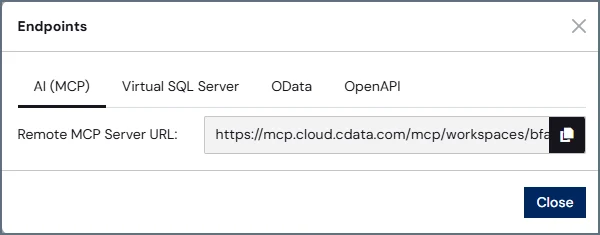
The **AI (MCP)** tab of the **Endpoints** dialog contains the URL to connect an AI integration tool to a Connect AI workspace. Copy and paste the **Remote MCP Server URL** into your AI integration tool.
 #### Connect via Virtual SQL Server
The **Virtual SQL Server** tab of the **Endpoints** dialog contains the settings you need to connect from a workspace via Virtual SQL Server clients. Copy the settings in the dialog.
#### Connect via Virtual SQL Server
The **Virtual SQL Server** tab of the **Endpoints** dialog contains the settings you need to connect from a workspace via Virtual SQL Server clients. Copy the settings in the dialog.
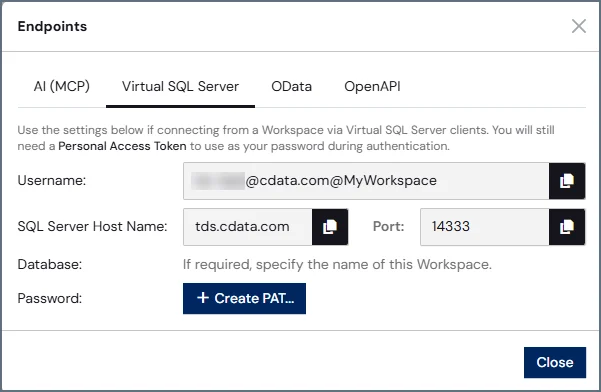 * **Username**—your username to connect to a workspace is in the format of `[your_email_address]@[workspace_name]`.
* **SQL Server Host Name**—the SQL Server host name (*tds.cdata.com*).
* **Port**—the SQL Server port (*14333*).
* **Database**—the name of the workspace (if required).
* **Password**—click **Create PAT** to create a Personal Access Token to use as your password during authentication.
#### Connect via OData
The **OData** tab of the **Endpoints** dialog contains the settings you need to connect from a workspace via OData clients. Copy the settings in the dialog.
* **Username**—your username to connect to a workspace is in the format of `[your_email_address]@[workspace_name]`.
* **SQL Server Host Name**—the SQL Server host name (*tds.cdata.com*).
* **Port**—the SQL Server port (*14333*).
* **Database**—the name of the workspace (if required).
* **Password**—click **Create PAT** to create a Personal Access Token to use as your password during authentication.
#### Connect via OData
The **OData** tab of the **Endpoints** dialog contains the settings you need to connect from a workspace via OData clients. Copy the settings in the dialog.
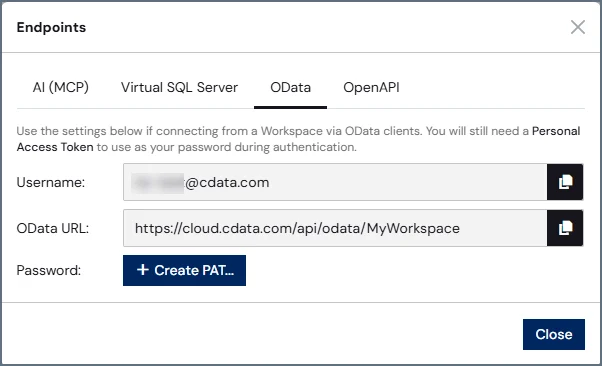 * **Username**—your username to connect to a workspace is in the format of your email address.
* **OData URL**—the workspace name you want to connect to. The URL has the format `https://cloud.cdata.com/api/odata/{workspace_name}`.
* **Password**—click **Create PAT** to create a Personal Access Token to use as your password during authentication.
#### Connect via OpenAPI
The **OpenAPI** tab of the **Endpoints** dialog contains the settings you need to connect from a workspace via OpenAPI. You can generate an OpenAPI specification file for the selected workspace. This file can be used in client applications to integrate with Connect AI via OpenAPI.
* **Username**—your username to connect to a workspace is in the format of your email address.
* **OData URL**—the workspace name you want to connect to. The URL has the format `https://cloud.cdata.com/api/odata/{workspace_name}`.
* **Password**—click **Create PAT** to create a Personal Access Token to use as your password during authentication.
#### Connect via OpenAPI
The **OpenAPI** tab of the **Endpoints** dialog contains the settings you need to connect from a workspace via OpenAPI. You can generate an OpenAPI specification file for the selected workspace. This file can be used in client applications to integrate with Connect AI via OpenAPI.
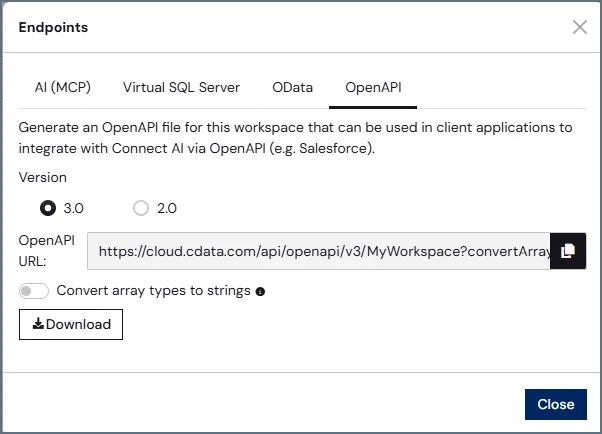 Select version 2.0 or 3.0 of OpenAPI.
Toggle **Convert array types to strings** on if the client application does not support array types (such as Microsoft Power Apps).
Click **Download** to download the OpenAPI specification file for the workspace. This is the file that is imported into the client application.
You can also copy and paste the **OpenAPI URL**.
#### Connect to Development Tools (JDBC/ODBC/SSIS)
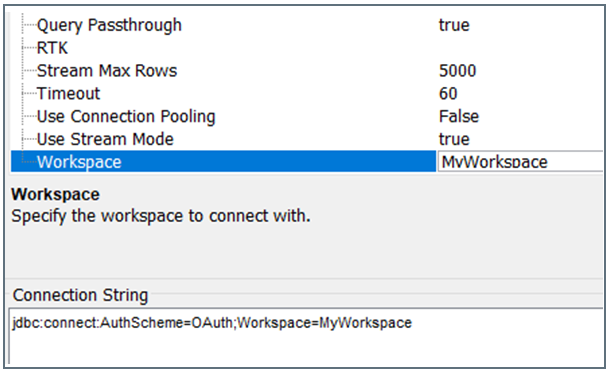
To make a connection from the workspace to CData development tools, enter the workspace name in the **Workspace** field in the **Advanced** tab of the driver for Connect AI. Below is an example for the JDBC driver.
Select version 2.0 or 3.0 of OpenAPI.
Toggle **Convert array types to strings** on if the client application does not support array types (such as Microsoft Power Apps).
Click **Download** to download the OpenAPI specification file for the workspace. This is the file that is imported into the client application.
You can also copy and paste the **OpenAPI URL**.
#### Connect to Development Tools (JDBC/ODBC/SSIS)
To make a connection from the workspace to CData development tools, enter the workspace name in the **Workspace** field in the **Advanced** tab of the driver for Connect AI. Below is an example for the JDBC driver.
 #### Connection Authentication
To authenticate, use your Connect AI email address as your username. You need a Personal Access Token (PAT) to use as your password. You can generate a PAT in the **Endpoints** dialog or on the [Settings](/en/Settings#access-tokens) page.
## Workspace Assets
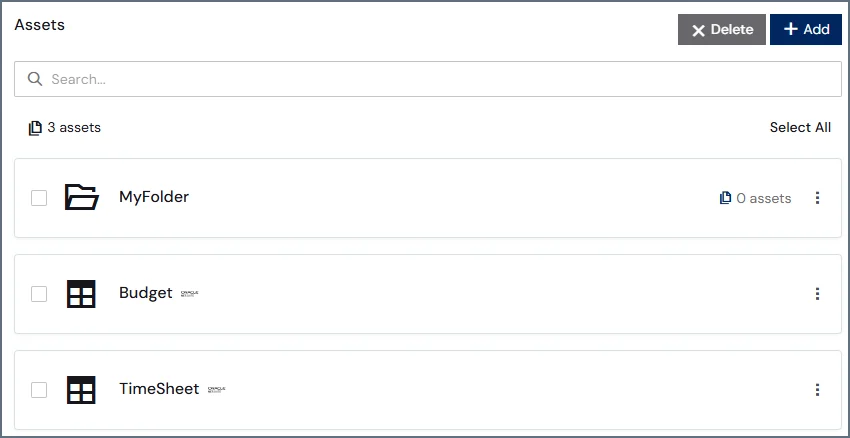
The assets created within workspaces link to specific data items and provide a second layer of organization. You can organize assets into folders, but you cannot create subfolders. On the left of the asset is an icon specifying whether the asset is a folder, table, or derived view. On the right of the asset is an icon displaying the data source of the asset (not applicable for derived views).
#### Connection Authentication
To authenticate, use your Connect AI email address as your username. You need a Personal Access Token (PAT) to use as your password. You can generate a PAT in the **Endpoints** dialog or on the [Settings](/en/Settings#access-tokens) page.
## Workspace Assets
The assets created within workspaces link to specific data items and provide a second layer of organization. You can organize assets into folders, but you cannot create subfolders. On the left of the asset is an icon specifying whether the asset is a folder, table, or derived view. On the right of the asset is an icon displaying the data source of the asset (not applicable for derived views).
 To create an asset inside of the workspace:
Within the workspace, click **Add** on the top right side. The **Add Asset** dialog appears.
To create an asset inside of the workspace:
Within the workspace, click **Add** on the top right side. The **Add Asset** dialog appears.
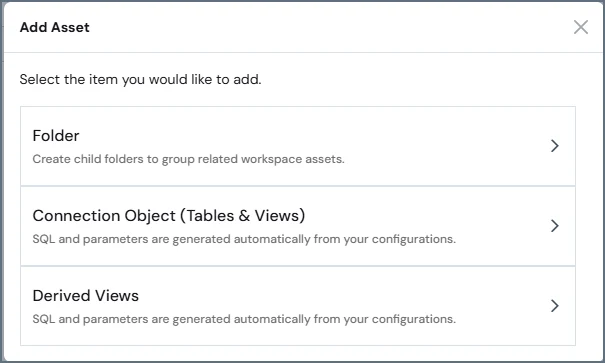 Select from the menu what you want to add:
* **Folder**
* **Tables and Views**
* **Derived Views**
If you select **Folder**, enter the folder name. If you select **Tables and Views**, you must select the connection and the tables or views to add. If you select **Derived Views**, you must select the derived views to add.
Click **Confirm**.
When you click on an asset in a workspace, the horizontal tabs offer the following functionality:
* **Columns**–a table with the column metadata
* **Preview**–the connected data item’s contents in a preview table
* **SQL**–a generated reference SQL query for a table, view, or derived view, including the configurable **Alias** which is an important reference when querying.
### Data Model
The data model follows a `Workspace.Folder.Table` design. If no folder is present in the hierarchy, it displays as `[ROOT]`. For more information about the data model, refer to [SQL Reference](/en/SQL-Reference/SQL-Reference#data-model).
Select from the menu what you want to add:
* **Folder**
* **Tables and Views**
* **Derived Views**
If you select **Folder**, enter the folder name. If you select **Tables and Views**, you must select the connection and the tables or views to add. If you select **Derived Views**, you must select the derived views to add.
Click **Confirm**.
When you click on an asset in a workspace, the horizontal tabs offer the following functionality:
* **Columns**–a table with the column metadata
* **Preview**–the connected data item’s contents in a preview table
* **SQL**–a generated reference SQL query for a table, view, or derived view, including the configurable **Alias** which is an important reference when querying.
### Data Model
The data model follows a `Workspace.Folder.Table` design. If no folder is present in the hierarchy, it displays as `[ROOT]`. For more information about the data model, refer to [SQL Reference](/en/SQL-Reference/SQL-Reference#data-model).