> ## Documentation Index
> Fetch the complete documentation index at: https://docs.cloud.cdata.com/llms.txt
> Use this file to discover all available pages before exploring further.
# Workspace
> A workspace is a self-contained space where a team does their work. Administrators have a unified view across all workspaces, while other users see only the workspaces they belong to.
When you begin your setup with Connect AI, there is only one workspace: **General**. You can add a workspace for each group in your organization, such as separate customer accounts or separate job functions. Users with a system role of Administrator can view and manage users, service accounts, and connections for any workspace across your account, while users with a system role of Workspace Administrator can manage users, service accounts, and connections within their assigned workspaces only. See [Permissions](/en/Permissions) for details.
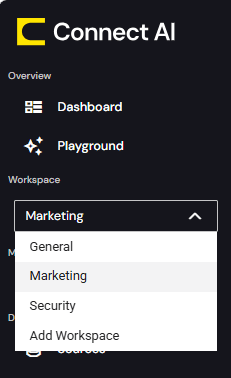
After you add one or more workspaces, you can select the active workspace from the **Workspace** drop-down list in the navigation pane:
 ## Add a Workspace to Your Account
To add a new workspace to your account as an Administrator, select **Add Workspace** in the **Workspace** drop-down list. An **Add Workspace** dialog appears. Then complete the following steps:
Enter a **Workspace Name**.
In Step 1 of the dialog, add one or more users to the workspace. Use the search bar to search for users. All users with the system role of Administrator are added automatically to all new workspaces.
You can skip this step and add users to the workspace later.
(Optional) Select a new system role for the user from the drop-down list. You cannot change an **Administrator** role. See [Permissions](/en/Permissions) for a description of system roles.
In Step 2 of the dialog, add one or more service accounts to the workspace. A service account is a non-human identity, such as an agent, that is authorized to interact with Connect AI.
You can skip this step and add service accounts to the workspace later.
Click **Add Workspace** to add the workspace to your account.
## Manage Workspaces
To add and edit users and service accounts in a workspace, use the **Workspaces** tab on the **Identities** page. See [Workspaces](/en/Identities/Workspaces) for more information.
This documentation is built and hosted on [Mintlify](https://mintlify.com), a developer documentation platform.
## Add a Workspace to Your Account
To add a new workspace to your account as an Administrator, select **Add Workspace** in the **Workspace** drop-down list. An **Add Workspace** dialog appears. Then complete the following steps:
Enter a **Workspace Name**.
In Step 1 of the dialog, add one or more users to the workspace. Use the search bar to search for users. All users with the system role of Administrator are added automatically to all new workspaces.
You can skip this step and add users to the workspace later.
(Optional) Select a new system role for the user from the drop-down list. You cannot change an **Administrator** role. See [Permissions](/en/Permissions) for a description of system roles.
In Step 2 of the dialog, add one or more service accounts to the workspace. A service account is a non-human identity, such as an agent, that is authorized to interact with Connect AI.
You can skip this step and add service accounts to the workspace later.
Click **Add Workspace** to add the workspace to your account.
## Manage Workspaces
To add and edit users and service accounts in a workspace, use the **Workspaces** tab on the **Identities** page. See [Workspaces](/en/Identities/Workspaces) for more information.
This documentation is built and hosted on [Mintlify](https://mintlify.com), a developer documentation platform.