> ## Documentation Index
> Fetch the complete documentation index at: https://docs.cloud.cdata.com/llms.txt
> Use this file to discover all available pages before exploring further.
# SIEM Endpoints
> Configure SIEM endpoints to forward audit log events to your security information and event management system.
Security Information and Event Management (SIEM) systems, such as Datadog, collect and analyze security-related event data from across your infrastructure. The **SIEM Endpoints** tab allows you to configure endpoints so that Connect AI forwards such audit log events as user logins, query activity, and connection changes to your SIEM platform in real time. This enables your security team to monitor Connect AI activity alongside other enterprise systems for threat detection, compliance reporting, and incident response.
* Available for Business tier in Connect AI only.
* Not available for Connect AI Embed.
* Connect AI uses a range of static IP addresses to communicate with external data sources. To ensure that you can access your data, you must allow these static IP addresses in your data sources. The table below lists these IP addresses.
| IP Addresses (CIDR) | IP Addresses (Range) |
| :------------------ | :---------------------------- |
| 52.224.0.160/28 | 52.224.0.160 - 52.224.0.175 |
| 4.154.117.160/28 | 4.154.117.160 - 4.154.117.175 |
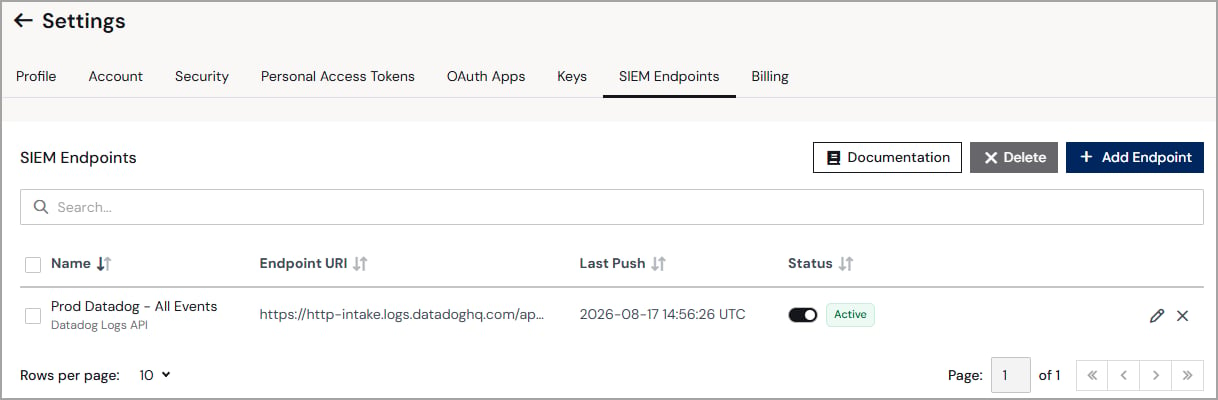
The **SIEM Endpoints** tab contains a list of configured SIEM endpoints, including the **Name**, **Endpoint URI**, and **Status** of each endpoint. The status can be **Active** (the endpoint is receiving events normally), **Failed** (the last delivery attempt failed), or **Pushing** (an event batch is currently being transmitted).
 Only Administrators can view, modify, or delete SIEM endpoints.
## Add a SIEM Endpoint
To add a SIEM endpoint:
In the **SIEM Endpoints** tab, click **+ Add Endpoint**. The **Add Endpoint** dialog appears.
Select the type of endpoint to add (**Datadog Logs API**).
Enter a user-defined **Endpoint Name**.
Under **Configuration Settings**, configure the fields for your endpoint type.
**Datadog Logs API:**
* **Region**–(optional) select the region for your Datadog account.
* **DD-API-KEY**–enter the Datadog API key used to authenticate the connection. Find your key in Datadog under **Organization Settings** > **API Keys**.
* **Endpoint URL**–autogenerated based on the selected region.
* **Service Tag**–(optional) enter a user-defined tag to identify the events forwarded to your Datadog account, such as *audit-all-events*. In Datadog, you can search by this tag.
Under **Delivery Settings**, configure the following:
* **Event Scope**–select which events are forwarded to the endpoint. Options include **All Events**. Coming soon: Support for specific events, such as **Control Plane** events.
* **Payload Format**–select **OCSF** (Open Cybersecurity Schema Framework, recommended) or **Plain JSON**.
* **Batch Size (Events)**–enter the maximum number of events to include in each batch.
* **Batch Size (Time-based)**–enter the maximum time interval (in seconds) before a batch is sent, even if the event limit has not been reached.
* **Delayed Event Alert Threshold**–enter the number of delayed events after which Connect AI sends an email alert to account administrators.
* **Alert Recipient Email**–enter the email address of the alert recipient, which can be a shared inbox. By default, this field is populated with your email address.
* **GZIP Compression**–toggle on or off to control whether event data is compressed before transmission.
Click **Save & Test** to save the endpoint. Connect AI tests the connection and displays one of the following:
* If the test succeeds, a success message appears and the new endpoint is added to the list of SIEM endpoints.
* If the test fails, an error message appears. Check your endpoint and configuration settings and try again.
## Edit a SIEM Endpoint
To edit a SIEM endpoint, click the edit icon in the endpoint list, make your changes, and click **Save & Test**.
## Delete a SIEM Endpoint
To delete a SIEM endpoint that you no longer use, click the delete icon in the endpoint list. Click **Confirm** in the confirmation dialog that is displayed.
## Push History
Click the edit icon in the endpoint list to view the push history of an endpoint. The **Push History** section of the **Edit SIEM Endpoint** page displays delivery status information for each endpoint.
Only Administrators can view, modify, or delete SIEM endpoints.
## Add a SIEM Endpoint
To add a SIEM endpoint:
In the **SIEM Endpoints** tab, click **+ Add Endpoint**. The **Add Endpoint** dialog appears.
Select the type of endpoint to add (**Datadog Logs API**).
Enter a user-defined **Endpoint Name**.
Under **Configuration Settings**, configure the fields for your endpoint type.
**Datadog Logs API:**
* **Region**–(optional) select the region for your Datadog account.
* **DD-API-KEY**–enter the Datadog API key used to authenticate the connection. Find your key in Datadog under **Organization Settings** > **API Keys**.
* **Endpoint URL**–autogenerated based on the selected region.
* **Service Tag**–(optional) enter a user-defined tag to identify the events forwarded to your Datadog account, such as *audit-all-events*. In Datadog, you can search by this tag.
Under **Delivery Settings**, configure the following:
* **Event Scope**–select which events are forwarded to the endpoint. Options include **All Events**. Coming soon: Support for specific events, such as **Control Plane** events.
* **Payload Format**–select **OCSF** (Open Cybersecurity Schema Framework, recommended) or **Plain JSON**.
* **Batch Size (Events)**–enter the maximum number of events to include in each batch.
* **Batch Size (Time-based)**–enter the maximum time interval (in seconds) before a batch is sent, even if the event limit has not been reached.
* **Delayed Event Alert Threshold**–enter the number of delayed events after which Connect AI sends an email alert to account administrators.
* **Alert Recipient Email**–enter the email address of the alert recipient, which can be a shared inbox. By default, this field is populated with your email address.
* **GZIP Compression**–toggle on or off to control whether event data is compressed before transmission.
Click **Save & Test** to save the endpoint. Connect AI tests the connection and displays one of the following:
* If the test succeeds, a success message appears and the new endpoint is added to the list of SIEM endpoints.
* If the test fails, an error message appears. Check your endpoint and configuration settings and try again.
## Edit a SIEM Endpoint
To edit a SIEM endpoint, click the edit icon in the endpoint list, make your changes, and click **Save & Test**.
## Delete a SIEM Endpoint
To delete a SIEM endpoint that you no longer use, click the delete icon in the endpoint list. Click **Confirm** in the confirmation dialog that is displayed.
## Push History
Click the edit icon in the endpoint list to view the push history of an endpoint. The **Push History** section of the **Edit SIEM Endpoint** page displays delivery status information for each endpoint.
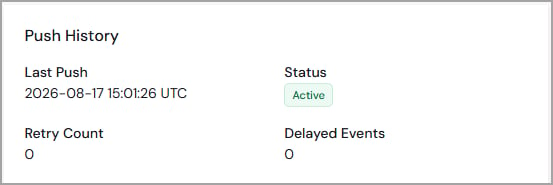 * **Last Push**–the date and time of the most recent event batch sent to the endpoint.
* **Retry Count**–the number of times Connect AI has retried delivery after a failed push.
* **Status**–the current delivery status of the endpoint (**Active**, **Failed**, or **Pushing**). Click the status, such as **Failed**, to view details.
The failed status may be the result of expired credentials. Update your credentials, save, and test.
* **Delayed Events**–the number of events that have not yet been delivered to the endpoint.
## View Events in Your SIEM Platform
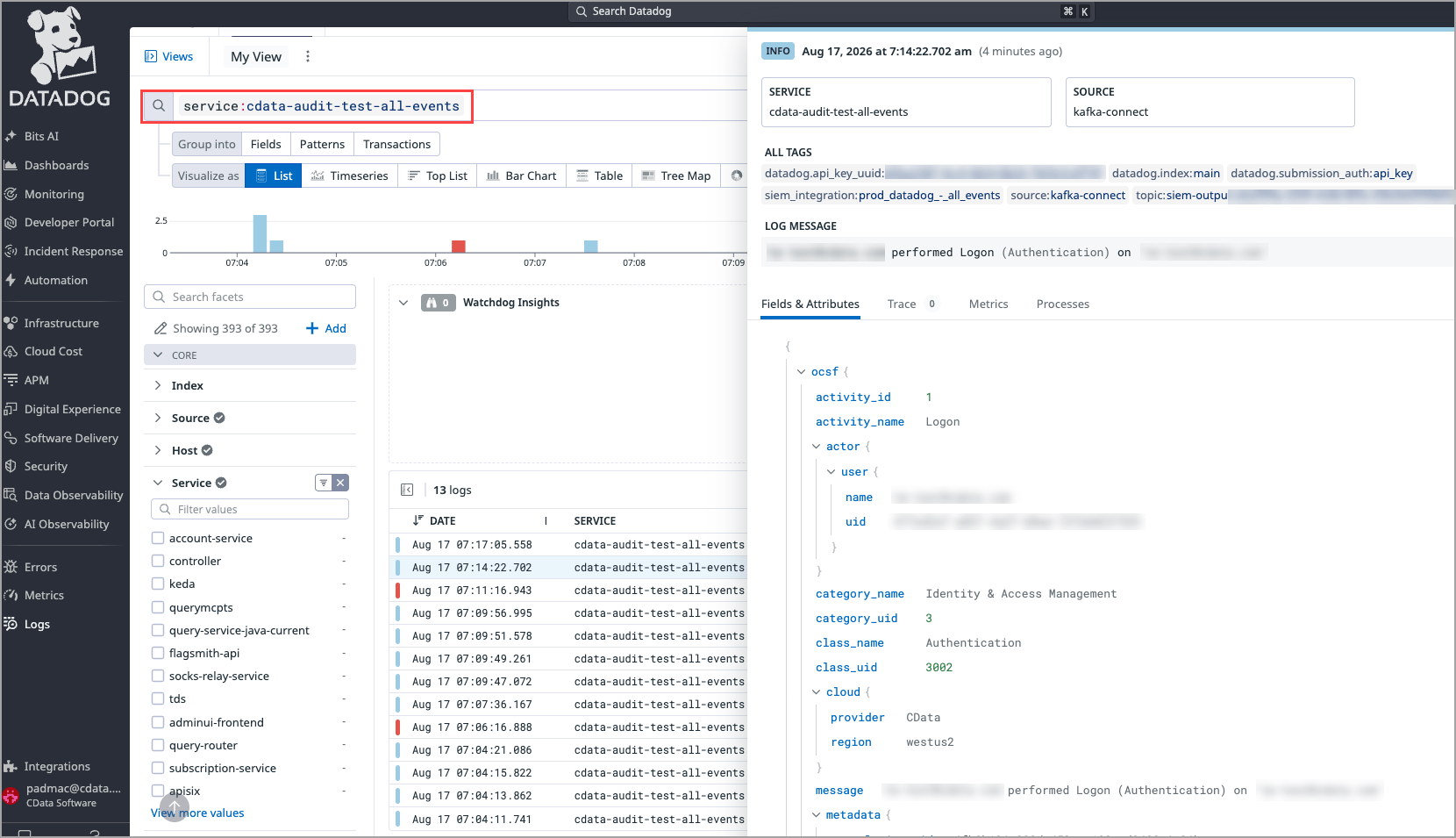
In your SIEM platform, you can search using the **Service Tag** you entered on the **SIEM Endpoint** page. The following Datadog example displays all the events under the tag `cdata-audit-test-all-events`:
* **Last Push**–the date and time of the most recent event batch sent to the endpoint.
* **Retry Count**–the number of times Connect AI has retried delivery after a failed push.
* **Status**–the current delivery status of the endpoint (**Active**, **Failed**, or **Pushing**). Click the status, such as **Failed**, to view details.
The failed status may be the result of expired credentials. Update your credentials, save, and test.
* **Delayed Events**–the number of events that have not yet been delivered to the endpoint.
## View Events in Your SIEM Platform
In your SIEM platform, you can search using the **Service Tag** you entered on the **SIEM Endpoint** page. The following Datadog example displays all the events under the tag `cdata-audit-test-all-events`: