> ## Documentation Index
> Fetch the complete documentation index at: https://docs.cloud.cdata.com/llms.txt
> Use this file to discover all available pages before exploring further.
# Security
> The Security tab contains security settings that are applied globally.
The security settings on this tab are applied globally.
 ## Personal Access Token Expiration
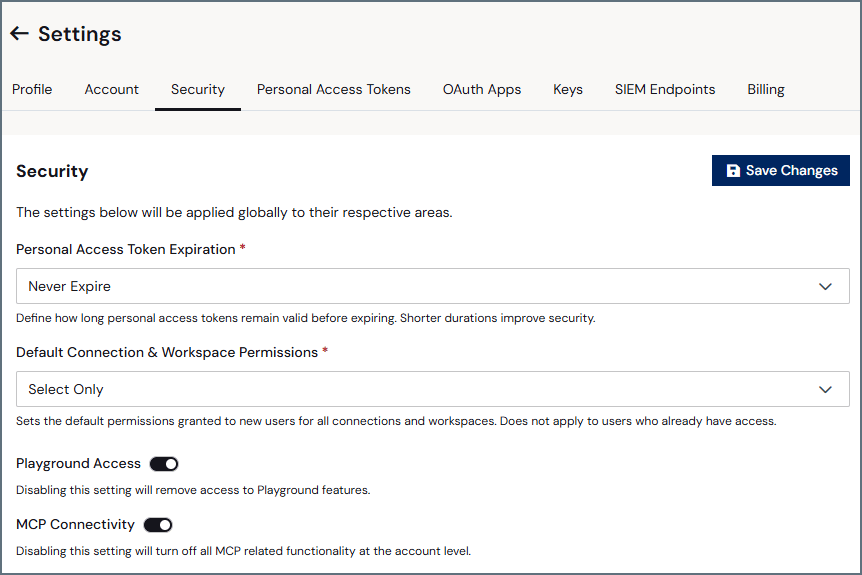
This section allows you to set a global Personal Access Token (PAT) expiration (such as **30 Days**, **60 Days**, or **Never Expire**). Shorter durations improve security. When the PAT expires, the PAT displays **Expired** in the **Security** tab of **Settings**, and any authentication using the PAT fails with an `"Invalid personal access token"` error.
To create a PAT, see [Personal Access Tokens](/en/Settings/Personal-Access-Tokens).
## Default Connection & Workspace Permissions
From the drop-down list, select the default permissions granted to new users for all connections and workspaces. Options include **No Permissions** to connections and workspaces by default or **Select Only** permissions to connections and workspaces by default.
This setting does not affect the connection and workspace access of existing users.
## Playground Access
Toggle this feature off if you do not want your users to have access to [Playground](/en/Playground).
## MCP Connectivity
Toggle this feature off if you do not want your users to have access to any MCP-related functionality.
## SSO
**Just-in-Time (JIT) User Provisioning** automatically provisions new users the first time they sign in to an SSO-enabled domain.
## Personal Access Token Expiration
This section allows you to set a global Personal Access Token (PAT) expiration (such as **30 Days**, **60 Days**, or **Never Expire**). Shorter durations improve security. When the PAT expires, the PAT displays **Expired** in the **Security** tab of **Settings**, and any authentication using the PAT fails with an `"Invalid personal access token"` error.
To create a PAT, see [Personal Access Tokens](/en/Settings/Personal-Access-Tokens).
## Default Connection & Workspace Permissions
From the drop-down list, select the default permissions granted to new users for all connections and workspaces. Options include **No Permissions** to connections and workspaces by default or **Select Only** permissions to connections and workspaces by default.
This setting does not affect the connection and workspace access of existing users.
## Playground Access
Toggle this feature off if you do not want your users to have access to [Playground](/en/Playground).
## MCP Connectivity
Toggle this feature off if you do not want your users to have access to any MCP-related functionality.
## SSO
**Just-in-Time (JIT) User Provisioning** automatically provisions new users the first time they sign in to an SSO-enabled domain.
 To enable JIT user provisioning:
Enable the toggle for a domain to turn on JIT provisioning.
Select the **JIT User Role** for new JIT users.
Select the **JIT Access Role** for new JIT users.
Click **Save Changes**.
See [User Provisioning and SSO](/en/SCIM) for more information about JIT. See [Roles](/en/Roles) for more information about user roles and access roles.
To enable JIT user provisioning:
Enable the toggle for a domain to turn on JIT provisioning.
Select the **JIT User Role** for new JIT users.
Select the **JIT Access Role** for new JIT users.
Click **Save Changes**.
See [User Provisioning and SSO](/en/SCIM) for more information about JIT. See [Roles](/en/Roles) for more information about user roles and access roles.