> ## Documentation Index
> Fetch the complete documentation index at: https://docs.cloud.cdata.com/llms.txt
> Use this file to discover all available pages before exploring further.
# Service Accounts
> The **Service Accounts** tab on the ***Users*** page enables you to manage non-human identities on your Connect AI account.
A **Service Account** is a non-human identity, such as an agent, that is authorized to interact with Connect AI. Service accounts authenticate via OAuth 2.0 Client Credentials. Use them to grant programmatic access to scripts, jobs, and external services.
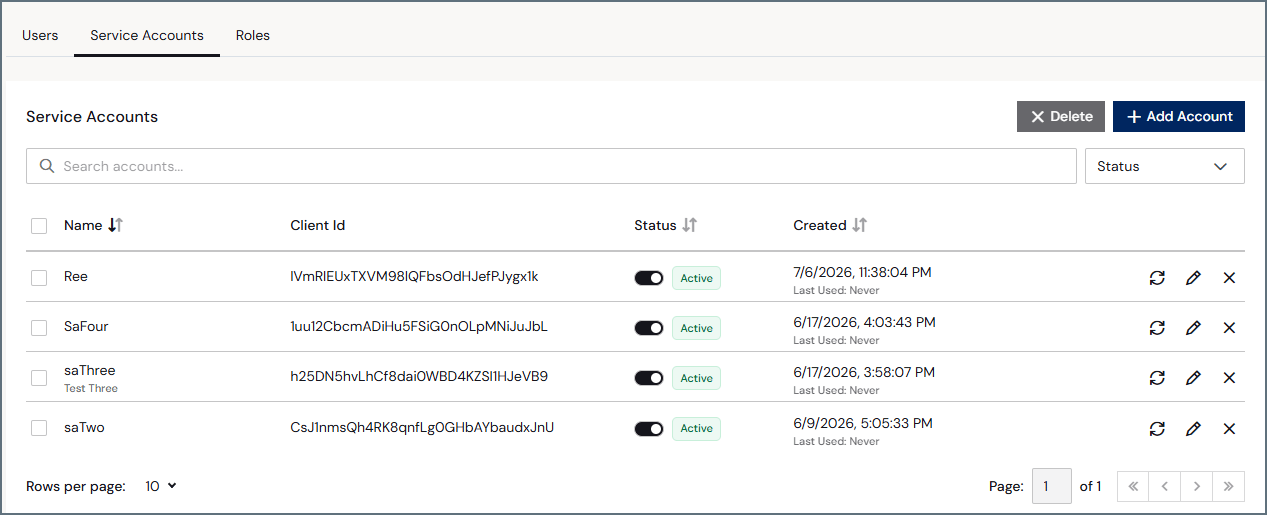 The **Service Accounts** tab contains the following information:
* A row for every service account in your account:
* **Name** is the service account name.
* **Client Id** is the unique identifier used to authenticate the service account via OAuth 2.0 Client Credentials.
* **Status** is the status of the service account (active or inactive). If you deactivate a service account, any services or automations using these credentials will fail on the next request. The service account remains in the registry for audit purposes.
* **Created** is the date and time the service account was created.
* Rotate, edit, and delete icons for the service account. When you rotate credentials, the current credentials stop working immediately. You must update dependent services before the next request.
## Add a Service Account
In the **Service Accounts** tab of the **Users** page, click **Add Account** to open the **Add
Service Account** page.
The **Service Accounts** tab contains the following information:
* A row for every service account in your account:
* **Name** is the service account name.
* **Client Id** is the unique identifier used to authenticate the service account via OAuth 2.0 Client Credentials.
* **Status** is the status of the service account (active or inactive). If you deactivate a service account, any services or automations using these credentials will fail on the next request. The service account remains in the registry for audit purposes.
* **Created** is the date and time the service account was created.
* Rotate, edit, and delete icons for the service account. When you rotate credentials, the current credentials stop working immediately. You must update dependent services before the next request.
## Add a Service Account
In the **Service Accounts** tab of the **Users** page, click **Add Account** to open the **Add
Service Account** page.
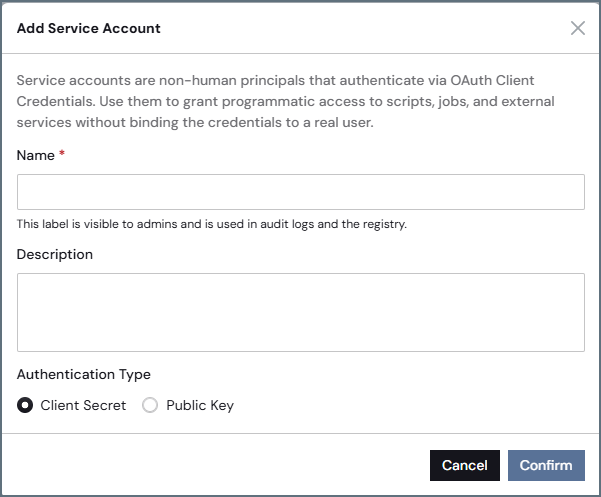 Enter the **Name** of the service account.
Enter a short **Description** of the service account.
Select an **Authentication Type** of **Client Secret** or **Public Key**. If you select **Public
Key**, you are asked to upload the public key (PEM) file (RS256 or ES256).
Click **Confirm** to save the service account.
If you selected **Client Secret**, an **Add Service Account** dialog appears. Copy the
**Client Id** and **Client Secret**. The **Client Secret** only appears once.
Share these credentials with the developer who will authenticate the service account using OAuth 2.0. See
[Service Account Setup](/en/API/Service-Account-Setup) for details.
Click **Done**. An **Edit Service Account** page appears.
Enter the **Name** of the service account.
Enter a short **Description** of the service account.
Select an **Authentication Type** of **Client Secret** or **Public Key**. If you select **Public
Key**, you are asked to upload the public key (PEM) file (RS256 or ES256).
Click **Confirm** to save the service account.
If you selected **Client Secret**, an **Add Service Account** dialog appears. Copy the
**Client Id** and **Client Secret**. The **Client Secret** only appears once.
Share these credentials with the developer who will authenticate the service account using OAuth 2.0. See
[Service Account Setup](/en/API/Service-Account-Setup) for details.
Click **Done**. An **Edit Service Account** page appears.
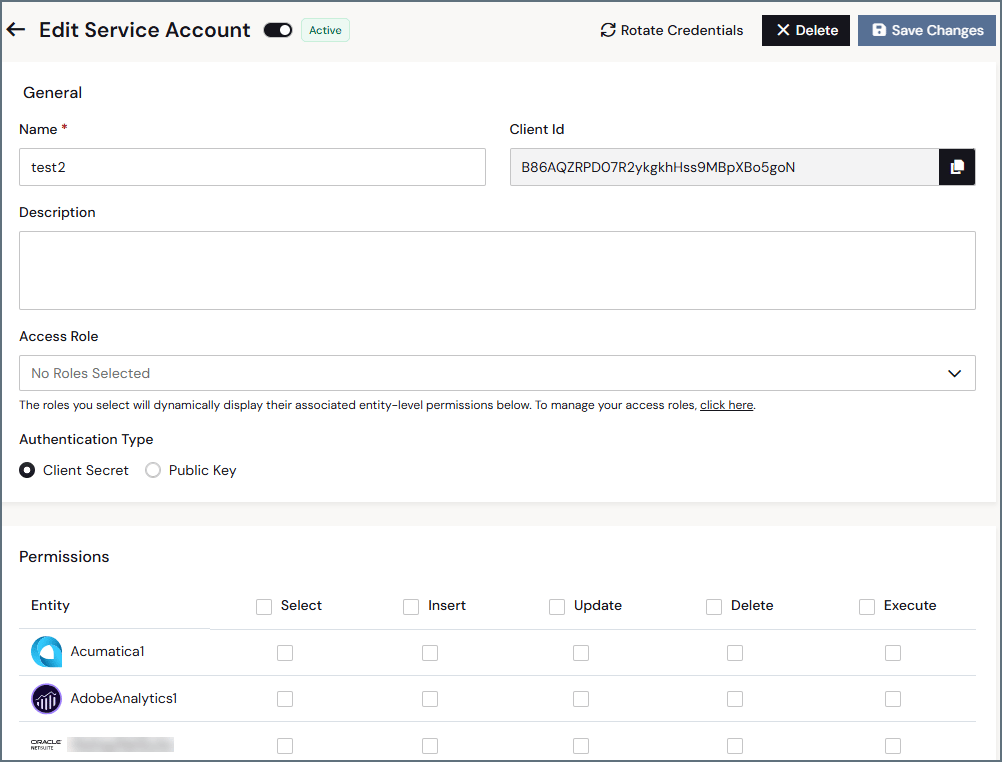 (Optional) Add an **Access Role** to the service account. Selecting an access role automatically
updates the **Permissions** to the entities below.
(Optional) In **Permissions**, manually select the service account's permissions to entities
(data connections and workspaces) in your Connect AI instance. For more information about
permissions, see [Permissions and Access Control](/en/Permissions).
## Edit a Service Account
You can modify any service account, rotate credentials, or delete a service account at any time by clicking the rotate, edit, or delete icons in the **Service Accounts** list.
In the **Edit Service Account** page, you can do the following:
* Edit the **Name** and **Description** fields.
* Add and remove access roles.
* Manually update permissions.
* Rotate credentials (the current credentials will stop working immediately).
* Delete the entire service account.
(Optional) Add an **Access Role** to the service account. Selecting an access role automatically
updates the **Permissions** to the entities below.
(Optional) In **Permissions**, manually select the service account's permissions to entities
(data connections and workspaces) in your Connect AI instance. For more information about
permissions, see [Permissions and Access Control](/en/Permissions).
## Edit a Service Account
You can modify any service account, rotate credentials, or delete a service account at any time by clicking the rotate, edit, or delete icons in the **Service Accounts** list.
In the **Edit Service Account** page, you can do the following:
* Edit the **Name** and **Description** fields.
* Add and remove access roles.
* Manually update permissions.
* Rotate credentials (the current credentials will stop working immediately).
* Delete the entire service account.