> ## Documentation Index
> Fetch the complete documentation index at: https://docs.cloud.cdata.com/llms.txt
> Use this file to discover all available pages before exploring further.
# Routing Rules
> Define how LLM requests are distributed across providers using single, priority failover, or model allowlist rules.
A routing rule determines which LLM provider handles traffic for a project and how Connect AI responds if a provider becomes unavailable. Each project is assigned one routing rule. Projects that do not specify a routing rule inherit the organization's default routing rule.
The **Routing Rules** tab lists all configured routing rules for your organization.
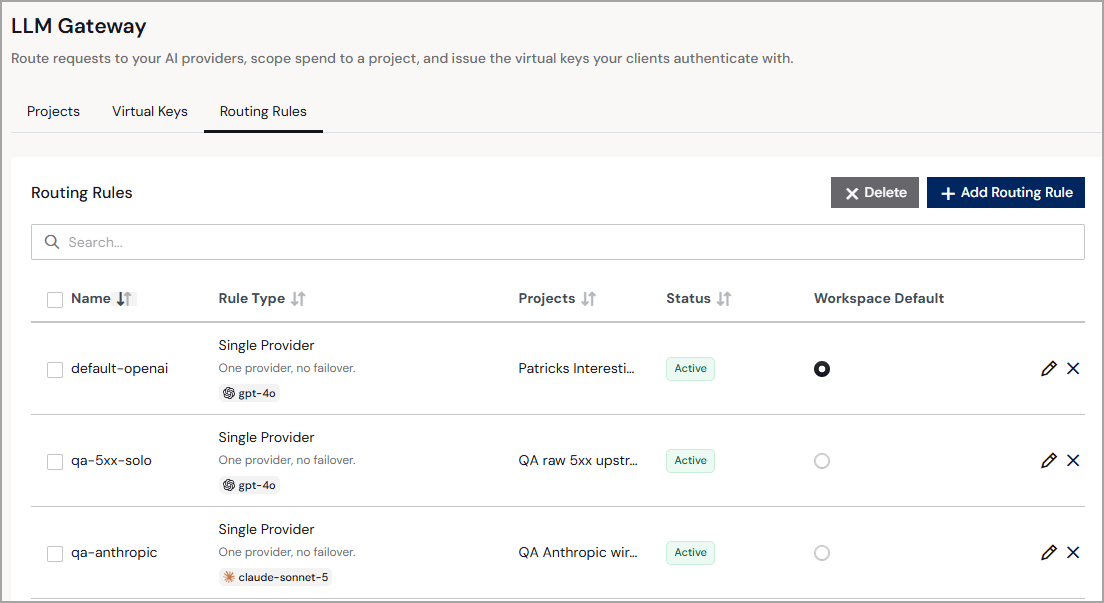 Each routing rule contains the following information:
* **Name**—the name of the routing rule.
* **Rule Type**—the type of routing strategy: **Single**, **Priority Failover**, or **Model Allowlist**.
* **Projects**—the projects that use this rule.
* **Status**—the status of the routing rule: **Active** or **Inactive**.
* **Workspace Default**—indicates whether this routing rule is the organization's default. The default routing rule applies to projects that do not specify a routing rule.
Each routing rule also contains edit and delete icons. You can edit the routing rule **Name**, **Description**, **Rule Type**, and **Provider and Model**.
## Routing Rule Types
Connect AI supports the following routing rule types:
* **Single Provider**—routes all traffic to one provider and model. Use this when you do not require failover.
* **Priority Failover**—routes traffic to a primary provider and automatically fails over to the next provider in the configured chain if the primary provider becomes unavailable. Use this to improve reliability across multiple providers.
* **Model Allowlist**—routes each request to the provider paired with the model the client specified. If the requested model is not on the allowlist, the gateway refuses the request with an error. Use this when you want to approve specific models while letting the client choose among them.
## Add a Routing Rule
To add a new routing rule, do the following:
Click **+ Add Routing Rule**. An **Add Routing Rule** dialog appears.
Enter the following information about the routing rule:
* **Name**—enter the name of the routing rule.
* **Description**—(optional) enter a brief description of the routing rule.
* **Use as default rule for Workspace**—toggle on to set this rule as the default. Projects that do not specify a routing rule use this default rule.
* **Rule Type**—select the routing strategy from the drop-down list. Select **Single provider** if you have one provider. Select **Priority failover** to route traffic to providers in order, with automatic failover if a provider becomes unavailable. Select **Model Allowlist** to define a set of approved model–provider pairs; the client specifies the model in each request, and the gateway forwards it to the paired provider or refuses it if the model is not on the list.
* **Provider and Model**—select the provider and model that you set up on the [**LLM Providers**](/en/LLM-Gateway/LLM-Providers) page.
If you select **Priority failover**, click **+ Add Failover Provider and Model** after entering the primary provider and model. Enter the failover **Provider and Model #2**. Add more failover providers if needed.
If you select **Model Allowlist**, click **+ Add Allowed Providers and Models** to add each approved model–provider pair. You can add up to 50 pairs. If the same model appears more than once, the first entry listed serves the request.
This documentation is built and hosted on [Mintlify](https://mintlify.com), a developer documentation platform.
Each routing rule contains the following information:
* **Name**—the name of the routing rule.
* **Rule Type**—the type of routing strategy: **Single**, **Priority Failover**, or **Model Allowlist**.
* **Projects**—the projects that use this rule.
* **Status**—the status of the routing rule: **Active** or **Inactive**.
* **Workspace Default**—indicates whether this routing rule is the organization's default. The default routing rule applies to projects that do not specify a routing rule.
Each routing rule also contains edit and delete icons. You can edit the routing rule **Name**, **Description**, **Rule Type**, and **Provider and Model**.
## Routing Rule Types
Connect AI supports the following routing rule types:
* **Single Provider**—routes all traffic to one provider and model. Use this when you do not require failover.
* **Priority Failover**—routes traffic to a primary provider and automatically fails over to the next provider in the configured chain if the primary provider becomes unavailable. Use this to improve reliability across multiple providers.
* **Model Allowlist**—routes each request to the provider paired with the model the client specified. If the requested model is not on the allowlist, the gateway refuses the request with an error. Use this when you want to approve specific models while letting the client choose among them.
## Add a Routing Rule
To add a new routing rule, do the following:
Click **+ Add Routing Rule**. An **Add Routing Rule** dialog appears.
Enter the following information about the routing rule:
* **Name**—enter the name of the routing rule.
* **Description**—(optional) enter a brief description of the routing rule.
* **Use as default rule for Workspace**—toggle on to set this rule as the default. Projects that do not specify a routing rule use this default rule.
* **Rule Type**—select the routing strategy from the drop-down list. Select **Single provider** if you have one provider. Select **Priority failover** to route traffic to providers in order, with automatic failover if a provider becomes unavailable. Select **Model Allowlist** to define a set of approved model–provider pairs; the client specifies the model in each request, and the gateway forwards it to the paired provider or refuses it if the model is not on the list.
* **Provider and Model**—select the provider and model that you set up on the [**LLM Providers**](/en/LLM-Gateway/LLM-Providers) page.
If you select **Priority failover**, click **+ Add Failover Provider and Model** after entering the primary provider and model. Enter the failover **Provider and Model #2**. Add more failover providers if needed.
If you select **Model Allowlist**, click **+ Add Allowed Providers and Models** to add each approved model–provider pair. You can add up to 50 pairs. If the same model appears more than once, the first entry listed serves the request.
This documentation is built and hosted on [Mintlify](https://mintlify.com), a developer documentation platform.