> ## Documentation Index
> Fetch the complete documentation index at: https://docs.cloud.cdata.com/llms.txt
> Use this file to discover all available pages before exploring further.
# Data Explorer
> The ***Data Explorer*** page enables you to execute basic queries on your connected data sources, browse your data models, and create derived views. You can also create saved queries, add assets to a workspace, and create cache jobs.
Data Explorer can be useful to:
* Verify that your data sources are connected correctly
* Explore the columns and data types that are available in your data sources
* Search for specific data in your data sources using the SQL Editor or the [Query Builder](/en/QueryBuilder).
When you first open Data Explorer, the interface displays a navigation pane on the left and the query editor on the right. Select whether you want to build your query in the Query Builder or the SQL Editor. If you click **Build Query**, the Query Builder guides you through the steps of creating a query. If you click **SQL Editor**, a simple SQL editor appears.
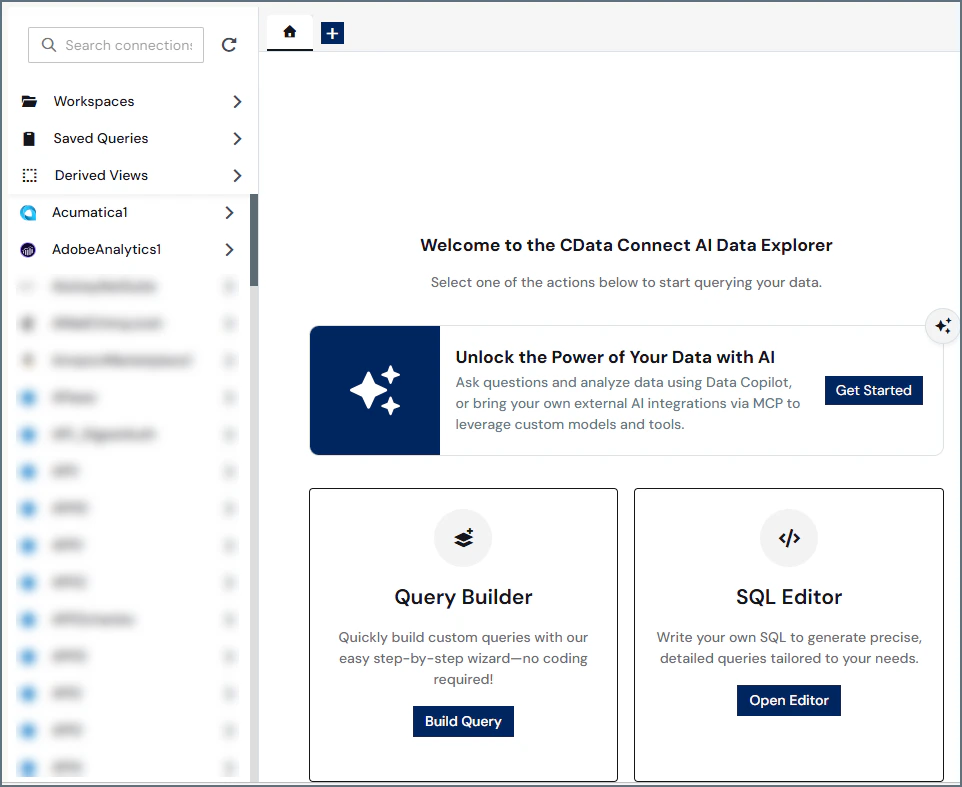 You can use the Data Explorer to view workspaces, saved queries, derived views, and connections. Click the arrow to the right to view the contents of the connection or workspace. Connections may consist of multiple schema. If there is only one schema in a connection, the schema is already open to a list of tables in the schema. If there are multiple schemas, open the desired schema to view the list of tables.
You can use the search bar to search for connections. Once you are within a connection, you can use the search bar to search for schemas and tables.
At any time in the Data Explorer, you can click the **Home** tab on the right side to select between Query Builder and SQL Editor. You can also click the plus button to add a new tab of your choice (Query Builder or SQL Editor). The tab titles display whether the query is a Query Builder query or a SQL Editor query.
## Use the SQL Editor
The SQL Editor allows you to create, modify, and save queries.
For instructions on using the Query Builder to build queries, refer to [Query Builder](/en/QueryBuilder).
### Create a Query in the SQL Editor
Follow these steps to execute a query using the SQL Editor in the Data Explorer:
Select a table or view in a connection or workspace, or select a saved query or derived view. All available items appear in the left column.
* The solid table icon indicates a table.
* The dashed square icon indicates a view.
* The blue double document icon to the right of the item indicates that the item is being cached. See [Caching](/en/Caching) for more information.
Select the data that you want to query.
* To view the SQL query for an entire table or view, click that table or view. Alternatively, click the three dots next to the table or view and select **Open**. The SQL query appears on the right. Column details appear below the SQL query. This query is read-only until you execute it.
* Click the three dots next to the table or view and select **Query** to create a new query based on the table or view. You can edit the query before you execute it.
* Some data source types contain SQL templates for commonly-used queries. These queries appear under **Common Queries** when you expand the connection name. Click the three dots next to the query name and click **Query** to view the query. You can edit the query, if needed, before you execute it.
Alternatively, you can enter a query manually by clicking the + sign in the tab bar and selecting **SQL Editor**. Use SQL syntax in the SQL Editor. Connect AI has an autocomplete feature to assist you with SQL syntax.
You can use the Data Explorer to view workspaces, saved queries, derived views, and connections. Click the arrow to the right to view the contents of the connection or workspace. Connections may consist of multiple schema. If there is only one schema in a connection, the schema is already open to a list of tables in the schema. If there are multiple schemas, open the desired schema to view the list of tables.
You can use the search bar to search for connections. Once you are within a connection, you can use the search bar to search for schemas and tables.
At any time in the Data Explorer, you can click the **Home** tab on the right side to select between Query Builder and SQL Editor. You can also click the plus button to add a new tab of your choice (Query Builder or SQL Editor). The tab titles display whether the query is a Query Builder query or a SQL Editor query.
## Use the SQL Editor
The SQL Editor allows you to create, modify, and save queries.
For instructions on using the Query Builder to build queries, refer to [Query Builder](/en/QueryBuilder).
### Create a Query in the SQL Editor
Follow these steps to execute a query using the SQL Editor in the Data Explorer:
Select a table or view in a connection or workspace, or select a saved query or derived view. All available items appear in the left column.
* The solid table icon indicates a table.
* The dashed square icon indicates a view.
* The blue double document icon to the right of the item indicates that the item is being cached. See [Caching](/en/Caching) for more information.
Select the data that you want to query.
* To view the SQL query for an entire table or view, click that table or view. Alternatively, click the three dots next to the table or view and select **Open**. The SQL query appears on the right. Column details appear below the SQL query. This query is read-only until you execute it.
* Click the three dots next to the table or view and select **Query** to create a new query based on the table or view. You can edit the query before you execute it.
* Some data source types contain SQL templates for commonly-used queries. These queries appear under **Common Queries** when you expand the connection name. Click the three dots next to the query name and click **Query** to view the query. You can edit the query, if needed, before you execute it.
Alternatively, you can enter a query manually by clicking the + sign in the tab bar and selecting **SQL Editor**. Use SQL syntax in the SQL Editor. Connect AI has an autocomplete feature to assist you with SQL syntax.
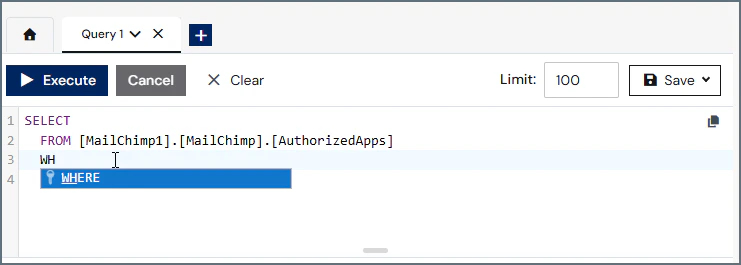 The SQL Editor also autocompletes connection, schema, and table names. Once you pick a connection, autocomplete lets you select a schema from a drop-down list. You can then select a table within the schema.
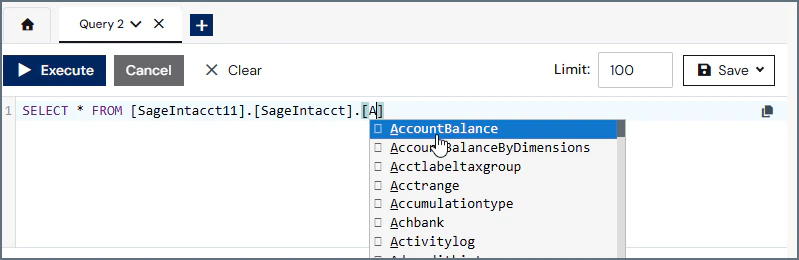 Set the **Limit** field to the number of results that you want to return. By default, the limit is 100. You can set any limit, but you MUST enter a value in this field. (Do not use the SQL LIMIT clause.)
Click **Execute** to run the query.
When you execute the query, a loading icon appears in the **Results** section, along with a time elapsed notification. The loading icon also appears in the query's tab.
If your time elapsed exceeds five minutes, please contact [CData support](https://www.cdata.com/support/submit.aspx) for assistance.
When the query is finished executing, your results appear under the query editor. You can scroll through pages and adjust the number of results per page by using the fields at the bottom of the page. You can also adjust the column widths of the results.
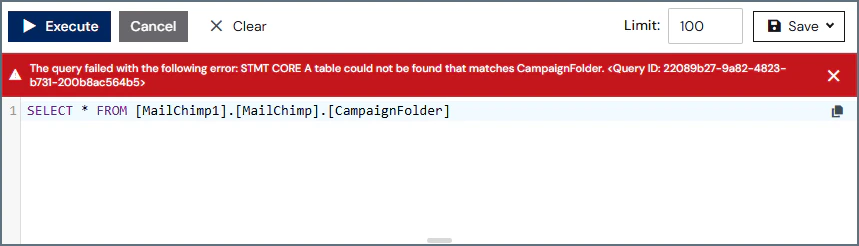
If your query returns an error, an error message appears above the query. An error icon also appears in the query's tab. Click **Learn More** for more details about the error.
Set the **Limit** field to the number of results that you want to return. By default, the limit is 100. You can set any limit, but you MUST enter a value in this field. (Do not use the SQL LIMIT clause.)
Click **Execute** to run the query.
When you execute the query, a loading icon appears in the **Results** section, along with a time elapsed notification. The loading icon also appears in the query's tab.
If your time elapsed exceeds five minutes, please contact [CData support](https://www.cdata.com/support/submit.aspx) for assistance.
When the query is finished executing, your results appear under the query editor. You can scroll through pages and adjust the number of results per page by using the fields at the bottom of the page. You can also adjust the column widths of the results.
If your query returns an error, an error message appears above the query. An error icon also appears in the query's tab. Click **Learn More** for more details about the error.
 ### Modify a Query
After a read-only query executes, a new tab appears with a name such as **Query 1**. You can then modify the query and save it with a new name.
* Modify the query manually by entering query parameters into the query editor.
* Clear the query editor by selecting **Clear** and then clicking **OK** in the prompt that is displayed.
### Save a Query
Data Explorer provides the ability to save queries and return to them later without the need to re-enter the query parameters each time.
After you create and successfully execute a query, the **Save** button at the top of the Data Explorer pane becomes available. Follow these steps to save a query and access it later:
Click **Save** > **Save as Saved Query**. The **Save Query** dialog appears.
Enter a name for the query and click **Confirm**.
The Data Explorer Saved Queries menu opens, and your newly-saved query appears in the list.
You can also click the down arrow to the right of the query's tab and select **Rename Tab**. Rename the query and click **Confirm**.
#### Use Saved Queries
Saved queries are available in the **Saved Queries** folder in the Data Explorer navigation pane, and saved derived views are available in the **Derived Views** folder. To execute a saved query, click the three dots next to the saved query name and select **Query**. The contents of the saved query populate in the Query Editor, and you can click **Execute** to retrieve the results.
You can also rename and delete saved queries when you click the three dots.
## Add to a Workspace
You can use the Data Explorer to add assets to a workspace.
Click the table or view you want to add to a workspace. Connect AI calls contents of a workspace *assets*.
Click the three dots next to the asset and select **Add to Workspace**.
Select the workspace to move the asset to and click **Confirm**.
## Configure Derived Views
The *derived views* feature of Data Explorer allows you to create and save queries that return dynamically populated data results from your connections. You can query your saved derived views from [Integrations](/en/Integrations), and the results automatically update when the data in your connections changes.
Only administrators of Connect AI can create or modify derived views. Query users can query saved derived views created by an administrator.
### Create a Derived View
To create a new derived view, follow these steps:
Create the query in the Query Builder or SQL Editor. After you execute the query, the **Save** button appears. Click **Save** > **Save as Derived View**. The **Create Derived View** dialog appears.
Enter a name for the derived view in the **View Name** field. This is the name that appears in the list of saved derived views.
Click **Confirm** to save the derived view.
### Access a Derived View in Integrations
When issuing queries to a derived view from within an integration tool, set the Connection or Database value to *CData*. The following syntax shows the correct fully-qualified syntax for accessing a derived view:
```sql theme={null}
SELECT * FROM [CData].[DerivedViews].[SampleDerivedView]
```
Substitute the name of your derived view for the \[SampleDerivedView] value in the example above.
### Access a Derived View in Data Explorer
After you create a derived view, it appears in the list of derived views in Data Explorer. You can click the three dots next to the entry in the list to open a list of options.
### Modify a Query
After a read-only query executes, a new tab appears with a name such as **Query 1**. You can then modify the query and save it with a new name.
* Modify the query manually by entering query parameters into the query editor.
* Clear the query editor by selecting **Clear** and then clicking **OK** in the prompt that is displayed.
### Save a Query
Data Explorer provides the ability to save queries and return to them later without the need to re-enter the query parameters each time.
After you create and successfully execute a query, the **Save** button at the top of the Data Explorer pane becomes available. Follow these steps to save a query and access it later:
Click **Save** > **Save as Saved Query**. The **Save Query** dialog appears.
Enter a name for the query and click **Confirm**.
The Data Explorer Saved Queries menu opens, and your newly-saved query appears in the list.
You can also click the down arrow to the right of the query's tab and select **Rename Tab**. Rename the query and click **Confirm**.
#### Use Saved Queries
Saved queries are available in the **Saved Queries** folder in the Data Explorer navigation pane, and saved derived views are available in the **Derived Views** folder. To execute a saved query, click the three dots next to the saved query name and select **Query**. The contents of the saved query populate in the Query Editor, and you can click **Execute** to retrieve the results.
You can also rename and delete saved queries when you click the three dots.
## Add to a Workspace
You can use the Data Explorer to add assets to a workspace.
Click the table or view you want to add to a workspace. Connect AI calls contents of a workspace *assets*.
Click the three dots next to the asset and select **Add to Workspace**.
Select the workspace to move the asset to and click **Confirm**.
## Configure Derived Views
The *derived views* feature of Data Explorer allows you to create and save queries that return dynamically populated data results from your connections. You can query your saved derived views from [Integrations](/en/Integrations), and the results automatically update when the data in your connections changes.
Only administrators of Connect AI can create or modify derived views. Query users can query saved derived views created by an administrator.
### Create a Derived View
To create a new derived view, follow these steps:
Create the query in the Query Builder or SQL Editor. After you execute the query, the **Save** button appears. Click **Save** > **Save as Derived View**. The **Create Derived View** dialog appears.
Enter a name for the derived view in the **View Name** field. This is the name that appears in the list of saved derived views.
Click **Confirm** to save the derived view.
### Access a Derived View in Integrations
When issuing queries to a derived view from within an integration tool, set the Connection or Database value to *CData*. The following syntax shows the correct fully-qualified syntax for accessing a derived view:
```sql theme={null}
SELECT * FROM [CData].[DerivedViews].[SampleDerivedView]
```
Substitute the name of your derived view for the \[SampleDerivedView] value in the example above.
### Access a Derived View in Data Explorer
After you create a derived view, it appears in the list of derived views in Data Explorer. You can click the three dots next to the entry in the list to open a list of options.
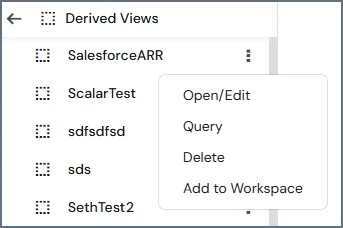 * Select **Open/Edit** to open the derived view in the query editor and edit the view.
* Select **Delete** to remove the derived view from the list.
* Select **Query** to execute the query. The contents of the derived view appear in the Data Explorer query view, and you can then click **Execute** to view the query results.
* Select **Add to Workspace** to add the derived view to a workspace. An **Add to Workspace** dialog appears to select the workspace.
### Modify a Derived View
To modify the query of a derived view, use one of the methods outlined above to access it. With the derived view open, modify the text in the query field as needed and click **Save Changes** at the top of the Data Explorer.
To rename a derived view, click the three dots next to the entry in the list and select **Rename**. Enter the new name in the dialog that appears and click **Confirm**.
### Delete a Derived View
To delete a derived view, click the three dots next to the entry in the list and select **Delete**. In the confirmation dialog that appears, click **Delete** again.
Deleting a derived view does not affect data in the source.
## Create Scheduled Queries
You can save a query as a scheduled query. A scheduled query runs at user-defined intervals.
To create a scheduled query:
Create your query using the Query Builder or the SQL Editor.
Click **Save** > **Save as Scheduled Query**.
You then enter the details about the scheduled query, such as how often it runs. See [Scheduled Queries](/en/Scheduled-Queries) for details.
## Add to a Workspace
You can use the Data Explorer to add assets to a workspace.
Click the table or view you want to add to a workspace. Connect AI calls contents of a workspace *assets*.
Click the three dots next to the asset and select **Add to Workspace**.
Select the workspace to move the asset to and click **Confirm**.
## Add a Cache Job
You can use the Data Explorer to cache the data for a table or view. Caching allows you to fetch cached data from a database instead of retrieving live data, improving performance. See [Caching](/en/Caching) for details.
To add a cache job:
Click the table or view you want to cache.
Click the three dots next to the asset and select **Add Cache Job**. You are redirected to the **Edit Job** page.
Follow the instructions in [Edit a Cache Job](/en/Caching#edit-a-cache-job).
* Select **Open/Edit** to open the derived view in the query editor and edit the view.
* Select **Delete** to remove the derived view from the list.
* Select **Query** to execute the query. The contents of the derived view appear in the Data Explorer query view, and you can then click **Execute** to view the query results.
* Select **Add to Workspace** to add the derived view to a workspace. An **Add to Workspace** dialog appears to select the workspace.
### Modify a Derived View
To modify the query of a derived view, use one of the methods outlined above to access it. With the derived view open, modify the text in the query field as needed and click **Save Changes** at the top of the Data Explorer.
To rename a derived view, click the three dots next to the entry in the list and select **Rename**. Enter the new name in the dialog that appears and click **Confirm**.
### Delete a Derived View
To delete a derived view, click the three dots next to the entry in the list and select **Delete**. In the confirmation dialog that appears, click **Delete** again.
Deleting a derived view does not affect data in the source.
## Create Scheduled Queries
You can save a query as a scheduled query. A scheduled query runs at user-defined intervals.
To create a scheduled query:
Create your query using the Query Builder or the SQL Editor.
Click **Save** > **Save as Scheduled Query**.
You then enter the details about the scheduled query, such as how often it runs. See [Scheduled Queries](/en/Scheduled-Queries) for details.
## Add to a Workspace
You can use the Data Explorer to add assets to a workspace.
Click the table or view you want to add to a workspace. Connect AI calls contents of a workspace *assets*.
Click the three dots next to the asset and select **Add to Workspace**.
Select the workspace to move the asset to and click **Confirm**.
## Add a Cache Job
You can use the Data Explorer to cache the data for a table or view. Caching allows you to fetch cached data from a database instead of retrieving live data, improving performance. See [Caching](/en/Caching) for details.
To add a cache job:
Click the table or view you want to cache.
Click the three dots next to the asset and select **Add Cache Job**. You are redirected to the **Edit Job** page.
Follow the instructions in [Edit a Cache Job](/en/Caching#edit-a-cache-job).