> ## Documentation Index
> Fetch the complete documentation index at: https://docs.cloud.cdata.com/llms.txt
> Use this file to discover all available pages before exploring further.
# Codex
> Codex is OpenAI's AI coding agent. This page explains how to connect Codex to the Connect AI MCP server.
Connect AI uses OAuth authentication by default, but you can also use Basic authentication with a Personal Access Token (PAT).
## Prerequisites
Before you can configure and use Codex with Connect AI, you must first do the following:
* Connect a data source to your Connect AI account. See [Sources](/en/Sources) for more information.
* Install [Node.js](https://nodejs.org) 18 or later.
* Have a ChatGPT plan that includes Codex (Plus, Pro, Business, Edu, or Enterprise), or an OpenAI API key.
* (Basic authentication only) Generate a Personal Access Token (PAT) on the [Settings](/en/Settings#personal-access-tokens) page. Copy this down, as it acts as your password during authentication.
## Connect to Connect AI
### OAuth Authentication
Install the Codex CLI globally:
```bash theme={null}
npm install -g @openai/codex
```
Start Codex and sign in:
```bash theme={null}
codex
```
The first time you run Codex, select **Sign in with ChatGPT** and complete the authentication in your browser. To use an API key instead, set the `OPENAI_API_KEY` environment variable.
Register the Connect AI MCP server. Open your Codex configuration file at `~/.codex/config.toml` and add the following:
```toml theme={null}
[mcp_servers.connectai]
url = "https://mcp.cloud.cdata.com/mcp"
startup_timeout_sec = 30
```
Authenticate to the Connect AI MCP server:
```bash theme={null}
codex mcp login connectai
```
Complete the OAuth flow in your browser. Signing in with ChatGPT authenticates you to Codex, but you must run this command separately to authenticate to the Connect AI MCP server. Once you have authenticated, the message `Successfully logged in to MCP server 'connectai'` appears.
Confirm that Codex registered the server:
```bash theme={null}
codex mcp list
```
### Basic Authentication
Install the Codex CLI globally:
```bash theme={null}
npm install -g @openai/codex
```
Start Codex and sign in:
```bash theme={null}
codex
```
The first time you run Codex, select **Sign in with ChatGPT** and complete the authentication in your browser. To use an API key instead, set the `OPENAI_API_KEY` environment variable.
Register the Connect AI MCP server. Open your Codex configuration file at `~/.codex/config.toml` and add the following:
```toml theme={null}
[mcp_servers.connectai]
url = "https://mcp.cloud.cdata.com/mcp"
http_headers = { "Authorization" = "Basic " }
startup_timeout_sec = 30
```
Replace `` with the Base64-encoded value of your Connect AI email and PAT, in the format `email:PAT`.
Confirm that Codex registered the server:
```bash theme={null}
codex mcp list
```
## Start a Codex Session
Start a Codex session and explore your data with natural language prompts. Codex uses the Connect AI MCP server to query your live data.
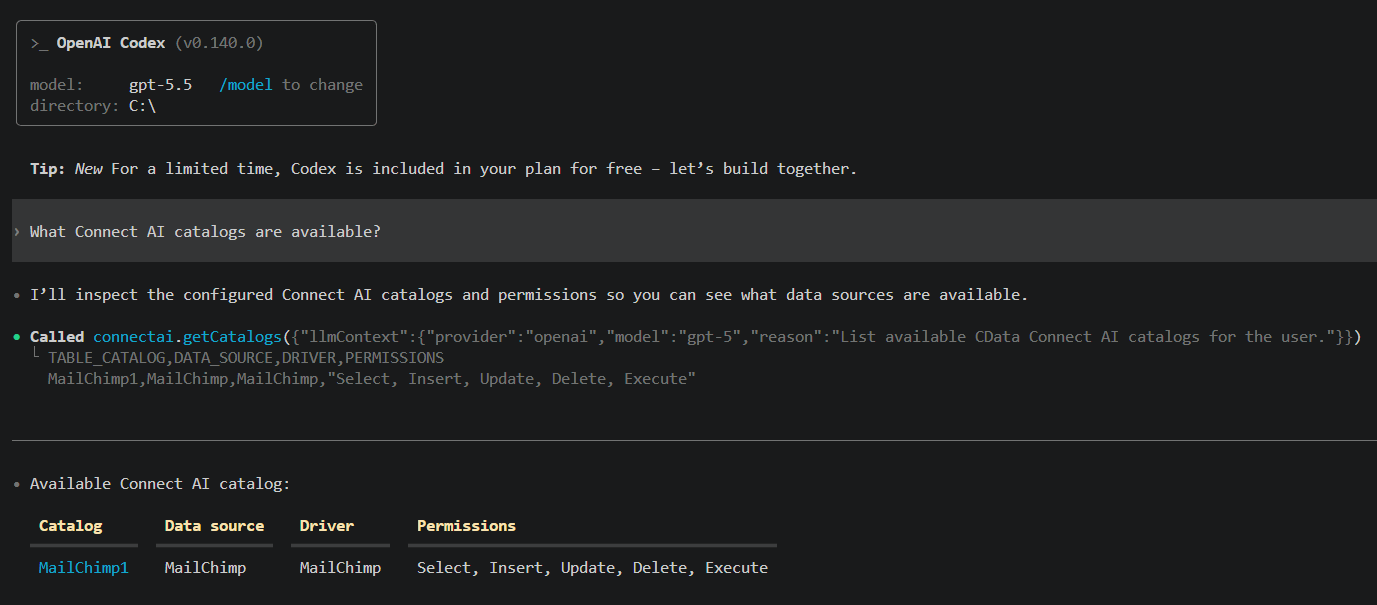 Refer to CData's [prompt library](https://www.cdata.com/ai/prompt-library/) for prompt ideas.
If Codex reports that MCP startup is incomplete, the server did not initialize within Codex's default 10-second startup window. Increase `startup_timeout_sec` in the server configuration (for example, to `30` or higher), then start Codex again. First-time connections and OAuth flows often need the extra time.
Codex's MCP support and setup process are subject to change. Refer to OpenAI's [Codex MCP documentation](https://developers.openai.com/codex/mcp) for the latest setup information.
Refer to CData's [prompt library](https://www.cdata.com/ai/prompt-library/) for prompt ideas.
If Codex reports that MCP startup is incomplete, the server did not initialize within Codex's default 10-second startup window. Increase `startup_timeout_sec` in the server configuration (for example, to `30` or higher), then start Codex again. First-time connections and OAuth flows often need the extra time.
Codex's MCP support and setup process are subject to change. Refer to OpenAI's [Codex MCP documentation](https://developers.openai.com/codex/mcp) for the latest setup information.