> ## Documentation Index
> Fetch the complete documentation index at: https://docs.cloud.cdata.com/llms.txt
> Use this file to discover all available pages before exploring further.
# Codex
> Codex is OpenAI's AI coding agent. This page explains how to connect Codex to the Connect AI MCP server.
## Prerequisites
Before you can configure and use Codex with Connect AI Embed, you must first do the following:
* Install [Node.js](https://nodejs.org) 18 or later.
* Have a ChatGPT plan that includes Codex (Plus, Pro, Business, Edu, or Enterprise), or an OpenAI API key.
* Generate an [OAuth JWT bearer token](/en/API/Authentication-Embedded). Copy this down, as it acts as your password during authentication.
## Connect Codex to the Connect AI MCP
Install the Codex CLI globally:
```bash theme={null}
npm install -g @openai/codex
```
Start Codex and sign in:
```bash theme={null}
codex
```
The first time you run Codex, select **Sign in with ChatGPT** and complete the authentication in your browser. To use an API key instead, set the `OPENAI_API_KEY` environment variable.
Register the Connect AI MCP server. Open your Codex configuration file at `~/.codex/config.toml` and add the following:
```toml theme={null}
[mcp_servers.connectai]
url = "https://mcp.cloud.cdata.com/mcp"
http_headers = { "Authorization" = "Bearer {Your_OAuth_JWT_Token}" }
startup_timeout_sec = 30
```
Replace `{Your_OAuth_JWT_Token}` with the OAuth JWT bearer token you generated in the prerequisites.
OAuth JWT bearer tokens are short-lived, and Codex passes the token as-is without refreshing it. When the token expires, generate a new one, update the `Authorization` header value, and start Codex again.
Confirm that Codex registered the server:
```bash theme={null}
codex mcp list
```
## Start a Codex Session
Start a Codex session and explore your data with natural language prompts. Codex uses the Connect AI MCP server to query your live data.
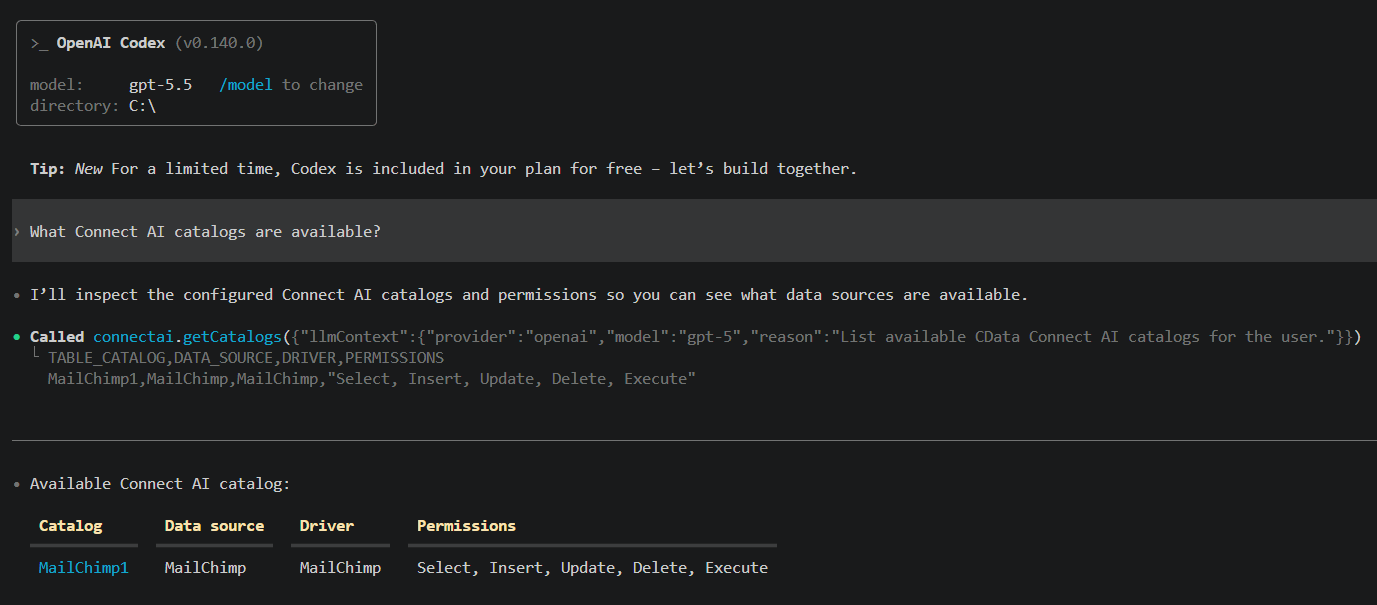 Refer to CData's [prompt library](https://www.cdata.com/ai/prompt-library/) for prompt ideas.
If Codex reports that MCP startup is incomplete, the server did not initialize within Codex's default 10-second startup window. Increase `startup_timeout_sec` in the server configuration (for example, to `30` or higher), then start Codex again. First-time connections often need the extra time.
Codex's MCP support and setup process are subject to change. Refer to OpenAI's [Codex MCP documentation](https://developers.openai.com/codex/mcp) for the latest setup information.
Refer to CData's [prompt library](https://www.cdata.com/ai/prompt-library/) for prompt ideas.
If Codex reports that MCP startup is incomplete, the server did not initialize within Codex's default 10-second startup window. Increase `startup_timeout_sec` in the server configuration (for example, to `30` or higher), then start Codex again. First-time connections often need the extra time.
Codex's MCP support and setup process are subject to change. Refer to OpenAI's [Codex MCP documentation](https://developers.openai.com/codex/mcp) for the latest setup information.